


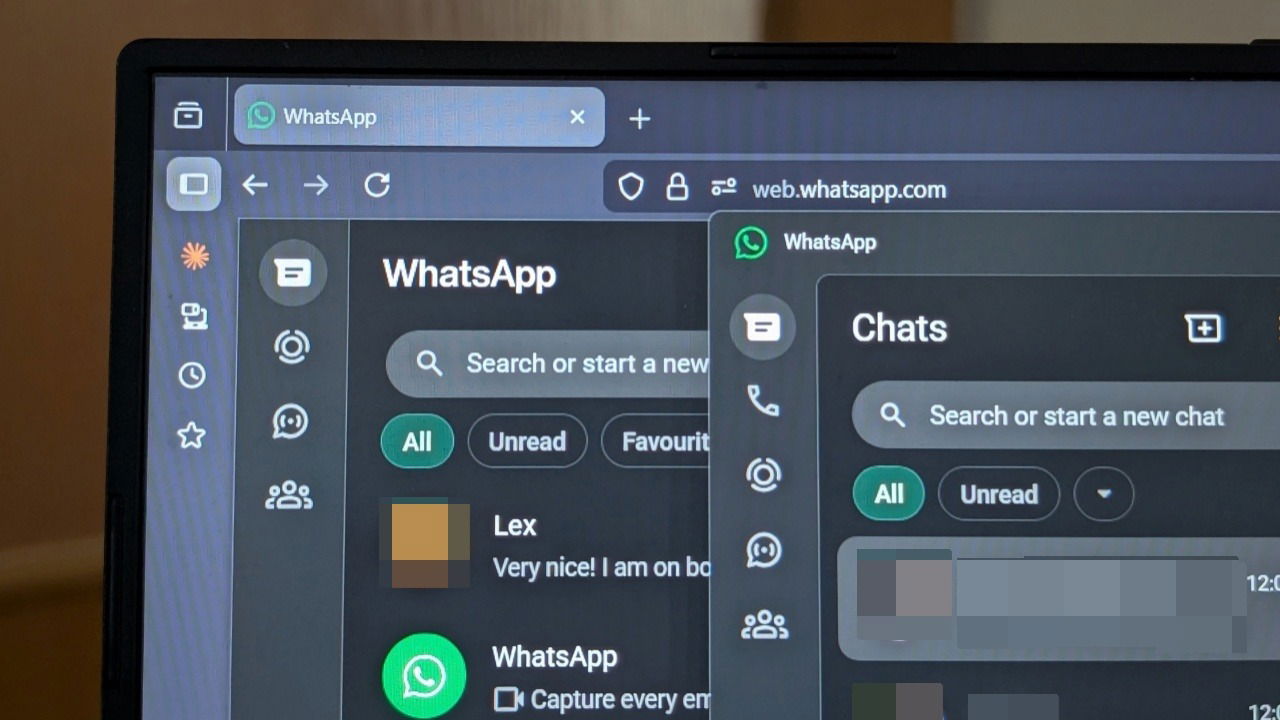
If you’ve ever been in a heated discussion on WhatsApp, typing on your phone probably felt limiting. Fortunately, WhatsApp makes it easy to continue your chats on your computer, where a full-sized keyboard and large display make communication much easier. Not to mention, it supports better multitasking while you’re working. Here’s how to unleash your WhatsApp desktop experience.
How to Use WhatsApp Web
If you want to use WhatsApp on PC, you have two options. The first one is WhatsApp Web, which is accessible through your browser. There are two methods of connecting your WhatsApp account to your PC.
Scan the QR code
Navigate to web.whatsapp.com in Chrome, Firefox, or whatever browser you use.

Turn on your phone and scan the QR code on the PC screen with the camera. This will open WhatsApp on your mobile device. On iPhone, tap Open link and then Continue. On Android, simply tap Continue.

Finally, scan the QR code again to load WhatsApp in your browser.
Use your phone number
Instead of scanning QR code, click the link Log in with phone number.
On the next screen, enter your phone number.

A code will appear, which you need to input in the mobile app.

On your phone, you should have received a notification to enter a code to link the new device. Tap it and confirm you wish to link a device. Then input the code from PC.

How to Use WhatsApp Desktop App
WhatsApp also offers a dedicated desktop app that allows you to access your conversations without relying on a browser. You will first need to download the application for your Windows or Mac computer.
Connecting on either platform involves open the app, then either scanning a QR code on PC with your phone, or logging in with your phone number, as above.

Alternatively, you can initiate pairing via the WhatsApp mobile app. On Android, tap the three dots in the upper right corner, while on iOS select the You option in the bottom menu. Select Linked devices.

Tap Link device and then go ahead and scan the QR code that appears on PC with your phone.
Once your phone scans the code, your computer will automatically sign you in and show your conversations.
If you’re a Windows user, there’s an alternative way to use WhatsApp on laptop or PC via th PhoneLink app. You can check the steps to do so here.
The WhatsApp desktop app isn’t officially available for Linux users, but you can try using a third-party WhatsApp client instead. Or you can use WhatsApp Web on your Linux PC.
WhatsApp on iPad
For a very long time, WhatsApp didn’t offer a dedicated app for iPad. That finally changed last year when Meta launched the app in the App Store. However, your tablet needs to run iOS 15 or above, which means a lot of older iPads won’t be able to run this app.
Fortunately, the old method to access WhatsApp Web in your browser on iPad still works.
Key Features and Limitations of Using WhatsApp on Desktop/Web
WhatsApp Web and desktop automatically sync all your chats, media, and notifications from your mobile device. Over time, WhatsApp has also ported many of features of the mobile app to PC. For instance, I recently discovered that you can add new contacts from your computer or even enable an app lock.

You can also create a WhatsApp Status complete with stickers, GIFs, and more. WhatsApp Channels and Communities are also available.
If you want to be able to access your WhatsApp mobile account on all your computers and laptops, you can link up to 4 different devices, making it easy to stay connected across every device.
That said, there are some limitations to using WhatsApp Web or desktop. For instance, while Meta finally launched voice and video calls in the WhatsApp desktop client, the Web version does not support this. You can’t export your WhatsApp chat history either (not natively), in both Web and desktop versions. At the same time, you can’t share your location or create/view broadcast lists.
Yet despite these constraints, WhatsApp Web or desktop can still be a convenient option for most users.
Now that you know how to use WhatsApp on desktop, explore more useful tips by reading about the most reliable ways to read WhatsApp messages without opening them.
