
Close Menu
Financblog
    What's Hot

    My husband and I are 75. We have $1.5 million in stocks and $425,000 in savings. Is that too much cash?

    June 7, 2026

    Wall Street hated these 15 stocks. Then their earnings proved the analysts wrong.

    June 7, 2026

    CARL App Review: Digital Hedge Fund Investing For Accredited Investors

    June 7, 2026
    Facebook X (Twitter) Instagram
    Financblog
    Facebook X (Twitter) Instagram
    • Home
    • Personal Finance
    • Passive Income
    • Saving Tips
    • Banking
    • Loans
    Financblog
    Home»Saving Tips»Stop Chrome from Auto-Downloading Gemini Nano in Windows
    Saving Tips

    Stop Chrome from Auto-Downloading Gemini Nano in Windows

    administraciónBy administraciónMarch 20, 2026No Comments4 Mins Read
    Facebook Twitter LinkedIn Telegram Pinterest Tumblr Reddit WhatsApp Email
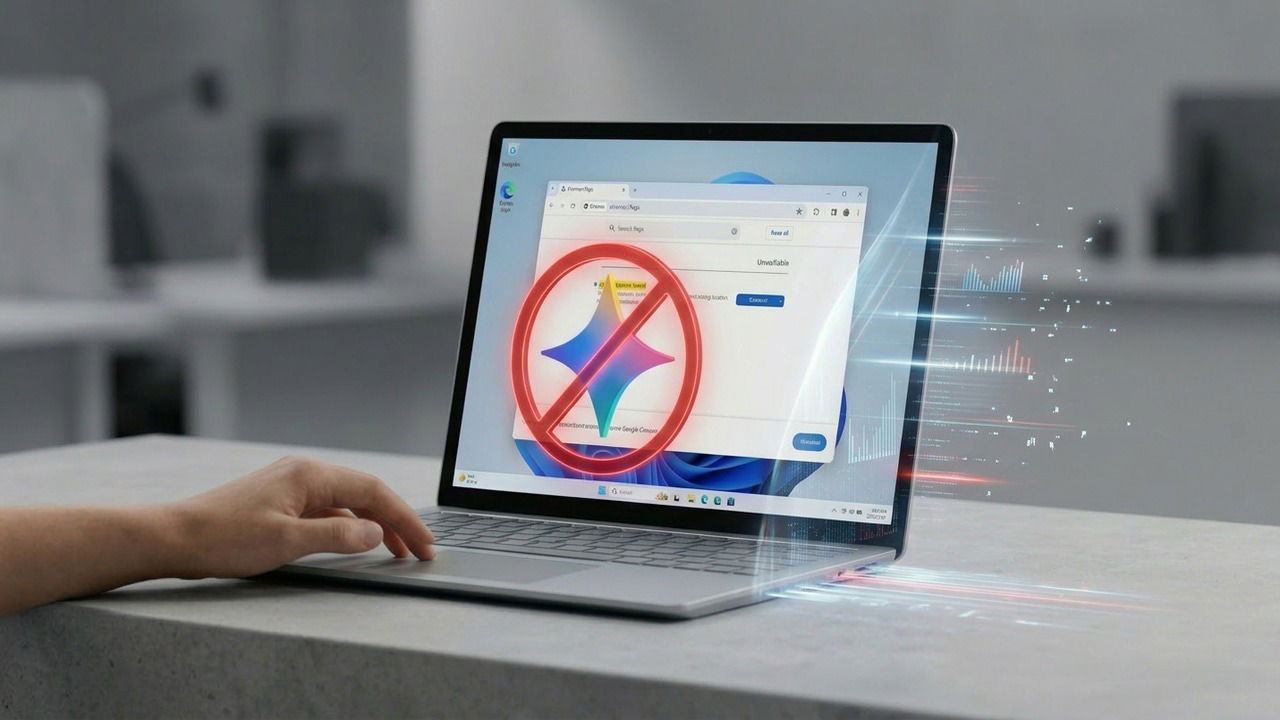
    Windows 11 laptop on a table with a hand on keyboard. Display showing Chrome with Gemini block icon
    Share
    Facebook Twitter LinkedIn Pinterest Email

    If you notice the Google Chrome folder has suddenly grown by several gigabytes, there is no need to panic. This storage spike is caused by the browser automatically download a large “weights.bin” file for Gemini Nano on-device AI. This guide explains how this file impacts your browser and how you can stop Chrome from downloading it.

    Why Chrome is Downloading Gemini Nano

    Google has introduced a bunch of on-device AI features in Chrome, like Help Me Write, AI History Search, Tab Organizer, etc. These features don’t use the regular Google Gemini API; instead, they work offline by using the lightweight on-device Gemini Nano model. This allows Chrome to keep your data offline when you use these features and ensure results are instantaneous as queries don’t need a round-trip to servers.

    If you use any of these AI features, Chrome will automatically trigger the “weights.bin” file download in the background that will make Gemini Nano available for offline use. The file is anywhere between 1.5GB and 4GB in size, depending on your PC specs. You can find the file by pasting the following location in File Explorer’s address bar in Windows:

    %LOCALAPPDATA%\Google\Chrome\User Data\OptGuideOnDeviceModel

    While Gemini Nano is necessary for Chrome’s AI features to work, the possible 4GB download for a browser is quite big, especially if you already have low storage in the system drive.

    Delete the weights.bin File

    If you don’t need Chrome’s AI features or you have already disabled AI bloat, you might be wondering if you can safely delete the weights.bin file or not. While technically you can delete the file, and it will free up space temporarily, this isn’t a permanent solution. Chrome has a Component Updater background service that is supposed to ensure internal modules are present and up to date. It will just download the file again when you restart Chrome or interact with an AI feature.

    Even if you remove the file contents and make it read-only, Chrome will still restore it in the next update when the file’s data is updated. Your best bet is to prevent Chrome from downloading the weights.bin file in the first place.

    To disable Gemini Nano dependency in Chrome, there are two ways: you can either disable the associated Chrome flags or apply an enterprise policy via Windows Registry to prevent the weights.bin download. Here’s how:

    Stop Chrome from Downloading Gemini Nano Using Chrome Flags

    The easiest method to stop the Gemini Nano download is to disable the dedicated Chrome flags. The problem with this method is that Chrome flags change and reset all the time, so there is a chance this will stop working in the future. However, to quickly stop Gemini Nano downloads for now, this method works fine.

    Type chrome://flags in the Chrome address bar and press Enter. Here, search for “optimization guide on device” and select Disabled next to the Enables optimization guide on device flag.

    Disabling Optimize Guide On Device flag in Chrome

    Afterward, search for “prompt API for gemini nano” and disable Prompt API for Gemini Nano as well. Relaunch Chrome for changes to take effect.

    Disabling Gemini Nano

    This will stop Gemini Nano downloads, but you’ll still have to delete the weights.bin file in “%LOCALAPPDATA%\Google\Chrome\User Data\OptGuideOnDeviceModel” to free up the space.

    Use Windows Registry Hack to Stop Chrome from Downloading Gemini Nano

    There is an enterprise-level policy that can force Chrome to never download Gemini Nano. Chrome is forced to respect enterprise policies, so it won’t use its own logic/updates to circumvent this change, making it permanent. You can enforce this policy via the Windows Registry.

    Warning: make sure you back up the Registry before making the following changes, as any incorrect change in the Registry can lead to system corruption and data loss.

    Open the Windows Registry and move to the following location:

    HKEY_LOCAL_MACHINE\SOFTWARE\Policies

    Right-click the Policies folder and select New → Key. Name this key Google. Repeat the same steps to create another folder under the new Google folder and name it Chrome.

    Creating a New Folder in Windows Registry

    Now, while the Chrome folder is selected, right-click in the right panel and select New → DWORD (32-bit) Value and name it GenAILocalFoundationalModelSettings. Afterward, double-click on it and set its value to 1.

    Disabling Gemini Nano Download from Registry

    You’ll have to restart Windows for the changes to take effect, and delete the weights.bin file to reclaim the space.

    After preventing Gemini Nano from downloading, only the AI features that depend on it will stop working. The features that use the cloud version will still work fine, like AI Mode or Gemini in the side panel. If you are doing this for performance, there are better ways to speed up Chrome.

    AutoDownloading Chrome Gemini Nano Stop Windows
    Share. Facebook Twitter Pinterest LinkedIn Tumblr Telegram Email
    Previous ArticleUnilever shift to beauty proceeds with talks to sell division that sells mayonnaise and Marmite
    Next Article Federal Reserve Board – Federal Reserve Board issues enforcement actions with former employee of Ally Bank and former employee of Regions Bank
    administración
    • Website

    Related Posts

    In May 2017, an NSA contractor named Reality Winner mailed a printed classified document to a news outlet, and federal agents identified her within days because the yellow tracking dots on the page named the exact printer in her office and the minute she had pressed print.

    June 6, 2026

    When Harvard astronomer Cecilia Payne submitted her 1925 doctoral thesis arguing that the Sun was made almost entirely of hydrogen, the field’s senior figure Henry Norris Russell talked her into adding a line calling the result ‘almost certainly not real,’ and then published the same conclusion himself four years later to widespread acclaim.

    June 6, 2026

    Tristan Harris, Google’s former design ethicist, told the US Senate that the pull-to-refresh gesture on nearly every app works like the lever of a Las Vegas slot machine, and he has long warned that we now reach for our phones around 150 times a day without ever calling it gambling

    June 6, 2026
    Add A Comment
    Leave A Reply Cancel Reply

    Top Posts

    My husband and I are 75. We have $1.5 million in stocks and $425,000 in savings. Is that too much cash?

    June 7, 2026

    Wall Street hated these 15 stocks. Then their earnings proved the analysts wrong.

    June 7, 2026

    CARL App Review: Digital Hedge Fund Investing For Accredited Investors

    June 7, 2026

    Subscribe to Updates

    Get the latest sports news from SportsSite about soccer, football and tennis.

    About Us

    Welcome to FinancBlog, your trusted online resource for personal finance insights, money management tips, and financial education designed to help you make smarter financial decisions.
    At FinancBlog, our mission is simple: to make personal finance easy, understandable, and accessible for everyone. Whether you are looking to save more money, understand banking products, explore loans, or build passive income streams, we provide well-researched and easy-to-read information to guide you.

    Facebook X (Twitter) Instagram Pinterest YouTube
    a1
    Top Insights

    My husband and I are 75. We have $1.5 million in stocks and $425,000 in savings. Is that too much cash?

    June 7, 2026

    Wall Street hated these 15 stocks. Then their earnings proved the analysts wrong.

    June 7, 2026

    CARL App Review: Digital Hedge Fund Investing For Accredited Investors

    June 7, 2026
    Get Informed

    Subscribe to Updates

    Get the latest creative news from FooBar about art, design and business.

    © 2026 inancblog.com. All rights reserved. Designed by DD.

    • About Us
    • Contact Us
    • Terms & Conditions
    • Privacy Policy
    • Disclaimer

    Type above and press Enter to search. Press Esc to cancel.

    Ad Blocker Enabled!
    Ad Blocker Enabled!
    Our website is made possible by displaying online advertisements to our visitors. Please support us by disabling your Ad Blocker.