


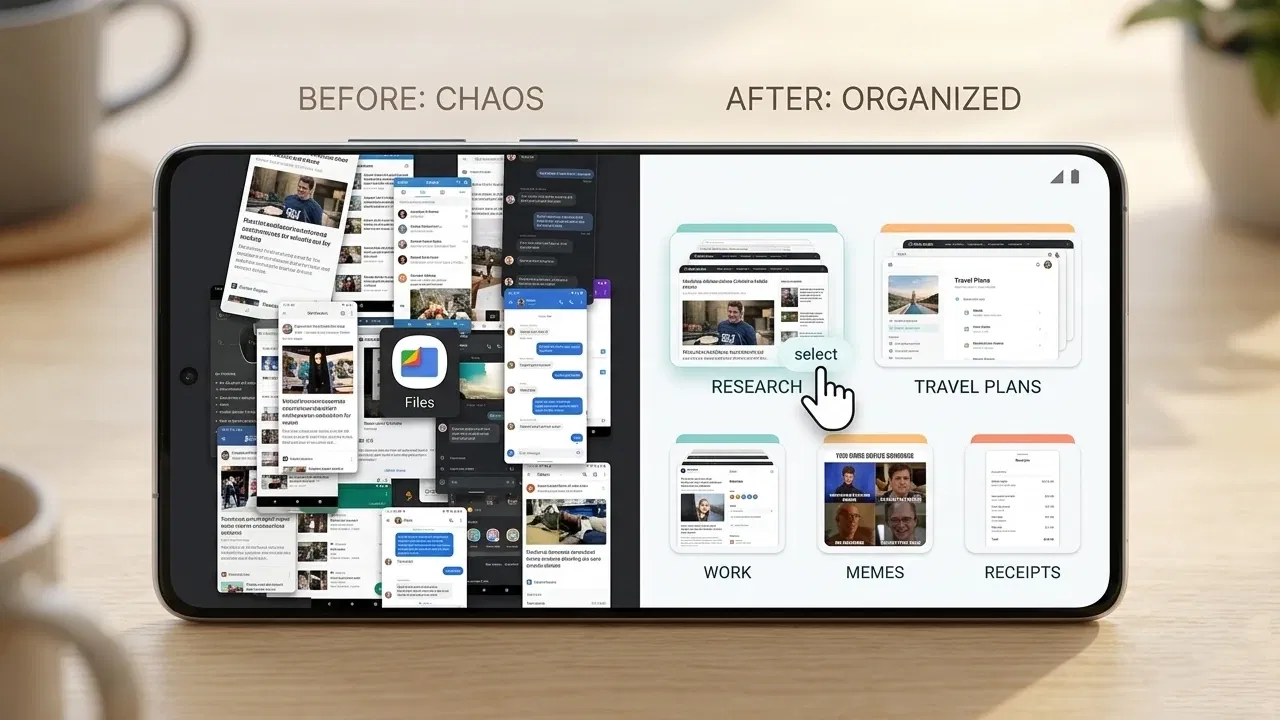
Taking screenshots on an Android phone is incredibly useful, but they can pile up surprisingly fast. Before you know it, your gallery is cluttered with all kinds of images, and finding the information you need becomes a hassle. I got tired of this, and in my search for a solution, I came across Shots Studio, an AI-powered app designed to help organize and rediscover long-lost screenshots. Here’s how I made it work for me.
Why the Screenshot Reflex Is Hard to Resist
Android phones make capturing screenshots very easy, which often encourages us to take more than our brains can handle. Before long, it becomes almost a reflex whenever we come across something interesting. I, for instance, tend to capture all kinds of consumer products that pique my interest, books I hope to read, inspiring quotes, and more. Of course, I always tell myself I’ll come back to them eventually, only to forget about it. As a tech writer, I also have too many in-app screenshots that I never seem to find time to check and clear.
The urge to save everything probably stems from a bit of FOMO, the fear that if we don’t save something right away, we might lose it forever. It makes sense on some level; you might actually need that information later. That said, there’s actually a better way to tap into the mountain of information you’ve been hoarding.
While we’re on the topic, you should always be mindful of the type of information you choose to screenshot. While it may be tempting to capture complex details such as passwords or IBANs, it can create security risks if the images ever leak into the wrong hands. Screenshots are better suited for harmless content, such as an inspiring design idea or a beautiful dress.
Saving Screenshots Is Easy, Making Use of Them Later Is the Real Challenge
A massive screenshot library creates a paradox where we capture everything, yet rarely revisit the information. That’s where the real challenge lies. Turning all that info into something useful.
The solution I found involves using Shots Studio, an open-source app that makes use of AI to help you organize your screenshots. The first step is to select one of these AI models:

- Gemini (Cloud AI) – provides the fastest results. However, because it’s cloud-based, it requires an active internet connection. The big caveat with this option is that you’re basically agreeing to send your screenshots to Google’s servers for processing. You’ll need a Gemini API key, but it’s free and easy to get.
- Gemma (Local AI) – this option requires downloading a 3GB file on your device. However, if privacy is a priority, it’s likely the better choice, even if it is a lot slower. It works completely offline and has no usage limits, though it may slow down your device while processing.
With the selection made, start creating screenshot collections based on the things you capture more frequently. In my case, it’s app snapshots and books. It’s important to add a description to each collection so the AI knows what kind of screenshots should go in there. For instance, “Books that I found while browsing online that I find interesting and book-related content”.
When the AI starts scanning, it will automatically add screenshots matching your description to the appropriate folder. With this setup, all the interesting books I’ve stumbled upon in recent months finally resurfaced. I genuinely delighted in rediscovering some of these titles.
I used the same process to create a collection for my many in-app screenshots. After the AI added the relevant images to the folder, I briefly checked its contents for anything that didn’t belong there and then deleted the folder to free up some space on my device.
To make this workflow even more effective, I recommend checking in weekly and scanning any new screenshots. This keeps the scanning process quick and prevents another pile of screenshots from building up.
My Experience of Using the Two AI Models
Although Gemini is faster, I did encounter some errors. Even though the app indicates it has processed all images, free Gemini API users are limited in the number of requests they can make per day. This means the app can scan about 80 images daily, so some will be left unscanned if you have a larger library. The good news is that it can automatically resume where it left off the following day.
Gemma, on the other hand, is significantly slower but doesn’t impose any daily limits. While scanning, my device started to heat up, and battery levels dropped fast. I also encountered a few unexpected app crashes when using GPU processing. I took it as an indication that my device wasn’t powerful enough and switched to CPU mode.
The Unexpected Productivity Hack I Didn’t Know I Needed
Collections make it easier to find screenshots, but what if the folders themselves get quite large? The advantage of AI scanning your collection is that it extracts key details for each image and assigns tags you can later search for. Below, you can see I’m searching for a screenshot of a book about Lydia Bennett, Jane Austen’s heroine, using the sole term “Lydia”.
There are times when searching the app isn’t necessary at all. If you know you’ll need a certain screenshot at a specific time, try setting a reminder for that specific image. Once the AI analyzes the image, open it and press the timer icon in the bottom menu.
It’s a surprisingly effective productivity trick that brings up the screenshot when you need it, without you having to open the app.
Although you can take screenshots of most content, Incognito mode disables the feature. Continue reading here to learn how to bypass this restriction and grab your captures.
