

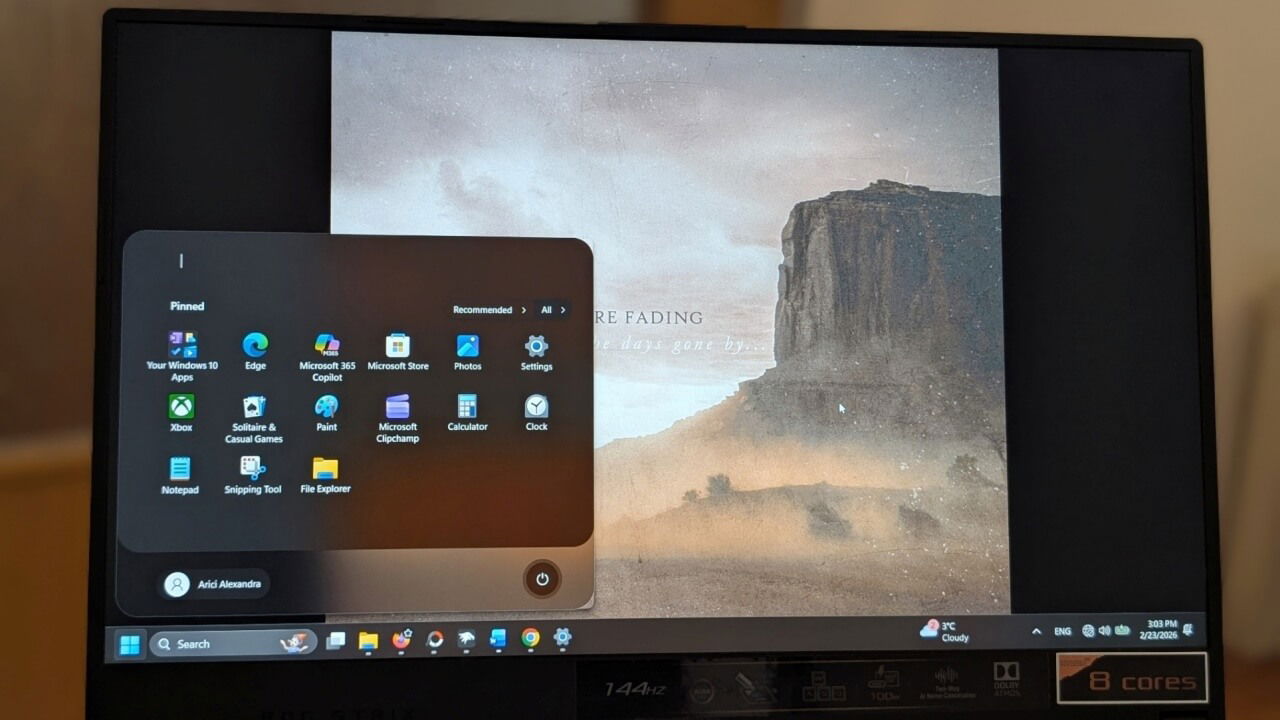
If the Start menu in Windows feels massive to you, you’re not alone. Microsoft recently made it even larger by integrating access to connected phones directly into Start. If you’re among those who would prefer something more compact, you’re in luck. This guide walks you through the steps of shrinking down your Start menu.
Reduce the Start Menu Size Using Built-in Options
By default, the current Start menu in Windows 11 features a Recommendations section that takes up quite a bit of space. Fortunately, you can remove this from view easily using built-in settings. At the same time, you can also get rid of the All section, which gives you access to a list of all your apps installed on your Windows device. Doing this will clean up your Start menu considerably, although it won’t reduce its size per se.
What you can do to make it appear smaller is to go to Personalization → Start, and disable the option to Show mobile device in Start. This removes the right-side panel containing the information regarding your phone (which you’ve previously connected via PhoneLink).

If the built-in options aren’t enough for you, and you wish to scale down the Start menu even more, you can use a third-party tool. For this guide, I will use Windhawk, which is an open-source program that allows you to install mods to customize various aspects of Windows.
Note: keep in mind that malicious mods can and might damage your computer or violate your privacy. That said, we recommend backing up your data or creating a restore point before proceeding to use this tool, just to be safe.
The main page displays some of the most popular mods. Click on the Explore Other Mods option in the bottom row.

Use the search bar at the top to look for the Start Menu Size mod. Press the Details button to open its dedicated page.

After you’ve read through the description, go ahead and press the Install button.

Check the developer details that appear in the pop-up window. Windhawk recommends that you install mods only from developers you trust, so take a few minutes to check the developer’s website and their social media.
Once the mod is installed, switch to the Settings tab. Here you can adjust the Width and Height aspects of your Start Menu. The current menu has a width of 834, while the height occupies almost the full length of the screen. The classic menu used to be 642 x 726. If you want, you can try this configuration, or go even lower. Make sure you click the Save Settings button once you modify the variables.

For instance, here’s how it looks with 500 x 600 measurements.

Alternatively, you can go slimmer and a bit taller with 300 x 700.

Continue to play with the variables until you find something akin to your taste. Remember, you can use the built-in options in tandem with the Windhawk mode. So if you opted for some info not to be shown via Settings, it won’t appear while using Windhawk.
Use Custom Theme to Resize the Start Menu
Alternatively, you can reduce the size of your Start menu by using a theme. You will need to add a secondary mod for this. It’s called Windows 11 Start Menu Styler.
Once installed, check the Details tab to view the available themes.

Next, switch to Settings and in the Theme section, make your selection from the dropdown menu.

You can opt for themes like UniMenu, DownAero, or RosePine, which automatically shrink down the Start menu.

If you want total minimalism, you can transform the Start menu into a simple search bar with the OnlySearch theme.

Or if you are nostalgic for Windows 10 aesthetics, you can bring these back with a theme like Windows11_Metro10Minimal.

Now, the Windows 11 Start Menu Styler mod offers additional advanced options for customization. For instance, it allows you to do things like remove the Search bar, user profile button, or move/delete power button. Here’s my Start menu using a theme from which I removed the Search bar.

In addition, you can modify the Start menu’s color or even add certain effects, such as making it transparent, as you can see below.

The mod works by targeting different elements of the Start menu and then modifying their styles. You can even further modify the width/height of these themes. Try adding this combination in the Control styles section.
Target: StartDocked.StartSizingFrame
Styles: MinWidth=600
MaxWidth=600
MinHeight=400
MaxHeight=400
In case you wish to go back to the original Microsoft Start Menu, Windhawk makes it easy to do so. Click Home to go back to the main screen.
At the top, find the mods you’ve installed. To disable a mod, turn off the toggle on its specific card. Your Start menu will go back to looking like before.

Windhawk will save your last configuration, so if you decide you want the custom version of your Start menu back, all you have to do is enable the mod again.
In case you’ve customized the Start menu via Settings, go back to Personalization and re-enable the options you’ve turned off.
Now that you know how to make your Start menu look anyway you want, also make sure you’re prepared in case your Start menu search stops working.
