


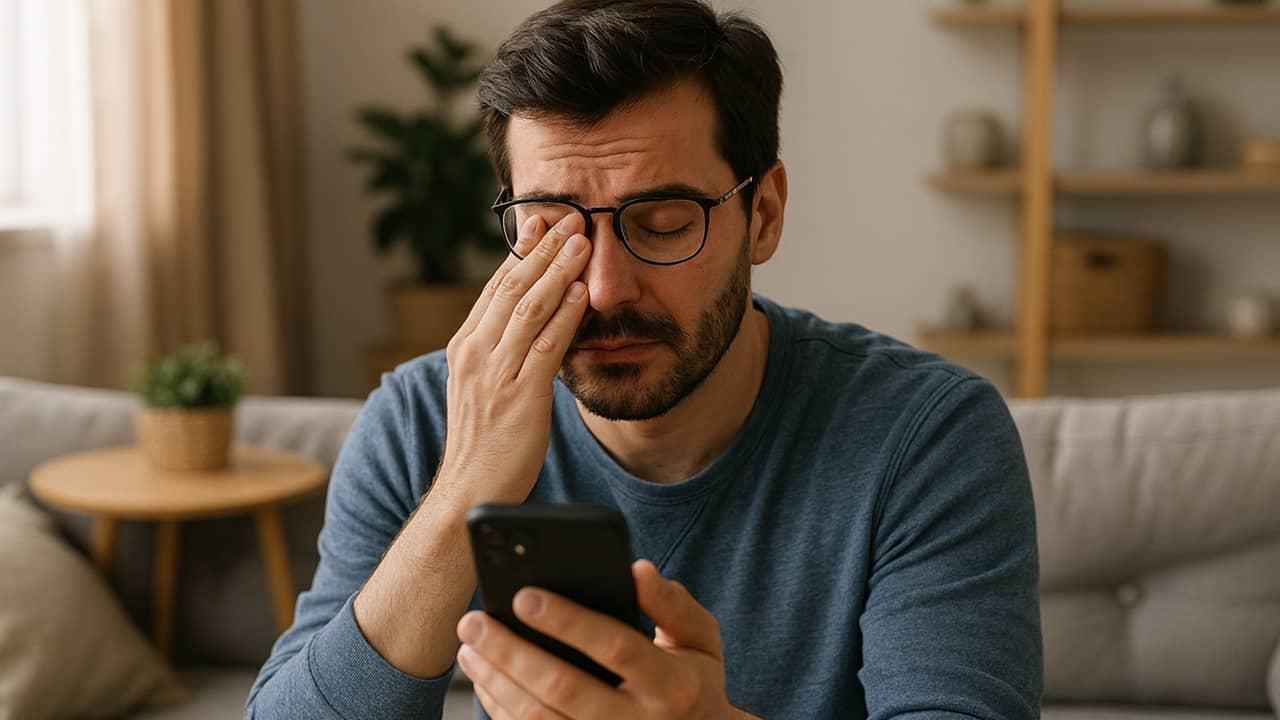
Staring at your tiny smartphone screen for hours often causes eye fatigue and may even result in irreversible eye damage. You don’t have to ditch your smartphone though. Instead, just focus on ways to protect your eyes when using a smartphone to avoid future eye problems.
Quick Tips for Immediate Relief
Digital Eye Strain (DES) or Computer Vision Syndrome (CVS) ranges from minor issues such as headaches and dry eyes to more severe problems like constant blurred vision and long-lasting neck and shoulder pain. I discovered a few quick and free changes made a drastic difference.
Start with:
- Blinking frequently – A frequent blink rate keeps your eyes moisturized. I also recommend using saline drops or an eye rinse regularly.
- Follow the 20/20/20 rule – Our eyes aren’t meant to stare at TikTok or Instagram for hours. I set a timer and look away at least every 20 minutes for 20 seconds.
- Ditch the phone before bed – I love e-books, but my eyes hate the bright screen before bed. I opt for audiobooks before bed most nights now.
- Clean the screen – I keep a small microfiber cloth handy to clean my screen at least once per day. A grimy screen is much harder to see.
While many smartphones have anti-glare screen, some don’t. Check your phone specs to see. Glare wreaks havoc on your eyes. Consider buying a cheap anti-glare screen protector if your phone doesn’t have this feature.
Adjust the Brightness, Contrast, and Text Size
I always adjust the brightness and text size with any new smartphone to make it more comfortable to use. An ultra bright or too dim screen gives me a headache in minutes. Poor contrast settings and micro text further strains your eyes.
Brightness is the easiest to adjust. On iOS, open Control Center. On Android, open the Quick Settings Panel. Then, adjust the brightness slider as needed. Or, let your phone auto-adjust the brightness.
On iOS, go to Settings → Accessibility → Display & Text Size → Auto Brightness. For Android, go to Settings → Display → Adaptive Brightness. It’s also in the Quick Settings Panel on Android. For me, it seemed to dim too much and drain the battery faster.


Contrast is more hidden. For iOS, you’ll find all contrast and display color settings under Settings → Accessibility → Display & Text Size. On Android, go to Settings → Accessibility → Display & text size or Settings → Accessibility → Vision enhancements on Samsung devices.
For text size on iOS, open Settings → Accessibility → Display & Text Size. On Android, go to Settings → Accessibility → Font Size. On Samsung, it’s Settings → Display → Font size and style.

Enable Built-In Blue Light Filters
Most modern smartphones have built-in settings to help drastically reduce eye strain and prevent Computer Vision Syndrome. The exact features available depend on your phone model and operating system version.
Blue light messes with your sleep, causes eye fatigue, and may even cause headaches. Most devices let you customize the blue light filter.
For iOS users, your iPhone also has built-in blue light filter settings, called Night Shift, to reduce eye fatigue. By default, it turns on at sunset, using warmer colors to limit blue light and eye strain.
Open Control Center and long-tap the Brightness icon. Tap Night Shift. Either stick with the defaults or set a schedule to better meet your needs. Alternately, go to Settings → Display & Brightness → Night Shift.

For Android users, I suggest turning on Eye Comfort, or Eye Comfort Shield on Samsung. Google Pixel devices refer to it as Night Light. No matter what it’s called, it’s a blue light filter.
Go to Settings → Display → Eye Comfort or Eye Comfort Shield or Night Light. Once turned on, the default is Adaptive to auto-adjust to protect your eyes when using a smartphone. Custom works well if you want to set a blue light filter schedule.
I also recommend turning on Enhanced Comfort, or Night Mode on some devices, for an even stronger blue light filter along with adjusted contrast and color tones at night.
Use Blue Light Glasses
I also have a pair of blue light glasses to further protect my eyes. I find them incredibly useful for reading e-books. They come in both regular glasses and magnifying readers.
A few good options include:
Enable Dark Mode for Comfortable Viewing
I personally love dark mode themes for apps, websites, and especially my smartphone. I use them most in dim lighting for easier reading. And, both Android and iOS have built-in dark mode settings.
On iOS, go to Settings → Display & Brightness → Dark. Turn on Automatic to set a schedule.

For Android, go to Settings → Display and turn on Dark mode. Use Dark mode settings to set a schedule.
Keep Your Distance
I know it’s tempting to keep your phone close to your eyes to make it easier to see. I’m guilty of it too. But, it’s horrible for your eyes. The recommend distance is 12 inches (30 cm) or more.
For iOS 17 and later users, you don’t have to try and guestimate the distance. You have to enable Face ID to use this. It uses the TrueDepth camera to gauge distance and offers a gentle reminder if you’re too close.
Go to Settings → Screen Time → Screen Distance to turn it on/off.

Reduce Overall Screen Time
It’s easy to lose track of time when using a smartphone, so set time limits to remind yourself to put the phone down. Alarms and timers also work well.
On iOS, use Screen Time instead. Go to Settings → Screen Time. Turn on App & Website Activity (if it’s not already on). Select Downtime to limit screen time during set hours. Or, tap App Limits to limit specific apps.

On Android, take advantage of Digital Wellbeing. See how much you’re using your phone and set limits. Go to Settings → Digital Wellbeing and parental control. Choose Set Goal to set a daily time limit. Or, set limits for individual apps under App timers.
If you’re starting to show any signs of eye fatigue, Digital Eye Strain, or Computer Vision Syndrome, take steps to protect your eyes when using a smartphone. The sooner you start, the better you’ll feel.
