


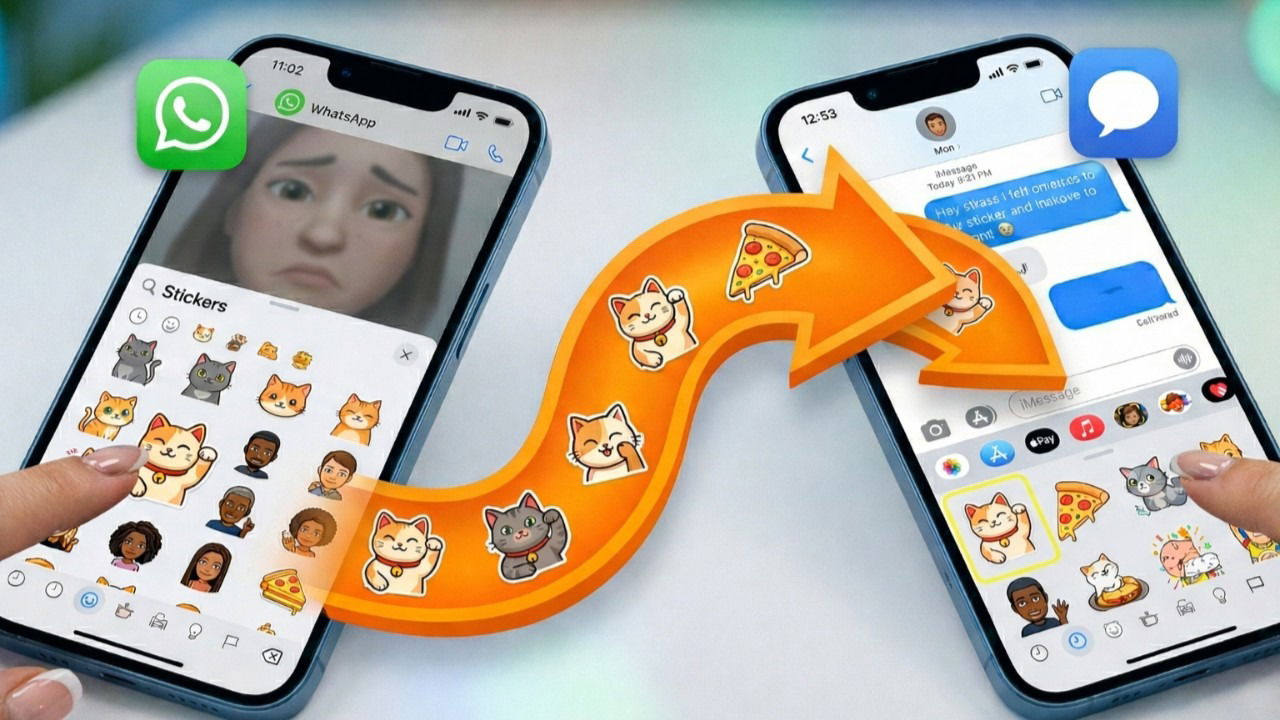
You’ve spent months, maybe even years, building the perfect WhatsApp sticker collection. Then you start texting someone who only uses iMessage, and suddenly you are stuck with plain text as the two apps do not share stickers. The good news is you can bridge the gap without starting from scratch.
Why WhatsApp Stickers Don’t Just Sync
The sticker incompatibility between the two services is a file format problem. WhatsApp stores stickers as WebP files, a compressed image format that keeps file sizes incredibly small without sacrificing much visual quality. WhatsApp caps its stickers at a resolution of 512 x 512 pixels and enforces a strict 100 KB file size limit to ensure they load instantly, even on terrible cellular data connections.
On the other hand, iMessage operates differently because it prefers PNG files for static images and APNG or HEIC for animated stickers. Because Apple’s ecosystem does not natively process WebP files as stickers, iMessage simply does not know what to do with the raw data from WhatsApp.
There is also a strict packaging difference, because WhatsApp’s sticker packs are buried deep inside the app’s localized cache, meaning they are not saved directly to your iPhone’s camera roll. Even if you wanted to manually copy and paste them, the files are not sitting somewhere obvious waiting to be grabbed. You have to actively extract them.
The Manual Export and Convert
This is the manual route because it takes the most time per sticker, but it costs absolutely nothing and gives you complete control over the final visual output. To get the raw files out of WhatsApp, you need to use the Export Chat feature. This bypasses the app’s interface and grabs the actual media stored in the local cache.
Open WhatsApp and create a new chat with just yourself or create a private group where you are the only member. I recommend you create a private group, because exporting can take a while if you have a large history in your conversation with yourself.
Send every single sticker you want to migrate into this specific chat thread. Tap your contact name or the group name at the top of the screen to open the chat settings. Then, scroll all the way down to the bottom and tap Export Chat.
When the prompt appears, select Attach Media. The Share Sheet will appear, and then tap Save to Files and choose a location you can easily find.

With the files extracted, you now have to convert them from WebP to PNG so your Photos app can read them properly. Thankfully, newer iPhones have a built-in converter in the Files app.
- Simply open your Files app and go to the zipped file you just saved. Tap the zipped file once to automatically unzip it. This will create a new folder filled with text documents and your WebP sticker files.
- Open the folder, tap the Three-dot menu at the top right of the screen, and tap Select. Now, select all the WebP images you want to convert.
- Tap the Three-dot menu at the bottom right of the screen and tap Quick Actions → Convert Image. Choose PNG and select your preferred file size – I recommend sticking to the Original size. Your phone will instantly generate PNG copies of your stickers right next to the originals.
- If you’re uncertain which files are which, look below the images to see the date and time of creation. Then, select these new PNG files, tap the Share icon, and tap Save Images to move them to your Camera Roll.
- Now that the images are in your Photos app, importing them into iMessage is effortless. Open an iMessage chat, tap the Plus (+) icon next to the text field, and select Stickers. Tap the New Sticker icon (the blank sticker with a plus sign) and select your converted PNGs.
Good to know: If you’re trying to move animated WhatsApp stickers, you’ll almost always need a conversion tool or a premium third-party bridge app to handle the frame-rate translation. Otherwise, your animated sticker will just appear as a frozen image in iMessage.
Google Lens for High-Resolution Sticker Rebuilds
Now, the sticker you love on WhatsApp may look terrible when you migrate it. This is because the sticker is actually a low-resolution screenshot that has been heavily compressed to meet WhatsApp’s 512 x 512 pixel limit. Moving it to iMessage will only make the pixelation more obvious because retina displays make iMessage stickers at a much higher pixel density.
For your absolute favorite stickers, you can use Google Lens to rebuild them from the original, high-resolution source material.
- Save the low-resolution WebP sticker to your Photos as a PNG using the steps outlined in manually exporting and importing.
- Open the Google app on your iPhone and tap the Camera icon in the search bar to launch Google Lens. Grant photo access and select your low-resolution sticker from your gallery if you haven’t already done this.
- Lens will often find the original artwork; just select Visual Matches, and you get a high-resolution version of the meme, or the uncompressed source illustration. When you find what you prefer, download this high-resolution version directly to your Camera Roll.
- From here, you can just open your Photos app, find the high-resolution image, and long-press the subject. A shimmering white outline will trace the subject, separating it from the background.
- Tap the Add Sticker option that pops up, and it will be permanently saved to your iMessage sticker drawer.
Good to know: This reverse-search method will not work for custom-made stickers featuring inside jokes with your friends, as those source images may not exist on the internet. But, for a famous reaction meme or a cartoon screengrab, the rebuilt version will look noticeably crisper and cleaner in iMessage than a direct WebP conversion ever could.
Batch Conversion with Third-party Apps
If you have dozens of stickers to move, exporting and converting them yourself can become a chore. In this situation, you can rely on third-party apps to act as an automated middleman.
These apps have a batch import tool that can scan your WhatsApp sticker library, pull whole packs into a conversion queue, and translate the file formats for you behind the scenes. Importing your stickers into these apps from WhatsApp are almost always free. However, moving those stickers into the iMessage keyboard typically requires the app to generate a Sticker Pack App container on your phone. Because Apple charges developers for this feature, this is usually where the paywall appears.
While third-party apps are convenient, they often request access to your entire photo library or your raw WhatsApp data to function. Because these apps must repackage your stickers into a mini-app extension for iMessage, they can take up a surprising amount of storage space on your iPhone. If you are low on storage, stick to manually moving them, and keep the assets in your Photos library rather than duplicating them inside a third-party application’s storage vault.
Pro Tip: If you decide to use a bridge app, look for one that offers a one-time export fee instead of a recurring monthly subscription. Before downloading anything, scroll down to the In-App Purchases section on the App Store page to get a feel of the pricing.
Build a Cross-Platform Sticker Library That Actually Sticks
If you keep moving stickers one app at a time whenever you switch between apps, you’ll find yourself repeating the exact same tedious work every time. The long-term fix is to make your sticker library entirely independent of any specific app.
You can accomplish this by creating a Sticker Folder. You can use iCloud Drive, Google Drive, OneDrive, or even a dedicated Album directly inside the Photos app. I named mine “Meme replies,” so you should try to go for something immediately identifiable. From now on, ensure you store every sticker you want to keep as a raw, transparent PNG file inside this folder.
Whenever you switch phones, upgrade a device, or start using a new app, you simply open your cloud folder, find this folder, and then play around with it with whatever method you use to create your stickers.
Now, once you discover a new sticker in a group chat that you want to keep forever, save the original file, convert it to a PNG immediately, and drop it into your Sticker folder. I think doing it right away takes under a minute, whereas trying to recover a lost sticker from a deleted chat months later is nearly impossible.
If you would rather not create stickers inside iMessage, you can follow our guide on how to create stickers with Google Photos on iPhone. You can also learn how to draw and add custom stickers directly in your Instagram DMs if you prefer to keep your artistic reactions to social media.
