


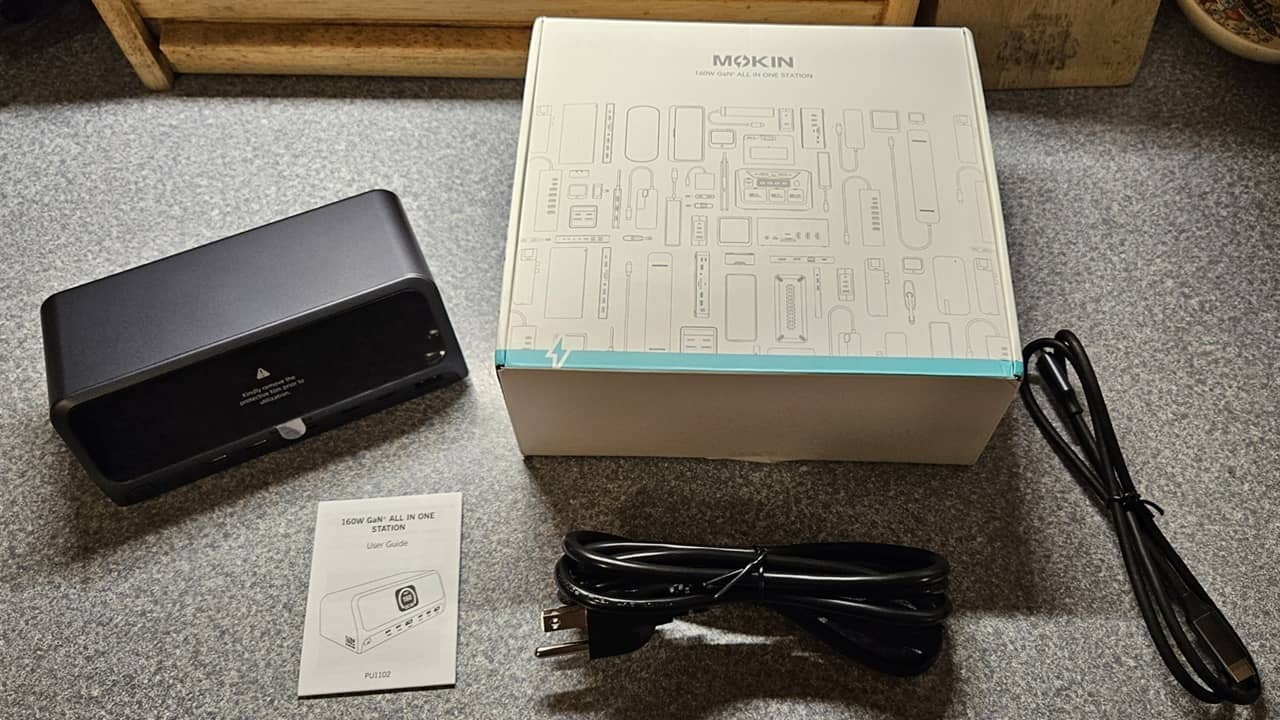
Most computers are stingy with ports, and I hate a cluttered desktop. I recently tested the MOKiN DockPro PU1102 Docking Station to better organize my setup, while giving me more options for productivity and device charging. It’s now earned its place in my home office.
This is a sponsored article and was made possible by MOKiN. The actual contents and opinions are the sole views of the author, who maintains editorial independence even when a post is sponsored.
Compact, Modern Design
One thing many docking stations get wrong is the overall design. They have ample ports, but the docking station looks too bulky or stands out like a sore thumb. To the contrary, the MOKiN DockPro PU1102 Docking Station features a sleek, silver casing with a large black display.

It blends in perfectly next to my monitor, almost looking like a mini PC. Plus, the longer power cable made it easy for me to place it where I needed it most.
It measures just 6 x 3 x 2.5 inches and is just heavy enough – at around 2.5 lbs. – to stay in place without scooting all over my desk if I accidentally move a cable.
More Productivity With Dual Displays
One of my favorite features is setting up dual displays with no hassle. I do want to point out that there are two versions of this MOKiN docking station. The model I reviewed is designed mainly for Windows. Straight out of the box, it supports two independent 4K displays. You can also set up mirrored displays or any combination of extended displays.

If you’re a macOS user, the docking station only supports one display for mirrored output only. There is a macOS/Windows model that supports dual displays on both operating systems. It’s around $30 higher, but well worth it if you’re a Mac user and love having multiple displays.
All other features of the MOKiN DockPro PU1102 Docking Station are the same on the other model.
I like that the HDMI ports for the displays are located in the back. This helps better hide the cables and leaves more room in the front for other peripherals.

Ample Ports for Most Setups
The MOKiN 13-in-1 docking station has enough ports for most setups. Using all of them at once depends on the devices you’re connecting. The docking station features an impressive 160W max output, but unless you’re trying to charge and power all your devices at once, you should be fine.
The front features six USB ports:

- 2 USB-C 10Gbps
- 1 USB-A 10Gbps
- 2 USB-C for charging
- 1 USB-A for charging
Honestly, having all the USB ports in the front makes me so happy. I have used other docking stations and had to plug my flash drive into the back every time I needed to access my files. With this one, I don’t have to move the docking station around just to connect my flash drive each day.
The back is designed mainly for connections you won’t remove regularly. It features:

- 2 HDMI
- Host connection – 20Gbps / 100W
- USB-A 2.0 for wireless keyboard/mouse dongle
- 1Gbps Ethernet
- AC power
It’s a carefully thought-out design that keeps cables more organized.
I highly suggest checking out the included user manual. It lays out multiple setups, along with average wattage used. I do wish the manual was a bit larger, as the tiny print and pictures are difficult to read.

I also wish there were an SD reader included. I feel like that is the only thing really missing. If you add your own USB SD card reader, you’re all set.
Easy-to-Read Display
Want to keep track of how much power everything’s pulling? No problem. I like that I don’t have to squint or try to find the right light to view the display. The 2.26-inch LCD screen shows each port that’s in use, along with overall power consumption.

Even under a bright light, the colorful display is easy to read. You never have to guess or worry about overloading the MOKiN DockPro PU1102 Docking Station.
The display does bounce back and forth between showing which ports are in use and a total wattage. The latter is a little less bright, so it’s not as distracting if you’re working in a lower light environment.
Charge Multiple Devices Quickly
I regularly use two phones and even a tablet while I’m working. Instead of having to connect them to the one extra USB port I have available to slow charge, I now connect them to the MOKiN docking station. I was able to charge both phones in less than an hour from around 30 percent.
My Chromebook is older and runs down quickly. I love being able to connect it to the powered host port, plug in my wireless keyboard/mouse dongle, get to work, then also add in my phone and flash drive. I even had one display connected.
The total power consumption was only 47 watts. Even with my tablet and second phone connected, power usage still stayed around 60 watts.

I was surprised at how cool it stayed throughout my tests. I’ve used other docking stations that warmed up quickly. This one is barely warm to the touch after using it for hours.
As a bonus, a USB-C cable is included to connect your host device.
Makes Privacy One Touch
One feature I didn’t expect was a one-touch privacy button. No, it’s not necessary, but it’s handy all the same.
It looks like a small power button in the front. Press it and your computer locks immediately. I tried it on my Chromebook and Windows PC with no issues.

I find this works well if your keyboard doesn’t have a lock button on it. Yet, it’s not as useful if you keep it near the back of your desk, which makes the button harder to reach.
The Easy Way to Power Your Desktop
While we all wish computers had more ports, the reality is they don’t. The MOKiN 13-in-1 DockPro Docking Station lets you extend your computer’s connections and provides some much-needed charging ports for all your other various devices.
It was so easy to set up. The design keeps my desk more organized by keeping frequently used ports in the front and more permanent connections in the back and out of the way.
It’s also an affordable addition to your desk. Grab the MOKiN DockPro PU1102 Docking Station today for just $79.99.
