

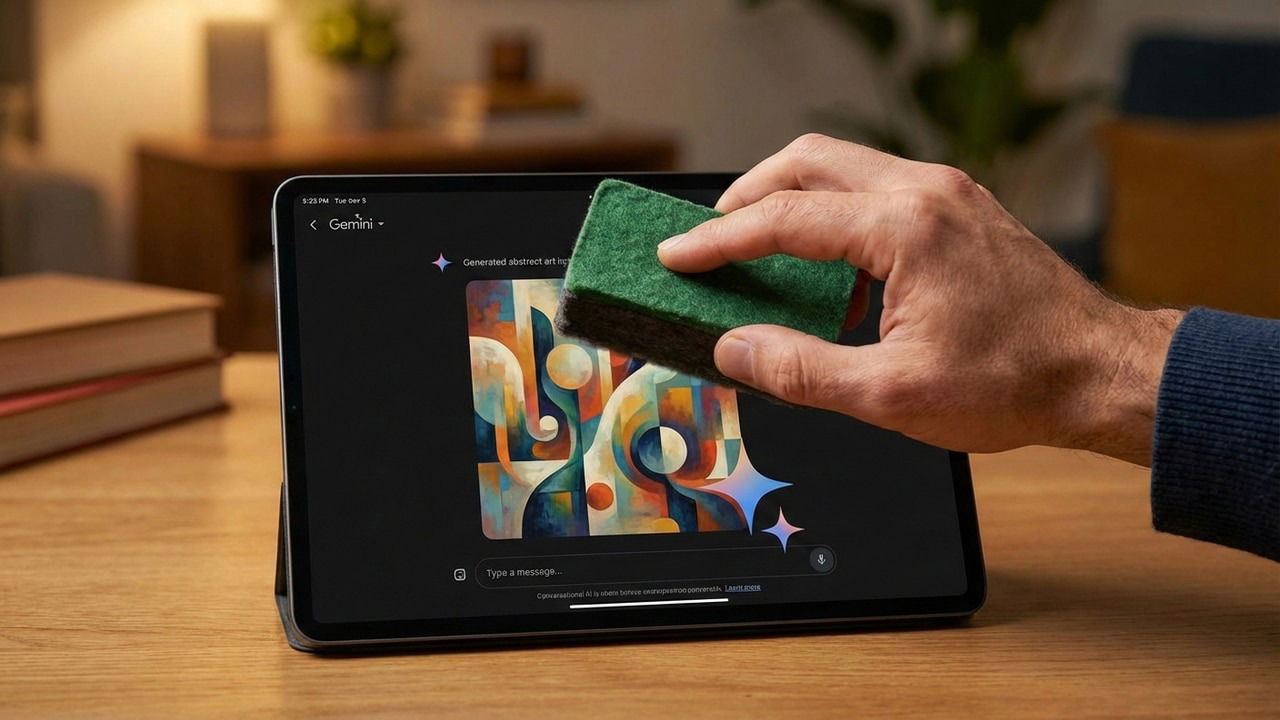
Gemini creates impressive AI images, but the visible watermark is a major downside. Even when you use the tool for a minor edit, that tiny sparkle mark still appears and can easily distract from your work. If you are looking to keep your AI-generated photos clean and professional, here are the best ways to remove the Gemini watermark.
Understanding the Difference Between Visible vs. Invisible Markers
Before we remove the Gemini watermark, it’s important to know the difference between visible and invisible watermarks. Along with the visible sparkle watermark, Gemini also uses SynthID to add an invisible watermark in the pixels of the AI-generated image. Even if you remove the sparkle watermark, the invisible watermark will still confirm to AI-detector tools that the image is AI-generated.
We are only removing the visible watermark here for aesthetic reasons. Anyone will still be able to detect that the image is AI-generated by looking at the invisible watermark or other signs. In simple words, don’t publish a Gemini watermark-removed image and claim it as your own; you will be easily caught even without the visible watermark.
Crop Out the Watermark by Intentionally Adding Negative Space to the Image
Gemini adds its watermark at the bottom-right corner. Since the position doesn’t change, you can craft the image prompt to add blank space at the bottom, so the watermark ends up there. You can then safely remove the blank area and the watermark with it. Just append the following prompt line at the end of your image prompt:
“Add a black border at the bottom side only, which covers 5% of the total image space.”
With this line, Gemini will add black space at the bottom that is slightly bigger than the watermark area. You can then use any basic photo editor app to crop out the black space.

You can also use an online tool to remove the watermark for you. Gemini Watermark Remover is a great tool for this purpose that is free and open source. It doesn’t erase or fill the watermark area; it does a mathematical reversal of the watermark to remove it. Gemini watermark images using a semi-transparent layer, which doesn’t affect the pixel underneath. This tool just reverses the process to remove the watermark from the image.
Just upload the image, and the tool will auto-detect and instantly remove the watermark. You can then click the Download button to get the clean image. It perfectly handled all the images I threw at it, except for one that left a square mark when viewed at maximum zoom level.

Remove the Gemini Watermark Using Generative Eraser
The generative eraser is a common feature now in most photo editing apps that removes unwanted objects from images and fills in the place with the matching background using AI. It won’t perfectly restore the actual background, but it works surprisingly well for AI generated images where most of the complex scene is focused in the middle.
The Photos app in Windows also has this feature. Just click on the Edit button and select Erase from the tools at the top. You can then use the brush to apply the eraser to the Gemini watermark.

Use ChatGPT to Remove Gemini Watermark
ChatGPT doesn’t add its own visible watermark to images, and it’s really effective at removing objects from images – even the basic model. You can upload the Gemini image to ChatGPT and ask it to remove the Gemini watermark, and it should do a perfect job.
Just click on the Plus icon in ChatGPT and select Add photos & files to upload your image. With the image, write this prompt:
“Remove the Gemini watermark at the bottom-right corner of this image”.
It will take a few seconds to process and give you the image without the watermark to download.

I tested multiple images, and it did a perfect job of removing the watermark without leaving smudges, even at maximum zoom.
I’ve found that cropping corners even without blank space works well, as AI usually centers the important content. If you generate images often, definitely check out this Gemini Nano Banana guide.
