

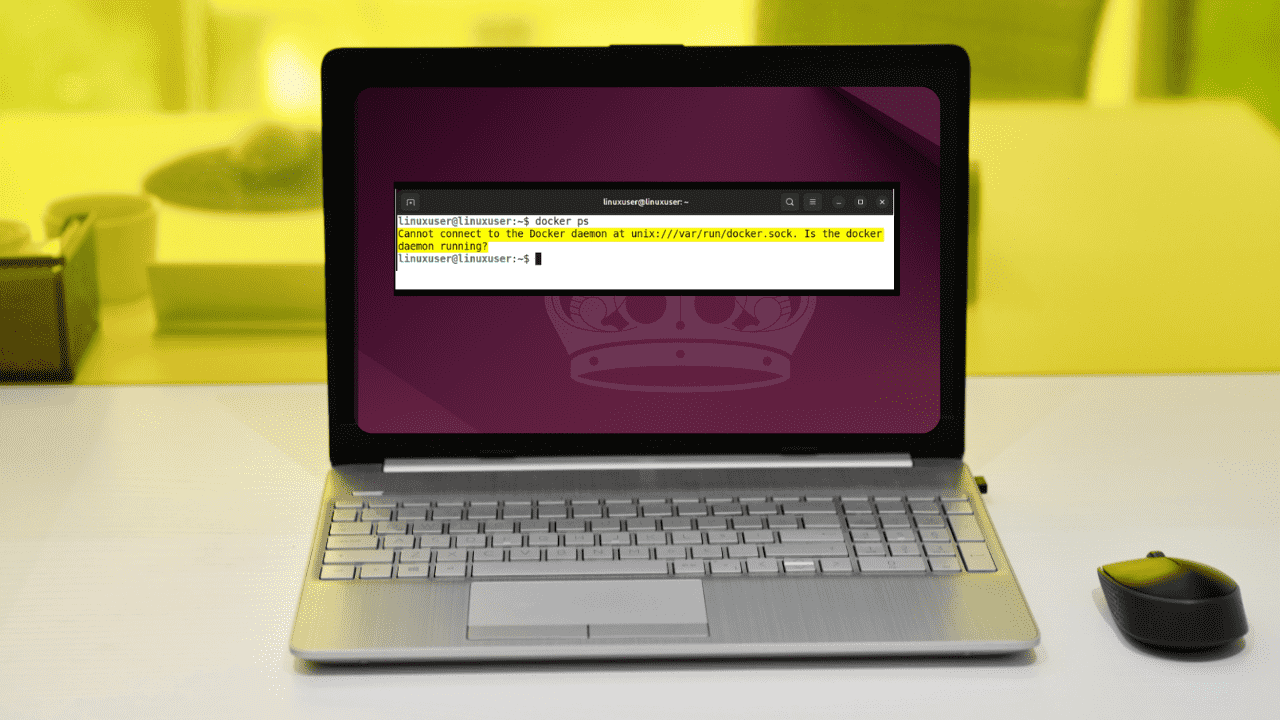
Ever tried running Docker and suddenly encountered the “Cannot connect to the Docker daemon” error? It’s one of the most frustrating issues that can stop you before you even get started. The Docker daemon runs quietly in the background, which handles everything from starting and stopping containers to managing images, building layers, and processing all your Docker commands like docker run, docker ps, etc. If your terminal can’t reach it, nothing works.
In this guide, I’ll explain why this error occurs and show you simple, practical fixes to get Docker running smoothly again.
Understanding What the Docker Daemon Does
The Docker daemon (dockerd) is a background service responsible for managing containers, images, networking, and storage. When you run Docker commands, the CLI does not perform these tasks itself; instead, it sends requests to the daemon. On Linux systems, this communication happens through a Unix socket located at “/var/run/docker.sock”. On Docker Desktop or WSL environments, the CLI communicates with the daemon via a named pipe or a socket managed by the virtual machine.
If the CLI cannot communicate with the daemon, you get errors like “Cannot connect to the Docker daemon at unix:///var/run/docker.sock. Is the docker daemon running?“.

It often occurs because of one of these reasons:
- The Docker service is not running.
- Your user does not have permission to access the Docker socket.
- Docker is using the wrong context.
- The Docker socket is missing or has incorrect permissions.
- Environment variables like
DOCKER_HOSTare misconfigured. - Platform-specific issues (Docker Desktop, WSL, or remote daemons).
Identifying which part of this communication chain is broken is the key to fixing the problem correctly.
Check Your User Permissions
On Linux systems, Docker communicates through a Unix socket that is owned by the root user. Users must belong to the Docker group to be able to access it without sudo.
To verify the socket permissions, run the following command:
ls -l /var/run/docker.sock
This output tells us that the socket is owned by root, and only users who belong to the docker group are allowed to read from or write to it. If your user account is not part of this group, Docker will deny access and fail to execute commands. To fix this issue, you need to add your user to the Docker group:
sudo usermod -aG docker $USERIf the Docker group doesn’t exist, you can create it using the following command:
sudo groupadd dockerVerify the Docker Service Is Running
Another very simple yet important issue is that Docker may not be running at all. If the Docker daemon is stopped, the Docker CLI has nothing to connect to, which results in the stated error. To check the current status of the Docker service, run the following command:
systemctl status dockerIn our case, Docker is active and running successfully. However, if the output shows a state such as inactive (dead) or failed, it means the Docker service is not running.

To start Docker manually, you can run this command:
sudo systemctl start dockerIf you want Docker to start automatically whenever your system boots, enable it using the following command:
sudo systemctl enable dockerStart the Docker Daemon Manually (dockerd)
On minimal servers or custom Linux setups, Docker may not be managed by systemd. In these environments, the Docker daemon might not start automatically, even though Docker is installed. To test whether the daemon can start, try running it manually:
sudo dockerdMonitor the output carefully. If something goes wrong, Docker usually prints a clear error message explaining the issue, such as a storage driver problem, permission error, or network conflict.
Inspect and Fix the Docker Unix Socket
The Docker CLI interacts with the Docker daemon using a Unix socket. If this socket is missing, corrupted, or has incorrect permissions, Docker cannot connect. You can check whether the socket exists using the following command:
ls /var/run/docker.sock
If the file is missing, it usually means the Docker daemon is not running, or Docker failed to create the socket during startup. In that case, you need to restart Docker to recreate it:
sudo systemctl restart dockerIf the socket exists but has incorrect permissions, fix them using the following commands:
sudo chown root:docker /var/run/docker.sock
sudo chmod 660 /var/run/docker.sock
Verify Docker Contexts and Environment Variables
Sometimes Docker cannot connect to the daemon because it’s pointing to the wrong endpoint. This can happen if your DOCKER_HOST environment variable is set incorrectly or if your active Docker context points to a remote or unavailable environment.
Check Environment Variables
Run the following command to see if any Docker-related environment variables are set:
env | grep DOCKERIf you see something like DOCKER_HOST=tcp://localhost:2375, it means Docker is pointing to a remote daemon that could be inactive or missing. You can temporarily fix this by unsetting the variable:
unset DOCKER_HOSTTo remove it permanently, clean it from shell configuration files like “~/.bashrc”, “~/.zshrc”, and “/etc/environment”.
Check the Active Docker Context
Docker contexts determine which daemon the CLI communicates with. You can list available contexts and see the active one:
docker context ls
An asterisk (*) indicates the currently active context. If the context points to an unavailable environment, switch back to the default local daemon:
docker context use defaultPlatform-Specific Issues
Some connection problems occur only on specific platforms. For example, Docker Desktop on Windows or macOS runs the daemon inside a lightweight VM. If the VM fails to start, the Docker CLI can’t connect. To fix this issue, restart your Docker Desktop.
Similarly, when using Docker with WSL, the daemon runs in a Linux environment. Ensure that WSL is properly installed and running:
wsl --list --running
If the Docker daemon is not accessible from WSL, restarting the Docker Desktop service or the specific WSL distribution often fixes the issue.
Tips for Avoiding This Error in the Future
To avoid “cannot connect to Docker daemon” errors in the future, always ensure the Docker service is running, especially after system updates, and add your user to the Docker group to skip using sudo. Regularly check your active Docker context, particularly after switching machines, WSL distributions, or using Docker Desktop, and avoid setting DOCKER_HOST unless connecting to a specific remote daemon, as misconfigured variables can misdirect CLI commands. Additionally, monitor daemon logs using journalctl -u docker.service to catch issues early.
