


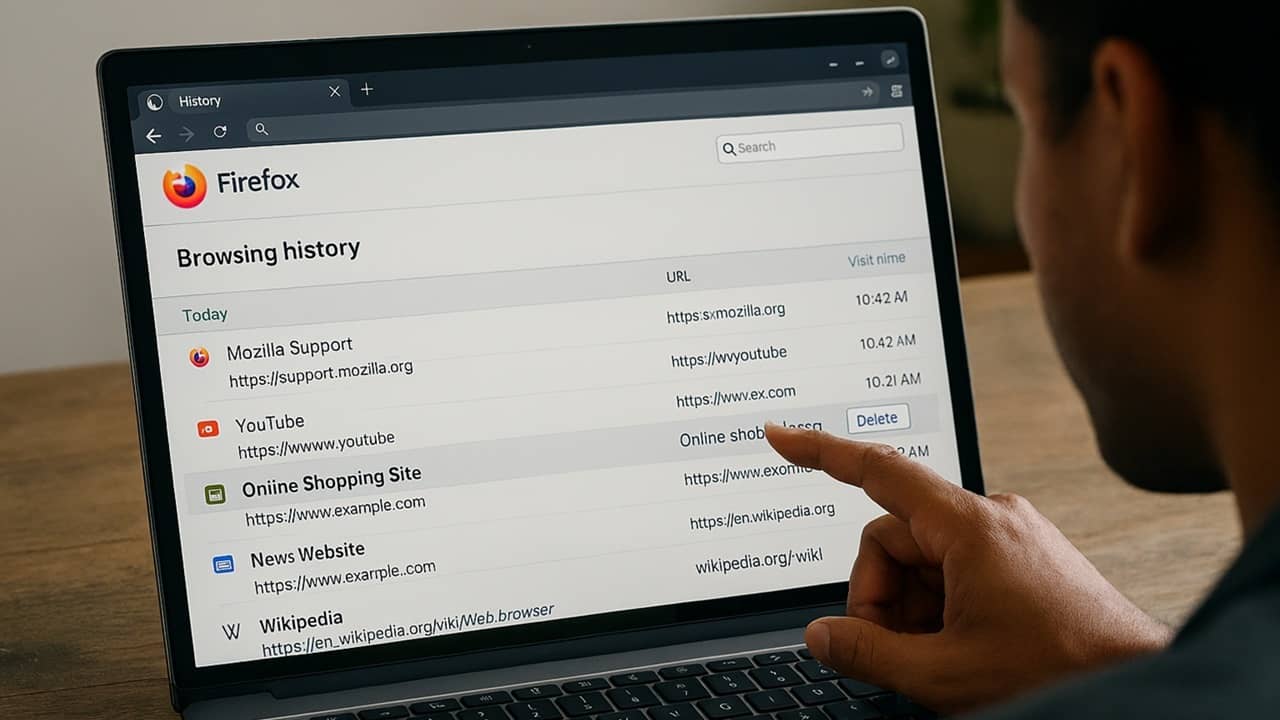
Having your browser save your history is great for accessing sites quickly, but what if you don’t want certain sites to show up? Disable history for specific websites to keep those sites from popping up in your address bar. It’s a simple privacy hack that keeps your browser from tattling on you.
Use the Private or Incognito Mode Workaround
As much as I’d love to see Firefox and Chrome (and Chromium-based browsers) offer a native way to prevent the browser from saving history for specific sites, they just don’t. It’s all or nothing when it comes to your browsing history.
The only workaround is to always browse sites you don’t want saved in your history in Private or Incognito mode. I know it’s not the most convenient solution, but it is simple and doesn’t require using any extensions.
For Chrome, press Ctrl + Shift + N or Cmd + Shift + N (for Mac) to open an Incognito browsing window.
For Firefox, press Ctrl + Shift + P or Cmd + Shift + P (for Mac) to open a Private window.
You can also right-click any link, such as a site in search results, and open it directly in an Incognito or Private window.
The downside is if you don’t remember to open the site in a Private or Incognito window, your history gets saved. Then, you have to quickly jump into the history and delete all instances.
If you use sites you don’t want saved often, I’d suggest creating a special browser shortcut that opens into a private mode automatically and use that for sites you want to keep private.
Create a new shortcut to your browser on your desktop. If you already have one, copy and paste it. Right-click the shortcut and choose Properties.
For Chrome, add -incognito to the end of the shortcut link in the Target box. Use a space between the link and -incognito. This applies to most Chromium-based browsers too.

For Firefox, add -private-window. For Edge, add -inprivate.
Click Apply to save your changes.
Disable History for Specific Sites in Chrome
Since Chrome doesn’t offer a built-in option to disable history for certain sites only, you have to rely on an extension. After testing numerous options, I narrowed it down to three history blocking Chrome extensions that let you set custom rules to eliminate certain sites from your browsing history. You can also use these on Android.
HistoryGuard is my favorite. It’s easy to use, and you can create a block list in just a few minutes. All rules are stored locally, keeping your data private. I also like you can export/import lists to quickly set up block rules on different devices or if you have to reinstall Chrome.
Click the extension, enter the URL for the site you want to block, click Add, and you’re done. This doesn’t delete previous history, so clear your history to remove previous visits.

Don’t Save to History is perfect if you want to block URLs from saving in your history by keyword. You don’t have to enter the full URL, just a keyword. Everything is stored locally. It doesn’t have an import/export feature, but still works well overall.
Click the extension, enter your keyword, and click Add.

History Guard – Smart Privacy Protection works similarly to HistoryGuard, but adds more advanced features, including time-based rules, cleanup and blocking for cookies and downloads too, blocks by keywords, and add sites with right-click integration.
Click the extension, add your URL (or keyword in the Keyword tab), and click Add. Click the three dots beside an entry to customize your settings.

If you have any trouble removing any of these extensions or other Chrome extensions, try these tricks.
Block History for Specific Sites in Firefox
Once again, history blocking extensions are the easiest method I’ve found for disabling history saving for certain sites. After extensive research, I narrowed down the best options to three. Just remember, these won’t delete previous history automatically, so you have to delete your previous browsing history manually.
History AutoDelete lets you visit a site and immediately exclude it from your history. I love that it also lets you set a time period to delete history, if you want to keep a site for a day or two. Just remember that when adding an exclusion manually, always use an asterisk before and after the URL, such as *youtube.com*. In my tests, history wasn’t blocked without this.
Open the site you want to block history for, click the extension, and click Auto Delete Domain and SubDomain. Also click Clear all history for this domain. Click the gear icon for advanced settings like setting a time frame or adding manual exclusions.

HistoryBlock lets you enter a URL to block. It’s that simple. The one thing I don’t like is you have to go into Firefox’s extension manager to change the settings. I wish it was more intuitive.
Click the extension icon in Firefox, click the Settings cog beside HistoryBlock, select Manage extension. Select Options → Add Domain. The domain is encrypted to ensure if anyone else brings up the extension, they won’t see what sites you’ve blocked. Turn off the encryption if you want the domain visible.

History Auto Delete works similarly to HistoryBlock. You manage all settings within Firefox’s extension manager. Just add a URL, choose how long to wait before deleting the history, and you’re done. The default setting is to delete after three seconds.
Click the extension, open the Options tab, and enter each URL on its own line. If you want more advanced blocking, check out the Regular Expressions guide linked in the Options tab.

No matter what site you need to block the history for or why, extensions are the best option. Only use one per browser to prevent any overlap glitches.
If you’d like a clean slate for Facebook or Reddit, learn how to delete all your Facebook and/or Reddit browsing history.
HistoryGuard for Chrome
Price: Free
Don’t Save to History for Chrome
Price: Free
History Guard – Smart Privacy Protection for Chrome
Price: Free
History AutoDelete for Firefox
Price: Free
HistoryBlock for Firefox
Price: Free
History Auto Delete for Firefox
Price: Free
