


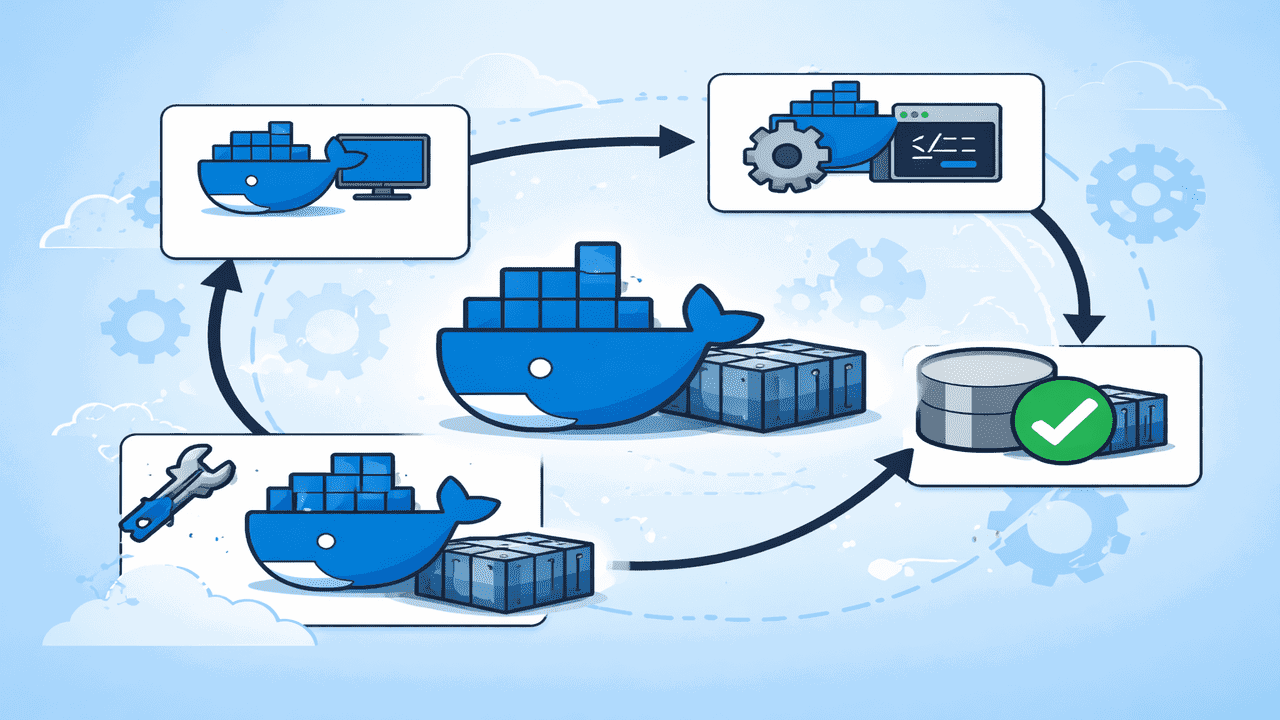
Docker images are immutable. Once built, they don’t change. This ensures consistency, predictability, and stability. Every container created from the same image behaves identically, and versioning becomes safe and easy. But what if you need to tweak something inside a running container, like installing a package or updating a configuration? That’s where docker commit comes in. It lets you capture changes in a running container and create a new image without touching the original. This is great for testing fixes, iterating quickly, and rolling out custom images without rebuilding from scratch.
Why Docker Images Don’t Change
Docker images consist of multiple read-only layers. When you run a container, Docker adds a thin writable layer on top called the container layer. Any changes you make happen only in this top layer. Once the container is deleted, all changes in that layer disappear, leaving the original image unchanged.
This design guarantees several benefits:
- Every container from the same image behaves the same, ensuring consistency.
- Changes in one container don’t affect others, providing predictability.
- You can safely tag specific image versions without risk.
This design provides excellent stability, but limits you when you want to make quick changes to a running container. That’s where docker commit helps.
Creates a New Image From a Running Container
When you run the docker commit command, Docker captures the current state of a running container and creates a new image from it. It takes a snapshot of the container’s file system, saving any changes you made, like installed packages, updated configurations, or modified files, as a new image layer. This way, the original image remains untouched, letting you experiment and iterate quickly.

This makes it ideal for saving a custom base setup for future reuse, applying small fixes or configuration changes during testing, or sharing updated images with your team without having to rebuild a Dockerfile from scratch.
You can use the docker commit command with the following syntax to create a new image from a running container:
docker commit [OPTIONS] CONTAINER_ID NEW_IMAGE_NAME[:TAG]Here, CONTAINER_ID is the ID or name of the container you want to capture, NEW_IMAGE_NAME is the name you want for the new image, and TAG is optional, with the default being latest.
Note: docker commit is a legacy alias for docker container commit; both are identical.
The docker commit command provides several options that let you add metadata, apply configuration changes, and control how the commit process behaves. The table below summarizes all supported options:
| Option | Long Form | Description | Example |
|---|---|---|---|
| -a | –author | Adds the author name to the new image metadata. | docker commit -a "Anees" my-container my-image |
| -c | –change | Applies Dockerfile instructions like ENV, LABEL, or CMD to the new image. | docker commit -c "ENV APP_ENV=prod" my-container my-image |
| -m | –message | Adds a short message describing the changes made in the image. | docker commit -m "Installed curl" my-container my-image |
| -p | –pause | Pauses the container during commit to ensure consistency (default: true). | docker commit --pause=false my-container my-image |
See How docker commit Works
Suppose you want to install curl in an Alpine container without rebuilding your Dockerfile. To do this, run a container from the base image:
docker run -it alpine:latest /bin/shOnce you are in the container, make the necessary changes:
apk update && apk add curl
Now exit the container:
exitAfter this, commit the container as a new image:
docker commit container_id> alpine-with-curl:1.0
Verify your new image:
docker imagesNow, you have a new image ready to run anywhere, with curl pre-installed.

Run Your New Image to Test Saved Changes
After creating your new image, you can run a container from it to verify that your changes are saved.
docker run -it alpine-with-curl:1.0 /bin/shThis command opens an interactive shell inside a container based on the alpine-with-curl:1.0 image. Once inside, you can check that your modifications are intact.
curl --versionThis demonstrates that changes are persisted in the new image.

docker commit vs Dockerfile: When to Use Which
Both Dockerfile and docker commit let you create Docker images, but they work in very different ways and are suited for different situations.
A Dockerfile is the best choice when you need reliable and repeatable builds, especially for CI/CD pipelines and production environments. It keeps all changes clearly defined in code, making them easy to track, review, and version-control over time. This approach ensures that anyone building the image later gets the same result, which is critical for long-term maintenance and team collaboration.
On the other hand, docker commit works well for quick fixes, testing, or small adjustments that you want to try without rewriting or rebuilding an entire Dockerfile. It’s useful when you’re experimenting, debugging, or validating a change on the fly. However, because the changes aren’t documented in a file, this method is better suited for short-term use rather than production.
In a nutshell, you can use docker commit mainly for experimentation or temporary fixes. For production-ready images, always prefer a Dockerfile. To get the most out of Docker, it’s worth exploring other key commands that make working with containers, images, and workflows easier.
