


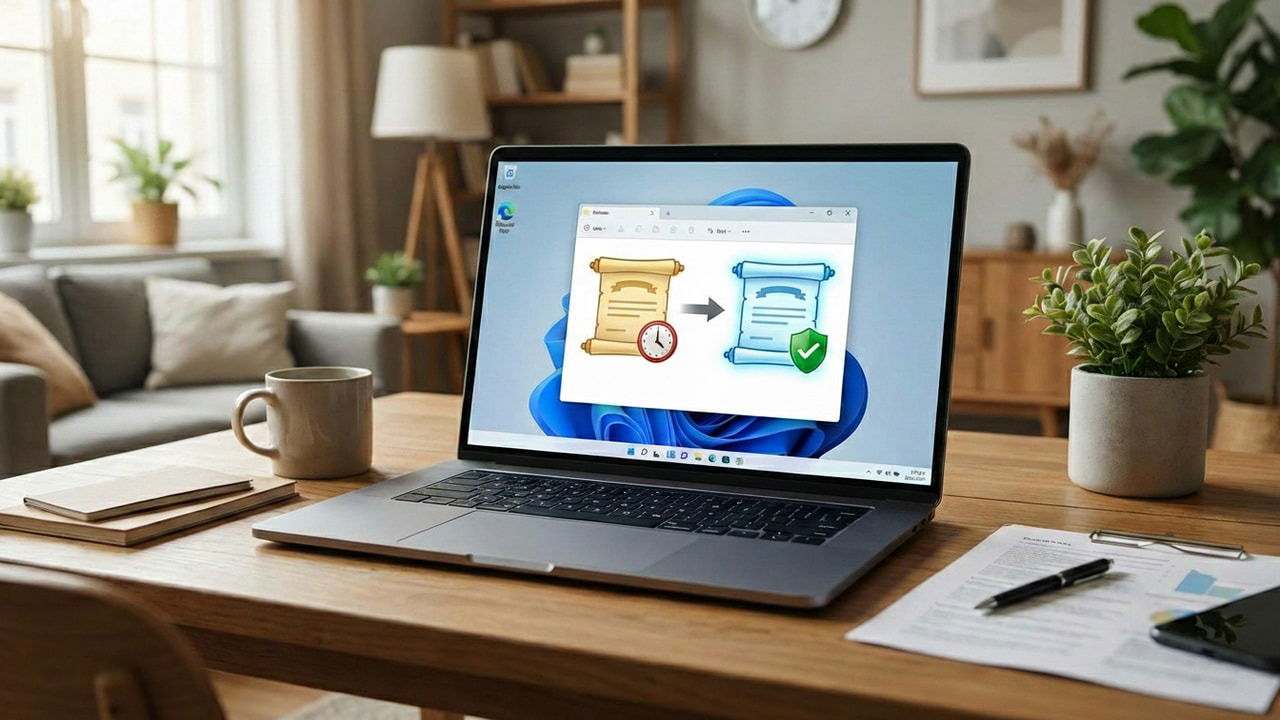
If your PC is more than two years old, your Windows Secure Boot certificates will expire in June 2026. You will stop receiving Secure Boot updates, and it could eventually cause boot issues. While Microsoft is gradually deploying new certificates through Windows Update, you can avoid the uncertainty of a phased rollout by following this guide to update Secure Boot certificates right now.
What are Secure Boot Certificates
The Secure Boot feature in PC UEFI ensures that the PC boots only with digitally signed software from trusted manufacturers. This authentication process has multiple steps, and the first and most important one is using public certificates to identify trusted software manufacturers before even a single line of code is executed.
For this, your PC’s UEFI firmware holds a list of manufacturer certificates that basically work as “ID cards” to confirm the software comes from a trusted source. This helps protect against bootkits and rootkits, as such malware won’t work without certificates from registered manufacturers.
Why You Need to Update to the Latest Secure Boot Certificates
Secure Boot certificates, like every other certificate, have an expiry date. Most PCs made before 2024 use the Microsoft Corporation UEFI CA 2011 certificates, which expire in June 2026. When they expire, your PC won’t receive Windows Boot Manager updates, making your PC vulnerable to new threats. You’ll also have trouble using the latest hardware that is signed with new certificates.
You need to update to the latest Windows UEFI CA 2023 certificates. In fact, Microsoft is already working with OEMs to activate these certificates via Windows updates. However, there are many reasons you may want to activate these certificates manually right now. Below are the most common ones:
- There is no guarantee Microsoft will activate the certificates on your specific PC before the expiry date. The automatic deployment is based on the importance of the devices; you could be waiting months (or it never activates).
- The old 2011 certificates are vulnerable to the BlackLotus bootkit that can bypass secure boot. By updating right now, you get that security right away.
- If Windows updates are disabled on your PC or you prefer managing updates yourself, the certificates may need to be updated manually.
- If you have a recovery drive, it may not work after the certificate update. It’s best to install them on your terms so you can create a new recovery drive timely.
While you won’t be locked out of your PC if you don’t install the latest certificates, it will compromise your PC’s security and make future hardware upgrades difficult.
Check if Your PC is Running the Latest Secure Boot Certificates
There is a chance Microsoft may have already activated the certificates on your specific PC. You can run a PowerShell command to confirm this.
Search “powershell” in Windows Search, right-click on Windows PowerShell, and select Run as administrator.

Run the following command:
[System.Text.Encoding]::ASCII.GetString((Get-SecureBootUEFI db).bytes) -match 'Windows UEFI CA 2023'
If the output says True, you have the latest certificates already, and you don’t have to do anything further. If it says False, you’ll have to update and activate them.
Install the 2023 Secure Boot Certificates on Windows
The Windows UEFI CA 2023 certificates are most probably already on your PC. Microsoft actually added these certificates to all PCs with the Windows 11 February 2024 cumulative update, but didn’t activate them. If your PC was updated at least once after the Windows 11 February update, you can follow these steps to deploy and activate the certificates:
Open PowerShell as administrator again and run the following command:
reg add HKEY_LOCAL_MACHINE\SYSTEM\CurrentControlSet\Control\Secureboot /v AvailableUpdates /t REG_DWORD /d 0x5944 /f
This command will edit the Registry to deploy the 2023 certificates. The 0x5944 Bitmask in the command actually runs six different instructions to make your PC ready to install Windows UEFI CA 2023.
Now, to activate the instructions the above command made, you need to run the following command in PowerShell:
Start-ScheduledTask -TaskName "\Microsoft\Windows\PI\Secure-Boot-Update"This command will run essential jobs for Windows to install the certificates on the next boot, like checking compatibility or moving new certificates from the WinSxS folder to the staging area. You might notice your PC freezing a bit as the command runs.
The most important step is to restart Windows twice. You must restart the PC, not shut down and start again. If you have Fast Startup enabled, a simple shutdown won’t clear the memory, which is required for these changes to take effect.
That’s it, your PC will now have the latest Secure Boot certificates that will last till 2038. While you shouldn’t face any problems, if you do, follow the steps in these guides to fix the Windows not starting issues and fixing infinite reboot loop.
