


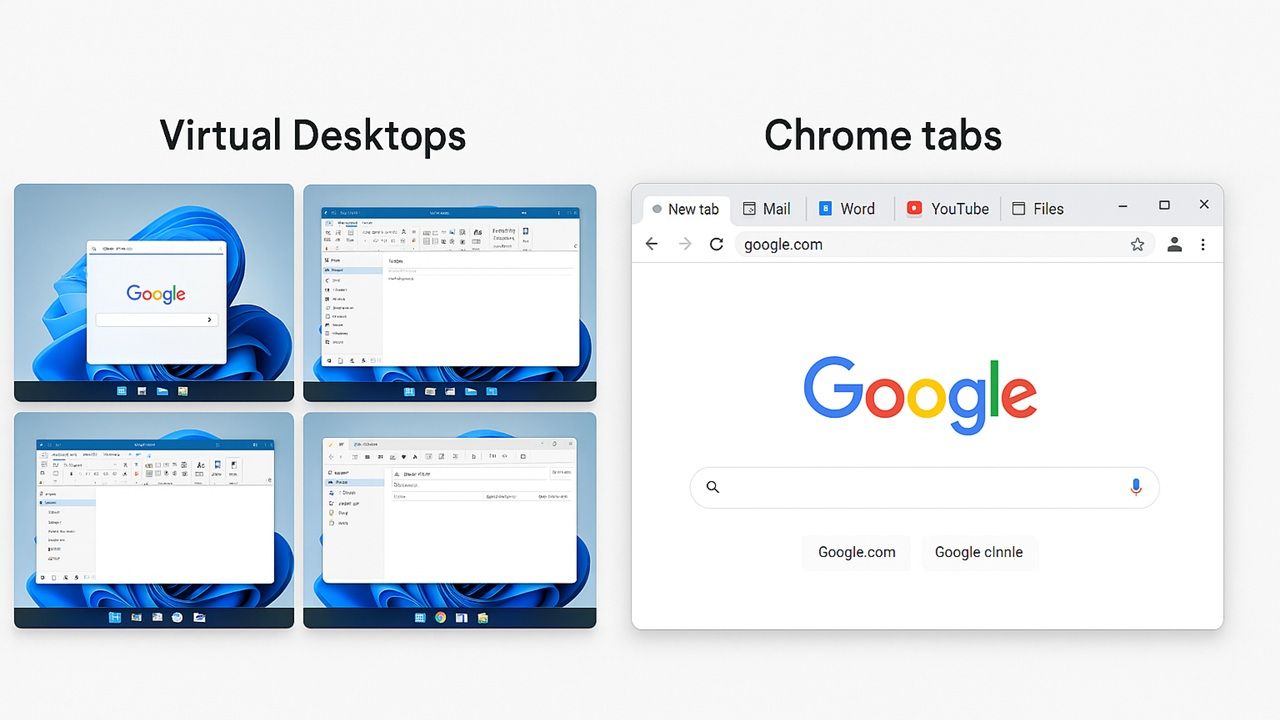
It’s very common for most users to do their daily work inside their favorite browser. This often leads to tab accumulation as a natural browsing habit. While multiple open tabs may create an illusion of productivity, they actually slow down your PC due to VRAM pressure and browser overheads. For Windows users, the good news is you don’t have to live in this tab hell. Simply switch to virtual desktops to let your browser breathe.
Virtual Desktops vs. Tabs: Which is Better for PC Performance
Before we begin, let’s be very clear that using multiple virtual desktops does not reduce your Windows PC’s system RAM performance. It cannot throttle, page out, or magically erase the overall RAM consumed by a browser.
In the following example, I used 10 virtual desktops to browse over 50 Chrome tabs. Task Manager still showed CPU/memory consumption spikes. Browsers like Chrome or Edge are memory hogs. With YouTube, Netflix, Google Docs, or AI chatbots open, they can cause huge CPU/memory spikes. Even with 32 GB installed RAM, I saw 50-60% usage spikes. But that wasn’t the cause of my PC slowdown!

The thing is I still had 13-16 GB available/standby memory. RAM only becomes the culprit when its value climbs to 80-95% of the total amount. The real problem occurs due to VRAM demand which indirectly pressures system RAM. With multiple tabs running on only one desktop, a browser like Chrome allocates more memory for shared GPU tasks.
You can check VRAM’s impact in the Task Manager itself at Performance → GPU. As multiple graphic tabs remain open for too long, you may suddenly experience utilization spikes, such as 17-20% in the following example. The normal values for my Windows 11 device are 1-2%.

Any actual slowdown due to multi-tabbed browsing in a single desktop window manifests as:
- Microstutters: these are the scrolling lags (it takes forever to drag through a window), delays in tab switches, or cursor hitches which can be frustrating.
- DWM overhead: the Desktop Window Manager (dwm.exe) is a high memory usage contributor. This mainly contributes to the extra VRAM spikes during previews/thumbnails, or when you’re multitasking using Alt + Tab.
- More tabs in “warm” stage: when you have dozens of tabs open in one active window, almost all of them stay in the “foreground.” The browser thinks they’re all relevant.
If you use virtual desktops in Windows 11, most inactive tabs quickly slip into the background and discard to a minimal state. For my own writing and research work, I found it very beneficial to split the desktops depending on research, projects, and the actual writing. Not only does each window have lesser distractive content, there are no unnecessary open tabs to cause slow mouse clicks.

Switching to multiple virtual desktops also feels better than keeping multiple tabs open because of fewer JavaScript timers and media buffering on the active window. There are no noticeable microstutters on screen. Just like Zswap in Linux, Windows also uses compression to put more tabs in standby list and compressed store. And with every new virtual desktop, you deal with far fewer DWM thumbnails.
Browsers are Designed to Suspend Inactive Tabs: Use That to Your Advantage
Another big benefit of using virtual desktops is that they work very well with a built-in feature that most browsers have. It’s called “tab-suspending” technology which suspends inactive tabs to reduce load on your laptop, battery, and control extra heat generation. For Chrome, it’s called Memory Saver mode.
In a minimal state, each tab is allocated far less memory, which can be less than 10 MB per tab vs. 100-300 MB when in active state. There are many browser overheads such as scripts, media, and heap allocations which no longer count. To achieve this on Chrome, go to Settings → Performance → Memory Saver.

Even though Windows virtual desktops don’t directly control Chrome’s suspension logic, their very design makes tab suspension more effective in practice. If all the tabs are placed in a single desktop. Chrome delays suspension because of rendering priority.
But when you spread them across multiple virtual desktops, these same tabs are genuinely hidden from view. For instance, I can have software installations happening in a parallel desktop without them weighing down emails or other important activities.

Apart from Google Chrome, Microsoft Edge, Brave, Firefox, and Opera have suspender-style logic. With virtual desktops in Windows, you can drastically reduce any system sluggishness on the browser.
Related: is your Chrome slow on Windows 11? Perhaps try disabling Efficiency Mode for quick impact.
You Can Easily Use Multiple Virtual Desktops in Windows
Using multiple desktops in Windows 11 is very easy, and we have a detailed guide for this.
In Windows 11, enable Task view from Settings → Personalization → Taskbar. It shows as a shadow icon over the taskbar. You can immediately view virtual desktops to the right of the current one. There are only two keyboard shortcuts worth remembering here:
- Creating new virtual desktop: use Win + Ctrl + D.
- Scrolling through multiple virtual desktops: use Win + Ctrl + right-arrow to scroll left-to-right, and Win + Ctrl + left-arrow to scroll right-to-left.
If you’re not a fan of keyboard shortcuts, you can insert the mouse click in multiple desktops simply by tapping the Task view icon on Taskbar. You can easily rename and reposition the desktops.

Once you switch to multiple desktops instead of multiple tabs in browsing, it leads to noticeable savings in VRAM over prolonged activity. For example, many users on Reddit are reporting 1–5 GB savings on heavy sessions. On average, I have been able to recover anything from 800 MB – 1 GB on my own device, although the real figures depend on the kind of applications used.
As a limitation, it should be noted that there are other factors causing PC slowdown in Windows. You can disable throttling to make it run faster. Some applications like Outlook are notorious for CPU spikes. However, if you’re a browser-based Windows user, virtual desktops offer a lot of promise to recover lost speeds. It’s like quarantining the tab explosion so it doesn’t drag everything else down.
