


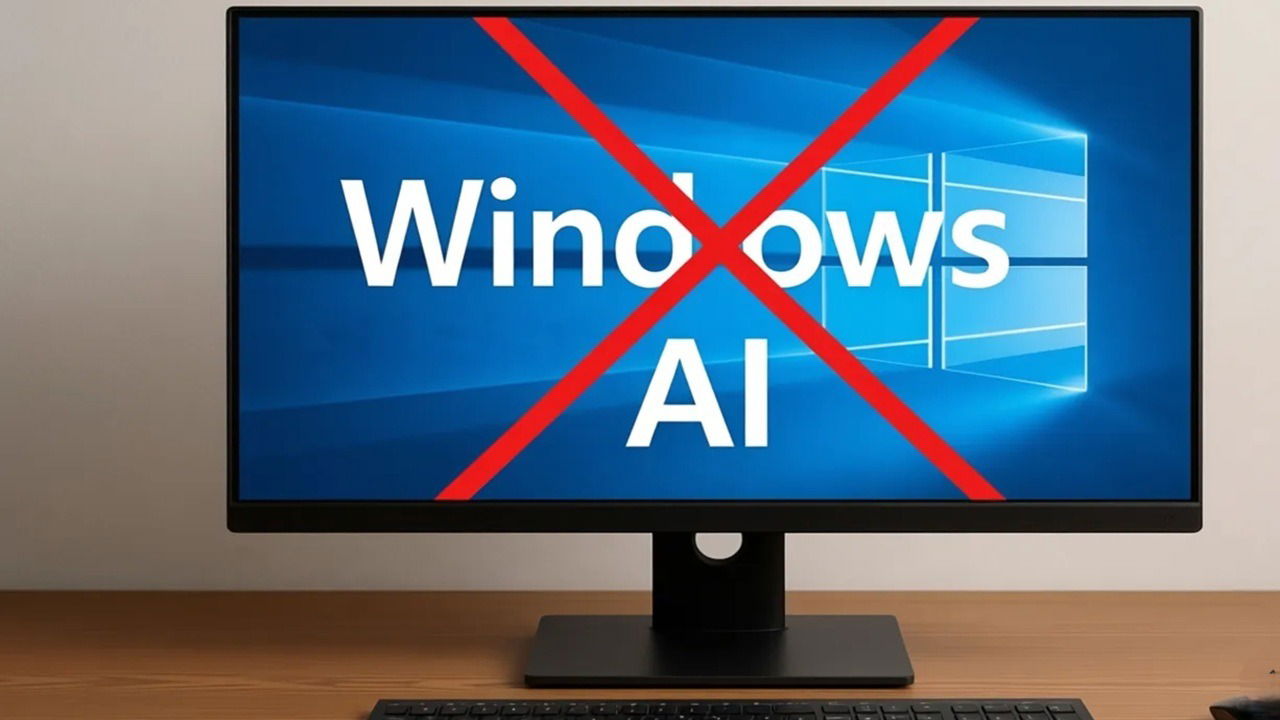
Microsoft might love pushing AI into every Windows product, but you don’t have to put up with it if you don’t like it. Instead of removing each AI component separately, here’s how I remove AI from Windows all at once with one tool.
Remove AI from Windows With RemoveWindowsAI
Microsoft’s incorporated AI into the Windows desktop, Notepad, Paint, Edge, and more. For those of us who don’t really use it, it’s just needless bloat. Plus, you might not like Copilot constantly learning from your interactions.
You can remove Copilot and other AI features in Windows one at a time. This is especially helpful if you just want to remove one or two AI components. But, to remove all AI, this gets tedious quickly.
The free script, RemoveWindowsAI, lets you choose any or all Windows AI components to remove at the same time. It’s designed to take you back to a pre-AI Windows. It works by changing relevant registry keys to fully disable or remove AI features you don’t want.
There are currently a couple features the script may not fully remove, but the documentation walks you through removing this if the script doesn’t work. I appreciate the developer making users aware of possible hiccups.
My favorite part is it also prevents Windows Update from reinstalling AI components. So, you won’t need to re-run the script every time Windows updates.
Don’t worry. You won’t have to manually edit the registry yourself. I know many users aren’t comfortable doing this since a single mistake can ruin your system. Though, if you are comfortable digging through the Windows Registry, a few genius tweaks can help transform the desktop experience.
What RemoveWindowsAI Targets
As Windows adds more AI features, the developer plans to adapt the script to continue keeping your system anti-AI. For now, the script targets:
- Copilot, including Copilot in Edge (if you just want AI out of your browser, use this script instead)
- Recall
- Image creator in Paint and other AI Paint features
- Input Insights along with preventing typing data harvesting
- AI voice effects
- AI in Windows search
- AI actions
- AI fabric service
It also reinstalls the non-AI or classic versions of any apps that currently have AI integrated, such as Paint, Notepad, and Photos. It’ll also remove all Recall tasks, AI installers and package files, and associated registry keys.
Running the Script
All you need is PowerShell, which is already installed in Windows. It’s a handy utility that lets you perform a variety of tasks in Windows. Press Win + X and select Terminal (Admin). You need full admin access to run RemoveWindowsAI and remove AI from Windows.
If you’re using PowerShell 7, the script won’t run. It works fine with PowerShell 5.1 though.
Once you see the PowerShell prompt in Terminal, run the command:
& ([scriptblock]::Create((irm "https://raw.githubusercontent.com/zoicware/RemoveWindowsAI/main/RemoveWindowsAi.ps1")))
Your PowerShell should now look like this.

As soon as you press Enter to run the script, you should see the graphical interface with all the options to remove AI from Windows.
Choosing Windows AI Options to Remove
Now, you just check off the Windows AI features you want to remove.

By default, everything’s checked, but you’re free to uncheck any options you want to keep. Not sure what an option is? Click the blue question mark beside it to learn more.
Before you apply any changes, enable Backup Mode. This is critical for ensuring you can revert if you change your mind later. Otherwise, you’ll have to reinstall Windows to reinstall AI features via Windows Update. Leave Revert Mode disabled.
Scroll down to the Install Classic Windows Apps section to choose which classic apps to install to replace the AI-infested versions.
Only when you’re ready, click Apply. The process then proceeds in the PowerShell window.
Do not close PowerShell or turn off your computer until the process is complete or you could corrupt the Windows Registry. Once the process finishes, verify the AI features you checked are no longer around.
I didn’t even need to restart my PC. The Copilot icon was gone, no more Copilot in Edge, and Notepad was just simple Notepad again.
Restore AI in Windows
Change your mind? No problem. As long as you enabled the Backup Mode during the original changes, you’re able to revert. The RemoveWindowsAI script creates a backup during the process to let you go back to the previous settings.
Run the original script again to launch the UI. Check all the options you originally checked and turn on Revert Mode. Click Apply to revert.

Alternately, make a full backup of Windows before running the script and reinstall Windows from that backup. Or, set a System Restore point before using the script and restore Windows from that point.
Otherwise, enjoy your new AI-free Windows experience. If Microsoft does sneak in more, check in with the developer for a new version of the script.
Remove Windows Ai
Price: Free
