Close Menu
Financblog
    What's Hot

    Anthropic’s Claude tops App Store charts as backlash builds against OpenAI’s ChatGPT

    March 2, 2026

    Bank of Japan deputy governor says rate hikes likely to continue

    March 2, 2026

    The whole world is watching this critical energy chokepoint as Iran conflict enters more dangerous phase

    March 2, 2026
    Facebook X (Twitter) Instagram
    Financblog
    Facebook X (Twitter) Instagram
    • Home
    • Personal Finance
    • Passive Income
    • Saving Tips
    • Banking
    • Loans
    Financblog
    Home»Saving Tips»This iPhone Reminders Upgrade Makes Time-Critical Tasks Hard To Ignore
    Saving Tips

    This iPhone Reminders Upgrade Makes Time-Critical Tasks Hard To Ignore

    adminBy adminJanuary 17, 2026No Comments4 Mins Read
    Facebook Twitter LinkedIn Telegram Pinterest Tumblr Reddit WhatsApp Email
    Critical Reminders Iphone Featured
    Share
    Facebook Twitter LinkedIn Pinterest Email

    iPhone reminders are great, until one slips past you because your phone isn’t nearby. In iOS 26.2, Apple addresses this issue by allowing you to add an alarm to important reminders, making sure they’re heard when you’re not looking at your screen. Here’s how to make your reminders impossible to miss.

    Good to know: did you know that with this trick, you can reduce the screen brightness beyond the allowed minimum?

    Attach an Alarm to a Urgent Reminder on iPhone

    To be able to take advantage of this feature, you will need to ensure you’ve updated to the latest version of iOS, which at the time of writing this article is 26.2. To verify that’s the case, open Settings on your device and navigate to General → Software Update. If you notice the update is currently available, install it.

    By default, when a regular reminder is triggered on your iPhone, you will hear a notification sound and see a notification banner on your screen. Let’s see how you can improve this setup.

    Open the Reminders app on your iPhone and create a new reminder by pressing on the blue + button in the lower right corner.

    Pressing
    Critical Reminders Iphone Urgent On

    Add a title and any notes you might have, as well as a URL. Then set the Date, and Time. Once all this is done, don’t forget to mark the reminder as Urgent by toggling on the last option. This will automatically create an alarm for the reminder. Do note that this alarm is not visible in the Clock app on your iPhone.

    If you’re trying to make a reminder you’ve previously created Urgent, tap the All button to view all your reminders.

    Tapping
    Critical Reminders Iphone Calendar Button
    Critical Reminders Iphone Custom

    Find the one in question and tap on it. Press on the calendar icon below to view date/time details. Select Custom and enable the Urgent toggle from there.

    You can also create Urgent reminders on Mac, as well. They will show on your iPhone, if you’ve previously connected the two devices.

    Tip: autocorrect feels worse in iOS 26.2? Check here to see how to fix it.

    Reschedule an Urgent Reminder on iPhone

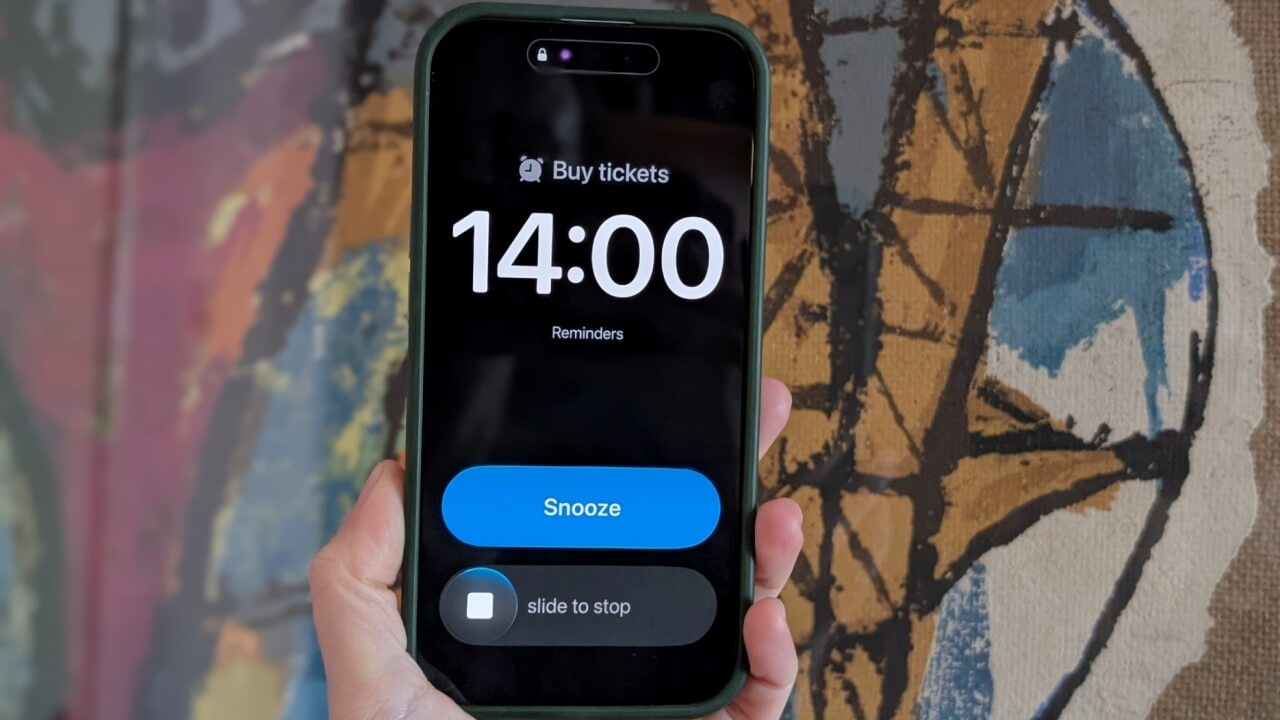
    When the Urgent reminder fires, it will take up your entire screen, as a normal alarm does. You can opt to Snooze it for another 9 minutes. However, unlike the Clock alarm, you won’t be able to change the Snooze duration.

    Critical reminder view with

    The other option is Slide to Stop. If you opt for this, your iPhone will display a Live Activity that displays the reminder’s name with an option to mark it as complete.

    In case you prefer, you can change the Slide to Stop button to just Stop. To do so, go to Settings → Accessibility → Touch. Turn on the Prefer Single-Touch Actions.

    Enabling
    Critical Reminders Iphone Stop Button

    Once you press the Stop (or Slide to Stop) button, a Live Activity banner will pop up that includes the name of the reminder. Most importantly, from here you can tap Reschedule, which takes you to the Reminders app where you can set the reminder for a later time or date. You can also turn off the Urgent toggle if you think it’s not needed anymore.

    Reminder marked as
    Critical Reminders iPhone Reschedule

    Note that you won’t be able to dismiss the Live Activity from your lock screen unless you take some sort of action. You have to either reschedule it or mark it as done.

    If the Urgent reminder goes off while your phone’s screen is on, it will appear at the top of the display showing Zzz (for Snooze) and X (for Stop).

    Critical Reminders iPhone Screen On
    Critical reminders iPhone Dynamic Island

    If your phone has a Dynamic Island, and you swipe up the notification, it will show in the area at the top. Check how you can hide notifications in Dynamic Island here.

    Replace the Snooze Button with Complete for Urgent Reminders on iPhone

    If you’re confident you don’t need to Snooze your urgent reminders, you can replace the button with a Complete button.

    To do this, open the Settings app and head down to Apps. Find Reminders in the list.

    Navigating to Apps in iPhone Settings.
    Critical Reminders Iphone Complete For Alarm
    Critical Reminders Iphone Complete Buttno

    Toggle on the Complete from Alarm under the Urgent Reminders.

    Now when the Urgent reminder sets off, you should see the Complete button on the screen.

    Worried about forgetting to return calls? Check here how you can easily set up callback reminders on your iPhone.

    Hard Ignore iPhone Reminders Tasks TimeCritical Upgrade
    Share. Facebook Twitter Pinterest LinkedIn Tumblr Telegram Email
    Previous ArticleTrump vows tariffs on eight European nations over Greenland
    Next Article These 20 cheap S&P 500 stocks can cushion the blow in a market downturn
    admin
    • Website

    Related Posts

    How to Move Your WhatsApp Stickers to iMessage

    February 28, 2026

    DoNotNotify Lets You Block Android Notifications Without Disabling Everything

    February 28, 2026

    Why Self-Hosting Isn’t Always Better Than Subscriptions

    February 28, 2026
    Add A Comment
    Leave A Reply Cancel Reply

    Top Posts

    Anthropic’s Claude tops App Store charts as backlash builds against OpenAI’s ChatGPT

    March 2, 2026

    Bank of Japan deputy governor says rate hikes likely to continue

    March 2, 2026

    The whole world is watching this critical energy chokepoint as Iran conflict enters more dangerous phase

    March 2, 2026

    Subscribe to Updates

    Get the latest sports news from SportsSite about soccer, football and tennis.

    About Us

    Welcome to FinancBlog, your trusted online resource for personal finance insights, money management tips, and financial education designed to help you make smarter financial decisions.
    At FinancBlog, our mission is simple: to make personal finance easy, understandable, and accessible for everyone. Whether you are looking to save more money, understand banking products, explore loans, or build passive income streams, we provide well-researched and easy-to-read information to guide you.

    Facebook X (Twitter) Instagram Pinterest YouTube
    a1
    Top Insights

    Anthropic’s Claude tops App Store charts as backlash builds against OpenAI’s ChatGPT

    March 2, 2026

    Bank of Japan deputy governor says rate hikes likely to continue

    March 2, 2026

    The whole world is watching this critical energy chokepoint as Iran conflict enters more dangerous phase

    March 2, 2026
    Get Informed

    Subscribe to Updates

    Get the latest creative news from FooBar about art, design and business.

    © 2026 inancblog.com. All rights reserved. Designed by DD.

    • About Us
    • Contact Us
    • Terms & Conditions
    • Privacy Policy
    • Disclaimer

    Type above and press Enter to search. Press Esc to cancel.

    Ad Blocker Enabled!
    Ad Blocker Enabled!
    Our website is made possible by displaying online advertisements to our visitors. Please support us by disabling your Ad Blocker.