


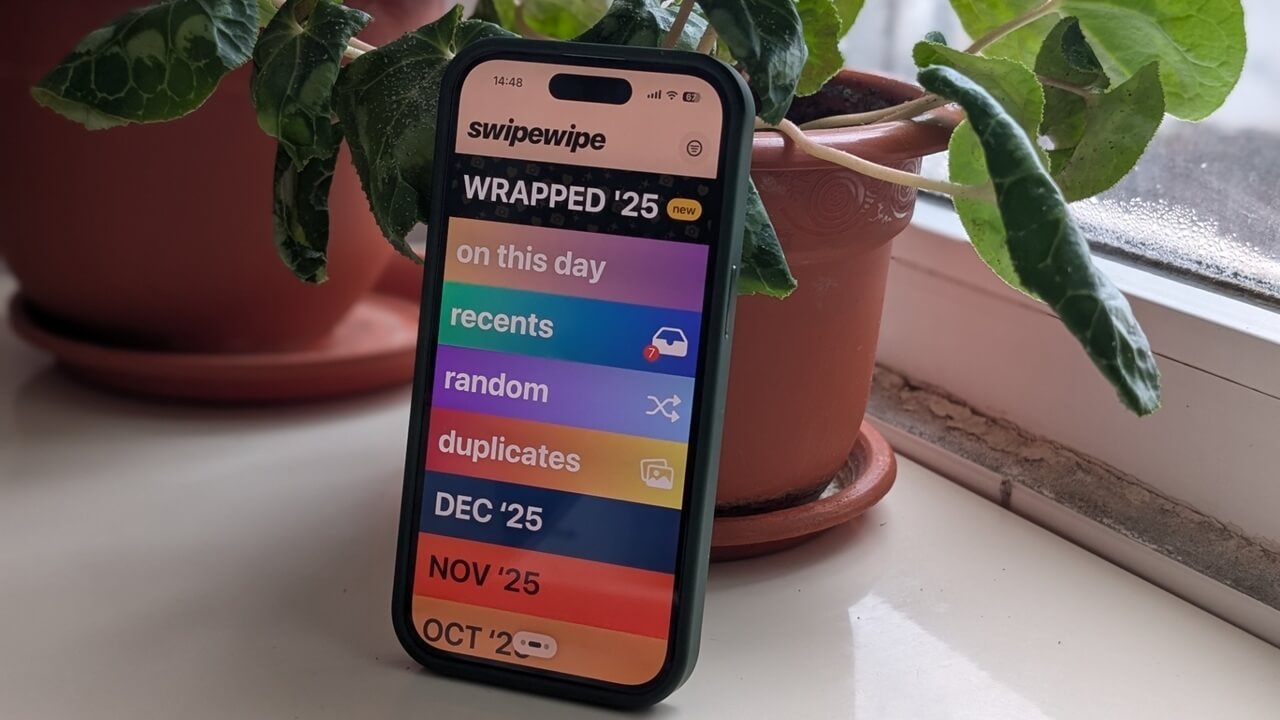
If you take screenshots every day and enjoy snapping photos, chances are your photo library is constantly overflowing. Mine certainly was, and cleaning it up always felt like a chore I’d rather avoid. Luckily, I recently discovered Swipewipe, an app that simplifies photo clean-ups, making it easy to declutter your library and free up space on your device in seconds.
Good to know: you can use Google Photos on iPhone to create stickers.
Why Cleaning Up Photos on Your Phone Is so Time-Consuming
It’s easy to forget to clean up your photos until you’re faced with the consequences. For someone who takes daily screenshots and plenty of photos, it should have become routine by now, but the sheer monotony of task usually makes me stay away from it.
That’s because cleaning up photos isn’t just about deleting, it’s about deciding. Do I need this later? Is this the best version? Will I regret deleting it? Multiply these questions by hundreds or even thousands of images, and the process becomes exhausting very quickly.
On top of that, deleting a single photo usually takes at least two taps, depending on the gallery app you’re using. Bulk deleting is an option, of course, but it comes with the risk of removing something you might need later, since thumbnails don’t always tell the full story.
Tinder-swipe Your Way to a Cleaner Photo Library and Save Time
Swipewipe proposes a simple yet very effective way to help you keep your photo gallery in check by letting you quickly decide what you want to keep and what goes. To help you remember to engage in regular cleaning sessions, the app can send out daily notifications.
Swipewipe comes with a free 3-day trial, after which you will need to upgrade to a paid tier (weekly/yearly options are available.)
Managing and deleting by categories
One of the Swipewipe’s best features is its colorful, intuitive interface, which makes finding photos quick and painless.
You can browse categories like Recents, Duplicates, or the monthly folders from the main screen to easily go through the photos you’ve accumulated.

Swipe left to access additional categories, including Screenshots, Live Photos, and dedicated folders for your social media apps such as WhatsApp, Instagram, Snapchat, and more.
Because I heavily rely on WhatsApp for my conversations and have media auto-save turned on, this option is particularly useful as I receive a constant stream of photos and videos. If you prefer, you can prevent WhatsApp from saving images to your gallery.
Once inside a folder, the app lets you swipe through your photos in a Tinder-like fashion: swipe right to Keep and left to Delete (you can also use the buttons), for a time-saving clean-up process.

When viewing a certain photo, you can also bookmark it by tapping on the Save icon on the right. This provides a quick alternative to accessing your favorite photos via the app’s Bookmarks folder.
Since AI tools are now commonplace in apps, Swipewipe gives you the option to enhance photos using artificial intelligence. This can be pretty helpful, when an image is a little too dark, for instance, and would use some brightening. I can do this instantly without leaving Swipewipe, although the AI enhance tool doesn’t take suggestions, it’s automatic.
After cleaning up my monthly folders, I settled into a routine with Swipewipe. Each week, I check the Recents, Screenshots, and WhatsApp folder to keep things under control.
Retrieving accidentally deleted photos
As you pick up speed swiping through a folder, you might inadvertently delete some pictures you didn’t want to get rid of. If this happens, there’s no need to panic. You can simply tap the Back button at the top to retrieve the image.
Once you finish swiping through all the images available in a folder, Swipewipe will show you a summary of your photo cleaning activities. If you notice a photo that shouldn’t have been deleted, press the Trash can icon to bring it back.
All in all, keep in mind that deleting images through Swipewipe sends them to your iPhone or Android’s Gallery app’s trash folder. To remove them permanently from your device, you’ll need to also delete them from trash. This also means that if one photo slips through the cracks, you’ll be able to bring it back before completing the final step.
Seeing how much space you’ve saved
At the end of each swiping session, Swipewipe will show you how much space you’ve saved by deleting the photos.
If you want to view how much you’ve deleted in total, swipe right from the app’s main screen and then select My Stats.
Why It Matters for Managing Your iCloud/Google Storage
Backing up your photo gallery with iCloud or Google Photos is very convenient and nice-to-have, but the free 15GB (Google) / 5GB (iCloud) storage can fill up quickly, making effective space management important. Google can be particularly annoying once you start nearing the storage cap, sending frequent reminders to take action.
For me, the solution has been to focus on backing up only the photos matter most to me. This entails turning off backups for good and manually uploading only select pictures. In this task, Swipewipe has helped me comb through my large photo library in record time and find the picture worth preserving.
Even if you don’t usually back up to the cloud, Swipewipe can help ensure you keep your device’s storage under control.
For more tips on preventing your Google storage from filling up, check out this guide. iCloud users can find suggestions here.
Another alternative would be to switch to a self-hosted photo backup system like Immich.
