


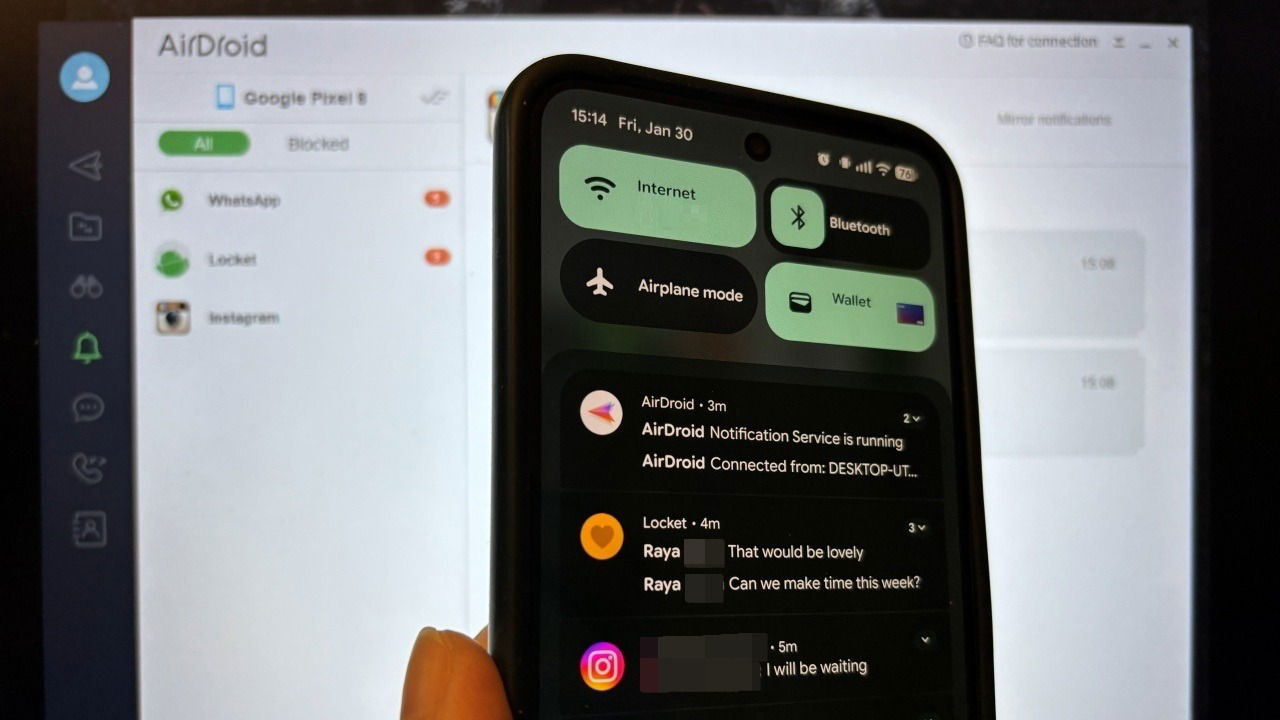
If you’re on your computer more often than your phone, there’s a good chance you might endup missing important calls and texts if your phone isn’t within arm’s reach. Fortunately, you can easily avoid this by relaying your Android notifications straight to your Windows PC. This post covers the easiest methods to accomplish that.
Good to know: don’t like seeing the occasional toast notifications on your Android phone? You can get rid of them.
1. Use Microsoft’s Phone Link
Microsoft is making it very easy to see your notifications on your Windows PC with Phone Link. The app should come preconfigured on your Windows 10/11, but if, for some reason, your device doesn’t have it, you can download it from the Microsoft Store.
You will need to download the Link to Windows app on your Android device. To connect the two devices, sign in with your Microsoft account at both locations. You’ll then have to pair them using a QR code or OPT (if you opt for manual pairing). Check out the detailed steps to connect Windows to Android.
Once you establish the connection between the two devices, there’s one more thing you need to do to have your Android notifications show up on your Windows PC. Open the Windows app and look on the left side, and click the Open settings on mobile device button.

A notification will appear on your Android phone. Tap it and it will take you to Settings, where you need to allow Link to Windows to view your notifications.

Now your Android notifications should start appearing in Phone Link. Note that following the latest Android update, you will no longer be able to see notifications that contain sensitive details (such as banking data).
Hover your mouse on a notification card, and click the X to clear it from view. Or you can use the Clear all button at the top. Deleting notifications from your PC will also clear them on your phone as well.

Alternatively, by clicking the three dots on each card, you can Pin or Mute them for that specific app.

If you wish to stop seeing notifications in Phone Link, press the three dots on any notification card and select Go to settings.

Disable the toggle next to Notifications in the new window that opens.

Recently, Microsoft has also added the option to access your phone from the Start menu. This includes quickly viewing your most 3 most recent notifications. You’ll be able to see just the app that sent it, not the content of the notification. For that, you need to open the Phone Link app.
Tip: your Android notifications aren’t working? Here’s what to do to bring them back again.
2. Try Samsung Flow if You Have a Samsung Device
Samsung Galaxy users can opt to use Samsung Flow instead of Phone Link. To begin, install the app on both your phone and your Windows PC.
Proceed by enabling Wi-Fi and Bluetooth on both devices, and ensure they’re connected to the same network.
Next, open Samsung Flow on your PC. Locate the phone (it needs to be turned on) in the device list and click it. Note that even though non-Samsung Galaxy phones can show up in the list, Samsung Flow is not compatible with non-Samsung phones.

Confirm the passkey that appears on both PC and mobile.

Once the two are connected, click on Notifications (or bell icon) in Samsung Flow on PC.

On the next screen, you can view all your notifications with preview from your Samsung phone.

To remove notifications from view on your PC, right-click on any of them. Next, select the notifications you wish to get rid of and press Delete. They will be cleared from your phone as well.

FYI: if you need to quickly transfer files between devices, consider using Blip.
3. Use a Third-Party Service
Another viable alternative is to use a third-party service. For instance, you can give AirDroid Personal a go.
Like with the other two methods, you’ll need to install AirDroid Personal on your Windows PC and the corresponding AirDroid app on your Android. Next, sign in with the same email address on both devices to connect them.
Then, in AirDroid for Android, select Security & Remote Features. Turn Desktop Notif on.

This entails you proving permissions for the app to view your notifications.

Once all this is done, in AirDroid on PC, click the Notifications icon in the left-side menu to view your notifications, complete with preview (visible on the right).

To clear a notification, hover your mouse over it and press the X button in the right corner.

Note that deleting notifications from your PC in AirDrop will not delete them on your phone.
If your only goal is to view notifications from your phone on your Windows device, AirDrop Personal is a good choice since it is free. However, the tool can do much more, such as allowing you to transfer files, view calls and SMS, and even control the mobile device remotely. To unlock AirDroid Personal’s full potential, especially unlimited file transfers, you may need to upgrade.
We also previously tested AirDroid Business, a version that delivers even more advanced capabilities, on top of letting you view notifications on your PC. You can read all about it in our review.
AirDrop aside, there are other third-party options worth exploring. For instance, Pushbullet worked well for us. It has a convenient Firefox extension for Windows PCs (the Chrome one is now deprecated), as well as a desktop client, and shows notifications with preview.
Another worthy solution is MightyText, which you can install in Chrome on PC (desktop/web apps are also available).
4. Give This Cool New Trick a Try
Finally, you might want to try out this cool new trick allowing Android users to resume their workflows on their Windows PCs. The feature has been recently made available by Microsoft in the Release Preview Channel, so if you’re a Windows Insider, you could give it a go.
While this method will not display ALL your Android alerts, it will show a notification on the computer if it detects you were working in a supported app on a previously linked Android device. Clicking it will allow you to resume working on your PC. So far compatible apps include Word, Excel, PowerPoint, Spotify, Edge browser or OneDrive.
In case you wish to make absolutely sure you never miss important notifications, you might want to consider enabling flash notifications on your Android. Learn how to do so.
Link to Windows
Price: Free
Samsung Flow (Desktop)
Price: Free
AirDroid Personal
Price: Free
