


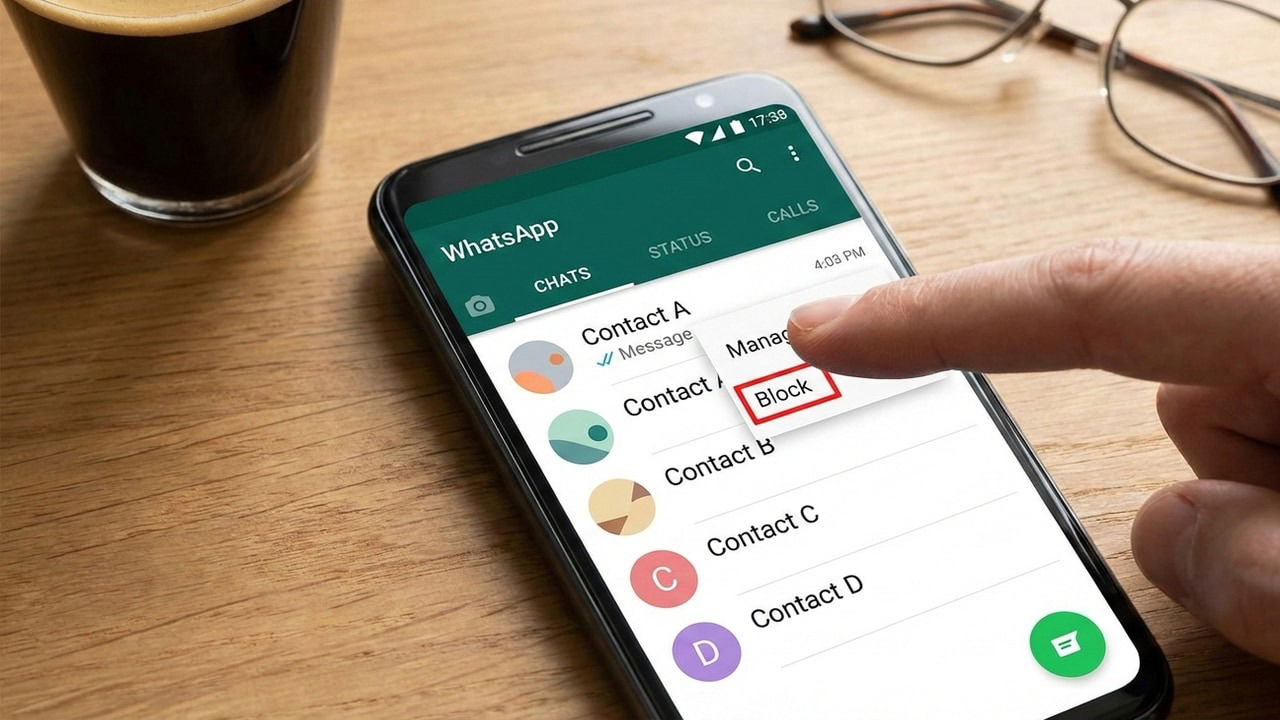
While blocking someone on WhatsApp is simple, the process usually requires opening the chat first. If you don’t want to open someone’s message before you block them, things get a little complicated depending on who sent the message. This guide lists the most reliable ways to block someone on WhatsApp without opening their message.
Why Do You Need to Block a Sender Without Opening the Message?
Blocking on WhatsApp without opening the chat isn’t just about saving a step – it’s often a necessary security measure. Malware is common on WhatsApp, and revealing read receipts to unknown senders is detrimental to your privacy on WhatsApp. Below are some common reasons to block someone before viewing the message:
- Avoid the sender from receiving a read receipt that spammers or harassers can use to trouble you further.
- Block unknown senders who may send inappropriate or offensive messages or media.
- Don’t view ads from brands you don’t like. Many brands don’t mind you blocking them as long as their ad comes in front of your eyes before you block.
- You risk accidentally opening malware/phishing links or being marked as a target by scammers.
Block a Sender on WhatsApp Directly From the Chat List
This is the easiest method that should work for most senders. While in the chat list, instead of opening the sender’s message, tap and hold on it to open more options. Here, you’ll see a Block button at the top for unknown users; just tap on it to block them.

However, this Block button won’t appear for saved contacts or users you have talked to before. For them, you’ll have to tap the three dots menu instead and choose Block from there.
This Block option isn’t available for official businesses (one with a blue tick mark).
Block a Sender From the Contact Info Page
You can also block a contact by visiting their Contact Info page. While it works for all contacts, it’s necessary for official business contacts, as they don’t show the Block button in the chat list options.
Tap on the sender’s profile picture. Make sure you tap the round picture, otherwise the message will open instead. A mini profile photo will open. Tap on the “i” icon here. Scroll down and tap on the Block business (or Block [contact name]) button to block.

Use the Block Option on the Message Notification
You can also directly block someone from the notifications panel in both Android and iOS. WhatsApp automatically shows a Block button alongside Reply and Mark as read buttons for unknown users. The Block button lets you quickly block any unknown user immediately.
Just pull down the notification panel, and you’ll find the Block button alongside other options. However, you won’t find this button on messages from your contacts or anyone you have already chatted with; it’s only for the ones contacting you for the first time.
Manually Add the Sender to the Block List
You can also manually add a contact to the block list without opening the chat. This is useful when you need to block multiple senders or official businesses that don’t show the block button in the chat list.
Go to WhatsApp Settings from the main menu. Here, move to Privacy → Contacts → Blocked contacts and tap on the Add button. You’ll see all your contacts here; just tap on whoever you want to block.


Keep in mind you can only block users in your WhatsApp contact list here. To block unknown numbers, you’ll have to add the contact in phone first before blocking.
Block the Sender on WhatsApp Desktop
If you want to block a sender without opening the message on the WhatsApp desktop app or the web version instead, your options are a bit limited. You can either directly block the sender (if possible) or manually add them to the block list. You can’t open the Contact Info page without opening the message, or block contacts from the notifications.
To block a contact, just right-click on their chat, select Block, and confirm the prompt. This will work for all contacts and unknown users except for official business contacts.

To manually add contacts to the block list on WhatsApp desktop, click on Settings and go to Privacy → Blocked contacts. Here, click on Add blocked contact and choose the contact to block. Of course, you’ll have to save the number as a contact first before blocking like this (which requires the phone).

These methods will ensure you can easily block people on WhatsApp without interacting with their messages. If you are doing this specifically to avoid telling the sender you read their message, try these methods to turn off read receipts in WhatsApp.
