


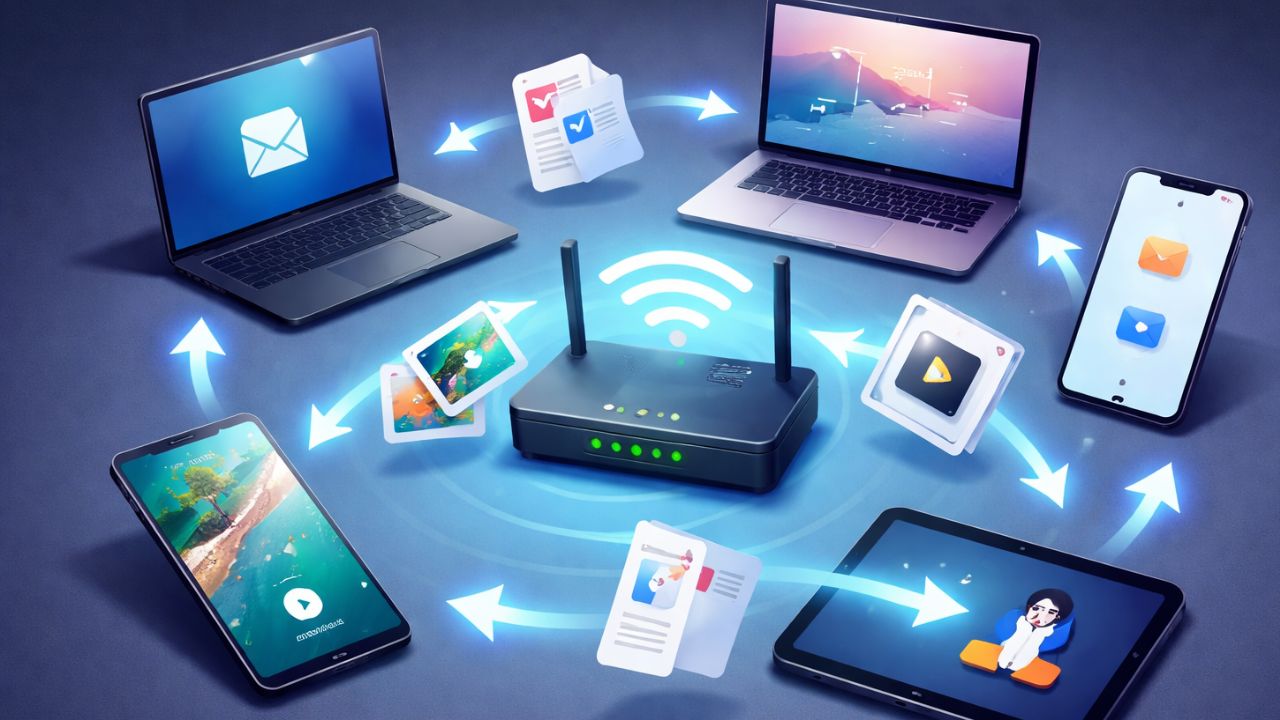
File sharing is usually easy within a single brand ecosystem. For example, AirDrop works well, but only within the Apple world. Alternatively, Quick Share, formerly known as Nearby Share, only allows fast transfers between Google and Android devices. What happens when you want to transfer files across different platforms, like from Android to Linux, Linux to macOS, or Windows to Linux? That is where LocalSend comes in. It’s a simple, open source app that removes the walls between different devices and transfers files directly from one device to another, quickly and privately.
Why LocalSend Is Now My Daily Driver
I run Linux on my laptop and Windows on my desktop, and I also have an old Android device and an iPhone that I use for my photography hobby. Moving files across all of these different devices is where things get frustrating and require different tools, at least until I found LocalSend. This single tool connects all of these operating systems right out of the box.
The reason I appreciate LocalSend is the lack of friction. There are no accounts to create and no passwords to manage. You install the app, open it on both devices, and they discover each other automatically. The interface is clean and direct. I can send single files, entire folders, or even text snippets without digging through menus.

Also, files transfer directly over your local Wi-Fi network or hotspot without touching any external server. That means speeds are limited only by your router, not by remote upload restrictions. Because of this, when I move large videos from my iPhone to my Linux machine, the transfer feels almost immediate compared to cloud based workflows.
The Features That Actually Matter to Me
LocalSend provides many features that make it powerful compared to other alternatives, but a few stands out to me. The first is Quick Save. Normally, when you send a file, the receiving device has to hit Accept. But when I enabled the Quick Save feature on my personal devices, everything changed. Now I can send dozens of screenshots from my phone to my PC, and they quietly drop into my Downloads folder in the background.

Another favorite feature is Share via Link. Sometimes I need to send a file to a friend who is on my Wi-Fi but does not have LocalSend installed. I simply enable the temporary web server in the app, give them a link, and they download the file directly through their mobile browser.

As for security concerns, because everything stays inside your local network, I feel more comfortable sending sensitive work documents compared to uploading them to a third party service. Transfers use HTTPS and TLS encryption by default, and you can enable a PIN if you want an extra layer of protection.
Installing LocalSend is a Breeze
Getting LocalSend up and running is a quick process. You just have to download the installer for your OS and install it.
On Linux, the most reliable methods are Flatpak or Snap. As these methods ensure the latest updates regardless of the specific distribution. For example, to get it using Snap, run this:
sudo snap install localsend
You can also choose an AppImage for a portable experience that requires no installation. Alternatively, you can check your system’s App Center for a native package.
Note: Once the application is installed, you should verify that your system firewall allows communication through LocalSend’s port. This ensures your machine remains visible to other peers on the network.
Sending Your First File
To send your first file using LocalSend, start by opening the application on both your sending and receiving devices. The application identifies your devices using a randomized nickname, which you can personalize in the settings menu to something more recognizable like “Linux Workstation” or “Personal Phone.”
Next, ensure both devices are connected to the same Wi-Fi network or hotspot so they can discover each other. In LocalSend, navigate to the Send tab. Here you can select individual files, entire folders, or even paste text snippets.

Once you have made your selection, a list of available nearby devices will appear on your screen, identified by their unique nicknames. Select the target device from the list to initiate the connection.

On the receiving end, a notification will appear displaying the file name and the sender identity. Simply click Accept to begin the transfer.

For smaller files like photos or documents, the process is nearly instantaneous. For larger items such as high definition videos, you will see a progress bar indicating the transfer speed, which typically reaches the maximum capacity of your local router.
Once the progress bar reaches one hundred percent, the files are automatically saved to the designated download directory on the receiving device.
Things That Could Be Better in LocalSend
There were times when LocalSend didn’t work as smoothly as I expected. For example, on a college Wi-Fi network with client isolation enabled, my devices could not detect each other at all. At first, I thought the app was malfunctioning, but switching to my phone’s hotspot resolved the issue immediately. While it works reliably on typical home networks, more restrictive networks can cause confusion.
On iOS, the experience also feels slightly less fluid compared to system-integrated tools. The app sometimes needs to stay open during transfers, which still works, but doesn’t feel as seamless as I found on Android.
In addition, the web sharing option is useful for quick transfers, but remains fairly basic. Adding some advanced controls could make it even more versatile.
Final Thoughts
If you want a fast, secure, and truly cross-platform local sharing method, LocalSend remains an incredibly versatile daily driver. Besides LocalSend, I also love KDE Connect. It allows you to sync notifications, share your clipboard, and even use your phone as a remote control.
