


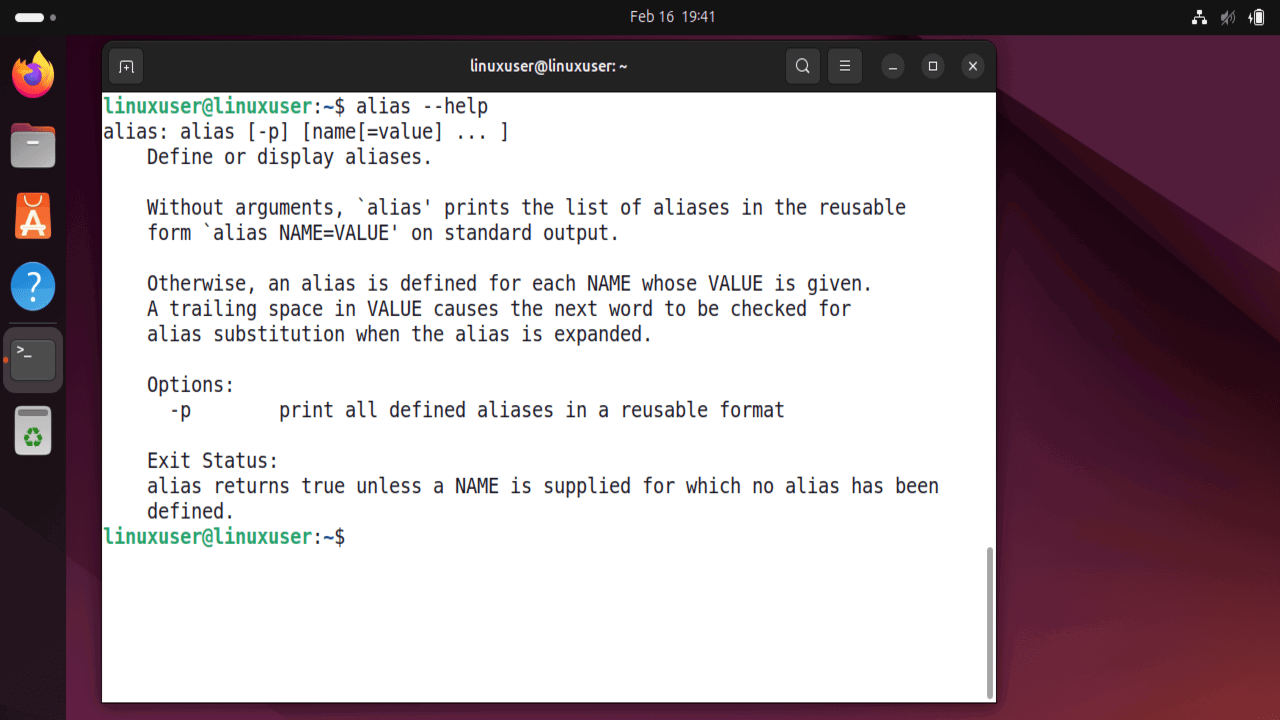
Linux aliases let you replace long, error-prone commands with short, meaningful words that match how you work. Instead of retyping commands or second-guessing syntax, you trigger exactly what you want with a single keyword. This reduces mistakes, speeds up routine tasks, and helps you stay focused on the work instead of the command line. In this guide, I’ll show practical examples of how to use aliases effectively in Bash.
How Aliases Work in Linux
Many advanced tasks in Linux require typing long and complex commands. The alias command simplifies this process by allowing you to create short, custom names for longer commands. An alias works as a shortcut: when you type the alias, the shell runs the original command with the same options and arguments. You can create these shortcuts yourself, and some may already exist by default in the system or certain applications.
The basic syntax for creating an alias is:
alias short_name='command'Here, short_name represents the longer command you want to replace. For example, you would normally type ls -lah to display a detailed list of files, including hidden files and human-readable sizes. To avoid typing this full command every time, you can create an alias like this:
alias ll='ls -lah'After this, you only need to type ll, and the shell automatically replaces it with ls -lah before executing it.

Setting Up Your Bash Alias Environment
Most Linux systems use GNU Bash as the default shell. In Bash, you can define aliases in different locations depending on whether you want them to work temporarily or permanently.
A temporary alias works only in the current session and disappears when you close the terminal. If you want your aliases to remain available every time you open a new terminal, you should define them in a configuration file. Permanent aliases are usually added to one of the following files in your home directory:
- “.bashrc” (the most commonly used file)
- “.bash_aliases” (useful for keeping aliases organized separately)
- “.bash_profile” (used for login shells)
A cleaner approach is to store your aliases inside the “.bash_aliases” file and make sure it is loaded from your “.bashrc” file. To do this, add the following lines inside your “.bashrc” file (hidden in the Home folder):
if [ -f ~/.bash_aliases ]; then
    . ~/.bash_aliases
fi
This code checks whether the “.bash_aliases” file exists and loads it automatically.

After adding or editing your aliases, reload the configuration by running the following command:
source ~/.bashrcOnce you do this, your aliases become permanent and will be available in every new terminal session.
Improving Readability and File Listings With Aliases
By default, the ls command can feel plain and difficult to scan, especially when dealing with a large number of files. To improve readability and speed up daily usage, you can redefine or extend it using aliases.
For example, I create an alias that enables automatic color output. This makes directories, executables, and other file types much easier to distinguish:
alias ls='ls --color=auto'
Then I add a few more shortcuts that I use regularly:
alias la='ls -A'
alias lt='ls -lhtr'
Now, running la shows a complete list of files without the . and .. entries cluttering the view. With lt, files are listed with detailed information and sorted by modification time in reverse order, placing the newest files at the bottom.

File Navigation Shortcuts
When I’m constantly navigating between directories, typing long relative paths gets frustrating. Instead of repeatedly entering complete commands like cd ../../.. I define simple navigation shortcuts:
alias ..='cd ..'
alias ...='cd ../..'
alias ....='cd ../../..'
Now I can move up multiple directory levels using just two or three dots, which is much faster and easier.

Similarly, I create direct shortcuts for folders I access daily:
alias docs='cd ~/Documents'
Shortcuts for Everyday Git Workflow
Some Git commands like git log --oneline --graph --decorate are lengthy to type repeatedly, so I simplify them with shortcuts:
alias gl='git log --oneline --graph --decorate'
alias gs='git status'
alias ga='git add .'
alias gc='git commit -m'
alias gp='git push'
Once these aliases are in place, I just type gl instead of git log --oneline --graph --decorate to quickly view a clear, condensed, and visually structured history of my commits. For more advanced Git-specific shortcuts, you can define native Git aliases inside your “.gitconfig” file instead of Bash.
Adding a Safety Layer to Risky Commands
Some commands, like rm -rf, can permanently delete files if used incorrectly. So, I prevent accidental mishaps by redefining these commands with aliases:
alias rm='rm -i'
alias cp='cp -i'
alias mv='mv -i'
The -i flag prompts for confirmation before performing any action.

Multi-Command Aliases
Aliases can also run multiple commands in sequence. For example, I created a shortcut that updates my system and upgrades all packages, but only runs the upgrade if the update succeeds:
alias update='sudo apt update && sudo apt upgrade -y'You can use && to run the next command only if the previous one succeeds and ; to run commands regardless of success.

Organizing and Maintaining Aliases
As your list of aliases grows, keeping them organized makes it easier to manage and update them. For example, whenever I want to see all my aliases, I just run the alias command without any arguments:
aliasAnd if I need to check a specific one, I specify the shortcut name with the alias command:
alias update
Similarly, whenever I want to remove an alias just for the current session, I use the unalias command:
unalias llTo remove an alias permanently, delete it from my “.bashrc” or “.bash_aliases” file and then reload the shell with the source ~/.bashrc command.
When Not to Use Aliases
Although aliases are useful, they are not always the right solution.
- Aliases are expanded only in interactive shell sessions. If you define an alias in your terminal and then try to use it inside a shell script, it usually won’t work.
- Aliases simply replace text before execution. They do not process positional parameters like
$1,$2, and so on. - Aliases are designed for simple command substitutions. Once you need condition checks, loops, multiple parameters, or advanced logic, aliases become difficult to manage.
In simple words, Aliases are best for simple, repetitive commands. For anything requiring logic or parameters, use a function or script instead.
