


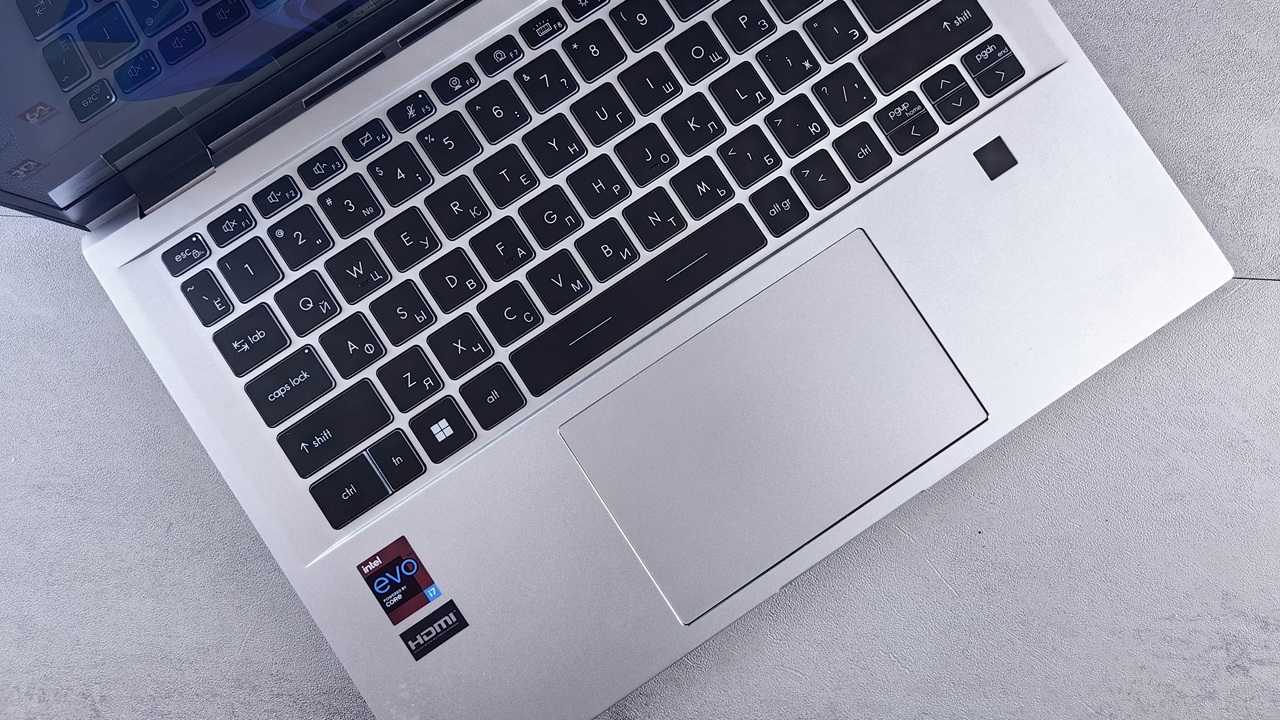
When a laptop touchpad is too hot, we suspect something is wrong with the internals: battery, dust, fan, or motherboard. You can always open the case to find out. But here we will discuss an alternate Windows method that involves dropping the max processor state and disabling Turbo. This simple software setting brings the hot touchpad temperature down in 30‑90 seconds.
Why Laptop Touchpad Can Feel Too Hot to Touch Suddenly
The touchpad area often gets hot because it’s near the CPU unit or heat pipes in many thin laptops. The CPU is the part of the computer that works the hardest, producing heat. That’s why your fingers sometimes feel the touchpad getting hot even though you’re not touching the processor directly.
Another sneaky culprit is dynamic overclocking or “Turbo Boost/Precision Boost.” Modern CPUs can power themselves up automatically when more power is needed. This is great for short bursts of productivity, but it generates a lot of extra heat which escapes to the touchpad area. So, this default setting needs to be removed.
Conversely: If your laptop is slowing down and the touchpad isn’t hot, you are dealing with the opposite of dynamic overclocking. This problem is called “throttling.”
Reduce Touchpad Temperature By Capping Maximum Processor State to 75-80%
Open Control Panel and change View by to large icons. After this, you can see its Power Options. Click Change plan settings.

The Edit Plan Settings window opens. Click Change Advanced power settings. A new pop-up window will open.

In the new Power Options window, go down to Maximum processor state which is always set to a default value of 100% for both plugged-in and On battery. Most laptop users never touch this default setting. That’s good to go if your system is well-cooled, especially with laptop cool pads.
But as laptops are thermally constrained with little heat escape, CPU temperatures can spike to 90–100°C, sending heat into the touchpad. Reducing the max processor state to 75–80% generates less heat and lowers touchpad temperature. Click Apply → OK to save these changes.

Some users report a temperature drop at 99% itself, but in my experience even 90% only partially limits it. Anything below 70% makes multi‑tasking slower and apps stutter. Currently, 75–80% is an ideal range. I can vouch for it on my latest Dell Latitude, where I saw touchpad temperature drops within 90 seconds by lowering to this range.
See below: check our guide on creating custom power plans with Throttlestop.
Prevent Heat Spikes By Disabling Turbo Boost (Intel) and Precision Boost (AMD)
Intel’s Turbo Boost and AMD’s Precision Boost are prime culprits for much of the unnecessary stress on CPU. Disabling them will prevent unnecessary heat spikes in the future. Some laptop models may have a Processor performance boost mode toggle right within the Power Options window above. It will be Enabled by default, and you can click Disabled followed by Apply → OK.
Many laptops don’t have these direct switches, so we use a tool called Throttlestop. Download a tiny ZIP file and run it straightaway. No installation is required. When the application wizard opens, look for an option called Disable Turbo and check it. Then click Save and exit the wizard.

Related: check our detailed guide on how to undervolt CPU using Throttlestop.
Other Software Means to Bring Down Touchpad Temperature
Apart from disabling Turbo Boost/Precision Boost and capping Maximum processor state, you can cool your touchpad using these minor software tweaks.
- If you’re not a heavy gamer, you can turn off a setting that optimizes hardware acceleration, a great contributor of heat. Go to Settings → System → Display → Graphics. Here, you need to toggle off Optimization for windowed games, which is set as default.

- You can also reset your power efficiency levels. For this, go to Settings → System → Power & battery. Here, the Power Mode values can be changed to Best Power Efficiency from Balanced.
For those who’re keen, we have a detailed guide on activating system cooling policy for Windows. If the option is missing on your device, it can be added with some simple PowerShell tweaks.
