


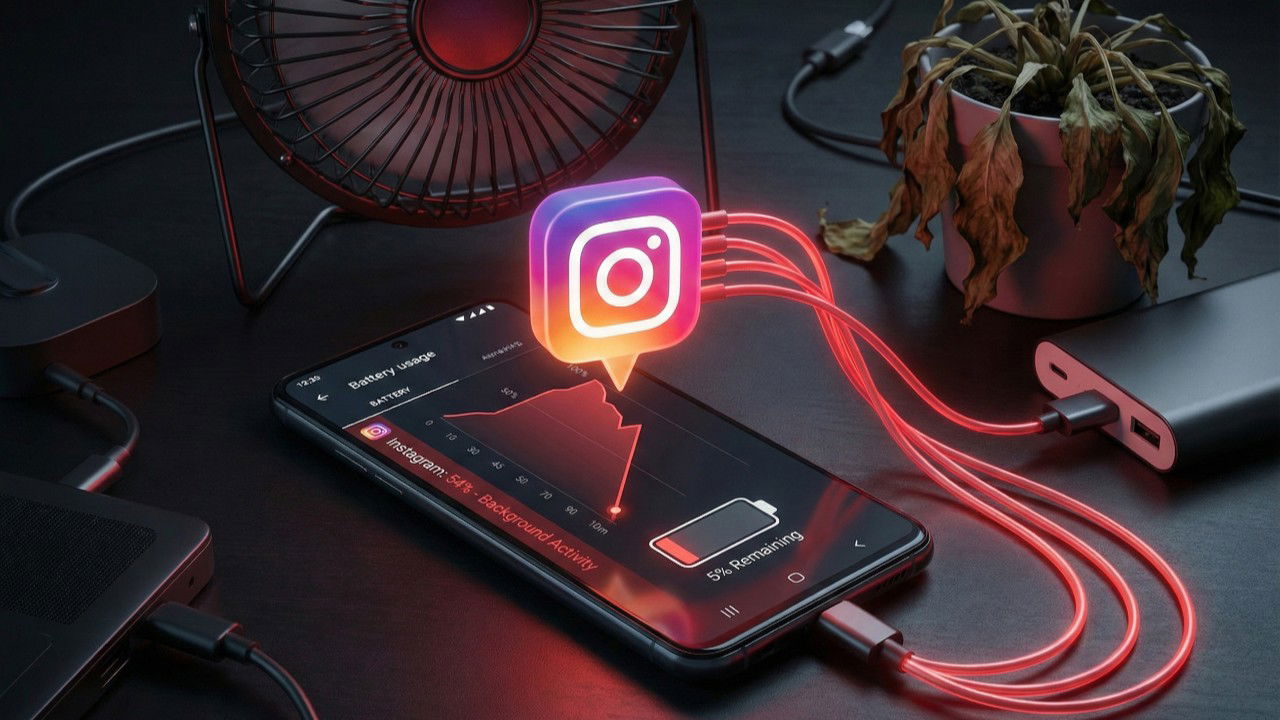
Modern Android phones are packed with massive batteries, often reaching capacities of 5000mAh and beyond, and you would expect a phone charged to 100% percent in the morning to easily last a full day of heavy use. But if Instagram is your go-to app, your battery likely lasts even shorter than average.
Why Does Instagram Drain So Much Battery
Instagram drains your phone’s battery by running constantly in the background, treating your phone’s resources as if the application is always open on your screen. It is designed to keep you engaged so that, even when you swipe the app away and turn your screen off, it’s quietly refreshing your feed and downloading new content so everything is instantly ready the moment you reopen it.
Beyond just refreshing text, it runs highly battery-intensive processes. These include aggressive video decoding for high-definition Reels, continuous location tracking to serve you localized advertisements, and constant communication with Meta’s servers to push frequent notifications to your screen.
Restrict Instagram From Running in the Background
Note: You want to ensure you are running build 382.0.0.49.84 or newer, which contains the official battery patch.
Android allows you to control exactly how much battery an individual application is permitted to consume when not in use. By default, Android places your apps in an optimized state. For an app as aggressive as Instagram, this is unfortunately not strict enough.
- To start, open your phone’s Settings app. Navigate to Apps (or Apps and Notifications).
- Click on See all apps or Manage Apps and select Instagram. Scroll down and tap App battery usage (or Battery).
- Change the setting from Optimized to Restricted.

Once you do these, there’s a block on Instagram, completely preventing it from running rogue background processes when you close the app.
Turn Off Auto-Playing Videos
Scrolling through your feed feels smooth because Instagram silently preloads multiple videos further down your timeline. While this creates a seamless viewing experience for you, your phone is forced to stay active to download megabytes of video data you might never even watch.
To stop these videos from preloading:
- Open the Instagram app and tap your Profile picture in the bottom right corner.
- Tap the three horizontal lines (hamburger menu) in the top right corner.
- Scroll down and tap on Data usage and media quality (sometimes listed as Cellular data use).
- Toggle on the switch for Data Saver.
Once you do this, Instagram will stop preloading videos over cellular connections, saving you massive amounts of battery power and mobile data.
Revoke Precise Location Permissions
Instagram does not genuinely require your precise physical location to work. Yet, by default, it keeps your phone’s internal GPS working in the background to know exactly where you are.
To revoke this:
- Go back to your Android Settings → Apps → Instagram. Then, tap on Permissions.
- Select Location.
- Change the access to Ask every time or Don’t allow. If you see a toggle switch labeled Use precise location, turn it Off.
If you regularly post content and like adding location stickers to your Stories, Ask every time is the best choice. If all you only do is browsing your feed, Don’t allow is the safest and most power-efficient option.
Control Notifications
Every time your phone buzzes with an Instagram notification, your phone wakes up from its sleep state. To control this, you can manage notifications from two different places.
In the Instagram app:
- Tap your Profile picture → Three-line menu → Notifications.
- Turn off anything you don’t genuinely care about (e.g., Live videos, broadcast channel updates, and suggested content).
On your Android phone:
- Go to Settings → Apps → Instagram → Notifications.
- I recommend that you disable all notification categories at the operating system level. When you turn a category off here, Instagram simply cannot wake your phone screen for it, regardless of the app’s internal settings.
Switch to Instagram Lite
If you have applied all these restrictions and your battery is still draining, consider switching to Instagram Lite. Uninstall the regular app, then download Instagram Lite from the Google Play Store. It was built specifically by Meta to accommodate users in regions with limited network connectivity and low-end hardware.
The pros of using Instagram Lite are that it:
- Uses a fraction of the storage space (about 2-5MB).
- Consumes less battery and background data.
- Your account, followers, and messages carry over completely.
On the other hand, it:
- Lacks advanced video editing tools for Reels.
- Does not support broadcasting Live videos.
- Lacks advanced AR face filters, face effects, and certain animated story transitions.
Last, but not least, you might want to ditch and uninstall the Instagram app. You still can view Instagram without an account, and log in and post via the mobile browser.
For more ways to optimize your phone, check out our guide on how to save your phone battery while you travel or discover how to tame your display for huge battery gains.
Instagram Lite
Price: Free
