


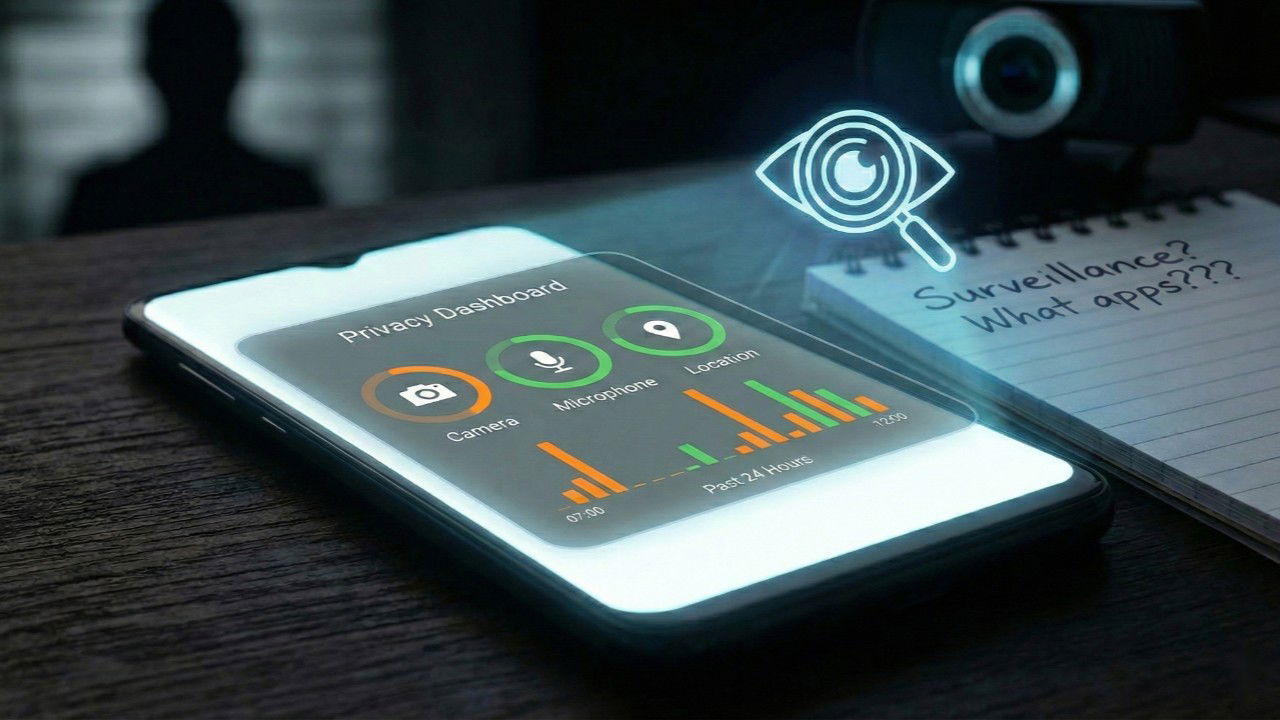
For those who are unaware, your Android devices keep a log of all the access to your location, camera, microphone, and other sensors by the apps in your phone. If you are worrying that the apps you installed are spying on you and retrieving data they shouldn’t have access to, you can confirm your doubt with the Privacy Dashboard in Android. You will be surprised to see that many apps, especially free ones, request far more permissions than they actually need to function, and continuously taking that data in the background to build an advertising profile on you.
What I Discovered Using Privacy Dashboard
The privacy dashboard in your Android phone shows which apps accessed sensitive data and exactly when they did it.
To find it, go to Settings → Privacy → Privacy dashboard.

When you open the dashboard, you are greeted by a pie chart and a breakdown of access by permission type: Location, Camera, Microphone, Body Sensors, Calendar, Call Logs, and more. Tapping into any of these categories doesn’t just show you a list of apps that accessed these sensors; it also shows you a literal minute-by-minute timeline.
This timeline makes it easy to spot suspicious, out-of-bounds behavior. When I checked, my Privacy Dashboard showed two major red flags. First, a simple flashlight app I downloaded a while back had been accessing my camera at random intervals. Second, a local news app that I had not opened in months had been using my location while I was asleep. There’s no reason why a dormant app is checking my location in the middle of the night.
Apps Most Likely to Abuse Android Permissions
Through my testing and research into why this happens, I was able to narrow down specific categories of apps that have the highest chance of violating your privacy. They include:
- Free VPNs: At the top of the list are free Virtual Private Networks. You might install them to protect your web traffic, but many free VPNs actually harvest your device data, such as your browsing history, your contacts, and your location, to sell to third-party data brokers to fund their “free” servers.
- Utility and Flashlight Apps: There is no reason for a calculator, a QR code scanner, or a flashlight app to have access to your contacts, microphone, or location. Yet, these apps routinely request these permissions during installation, hoping you blindly tap Allow.
- Social Media Apps: Apps like Facebook, Instagram, and TikTok are notorious for these. They frequently request background access to listen in on your microphone, go through your Android file storage, and monitor your location to serve you specific advertisements.
The Location Settings You Need to Change Now
Android has a detailed permissions menu that most users completely overlook.
Go to Settings → Location → App location permissions.
When you select an app here, you will typically see up to four options:
- Allow all the time
- Allow only while using the app
- Ask every time
- Don’t allow
Now, most users blindly accept prompts, leaving many apps defaulted to Allow all the time. This gives the app a blank check to track your movements 24/7.
I strongly recommend changing permissions to Allow only while using the app for things like ride-sharing or delivery apps, and Ask every time for apps you rarely use. This forces the app to request permission during each session, making you consciously aware of when you are sharing your data.
You can increase your privacy further by turning off Improve Location Accuracy.
Simply go to Settings → Location → Location Services → Location Accuracy.
This feature uses Wi-Fi, Bluetooth, and mobile networks to track your location more precisely, but most apps don’t need that level of accuracy. Turning it off reduces background tracking and improves your overall privacy.
The Clipboard Snooping Problem
Location tracking is invasive, but clipboard snooping is arguably more dangerous. I realized that some apps could quietly access my clipboard while running in the background. Think about how often you copy and paste sensitive information, your passwords, credit card numbers, or two-factor authentication codes.
Android now frequently shows a small notification at the bottom of the screen that says, “[App Name] pasted from your clipboard.” If you see this pop up when you haven’t actively pasted anything, an app is snooping.
Note: If you are not seeing this notification, go to Settings → Privacy and enable the “show clipboard access” alert.
To reduce this risk, you should either remove the offensive apps, or limit the apps to run in the background.
To do so, go to Settings → Apps → Select an app → Battery (or battery saver). Then select Background restriction to Restricted.
This prevents apps from running when you’re not actively using them, which also stops them from monitoring your clipboard.
Making Sense of Android’s Indicators
Before resorting to extreme measures, you should familiarize yourself with Android’s privacy indicators. If you’re running Android 12 or newer, you might occasionally notice a small Green Dot appear in the top right corner of your screen, right next to your battery icon.
If you pull down your notification shade when this dot is active, you will see a small camera or microphone icon.
Tapping that icon will tell you exactly which app is currently using your camera or microphone in real-time.
If you ever see the green microphone icon light up while you are just scrolling your home screen or reading an article, an app is actively listening to you. You should immediately open the Privacy Dashboard, find the app, and revoke its microphone access.
Activate the Hidden Sensors Off Tile
Sometimes, revoking permissions one by one isn’t enough. If you are stepping into a highly sensitive meeting, having a private conversation, or you just want peace of mind that your phone is essentially blind and deaf to all that you’re doing, you can use the Sensors Off quick settings tile.
This is a switch that disables your camera, microphone, and other hardware sensors all at once with a single tap. However, Google hides this feature inside the Developer Options so everyday users don’t accidentally break their phones.
To unlock it, go to Settings → About Phone. Scroll down to the Build Number and tap it seven times in rapid succession. Enter your PIN if prompted. You’ll see a message that says, “You are now a developer.”
Then, go back to Settings → System → Developer Options. Scroll down to the Quick settings developer tiles option and tap it. Find the toggle for Sensors Off and toggle it on.
Now, swipe down from the top of your screen to access your Quick Settings panel. Tap the pencil icon to edit your tiles, scroll down to find the new Sensors Off tile, and drag it up to your active grid.
When you enable this feature, your phone’s hardware is locked down. You cannot take a photo, make video calls, record voice notes, or use voice assistants like Google Assistant. It also turns off motion sensors like the accelerometer and gyroscope. That means your screen won’t auto-rotate, and games that rely on tilting your phone won’t work properly.
Note: It’s a good tool for short-term privacy. However, I recommend that you only use it when you need absolute privacy, then simply tap the tile to turn it off when you need your camera or navigation functions again.
Now that you’ve learned how to take control of your data and make your privacy yours again, check out how to protect your devices with Android security tips. For a more thorough read, check our guide to learn how to find out which specific Android apps have location access.
