


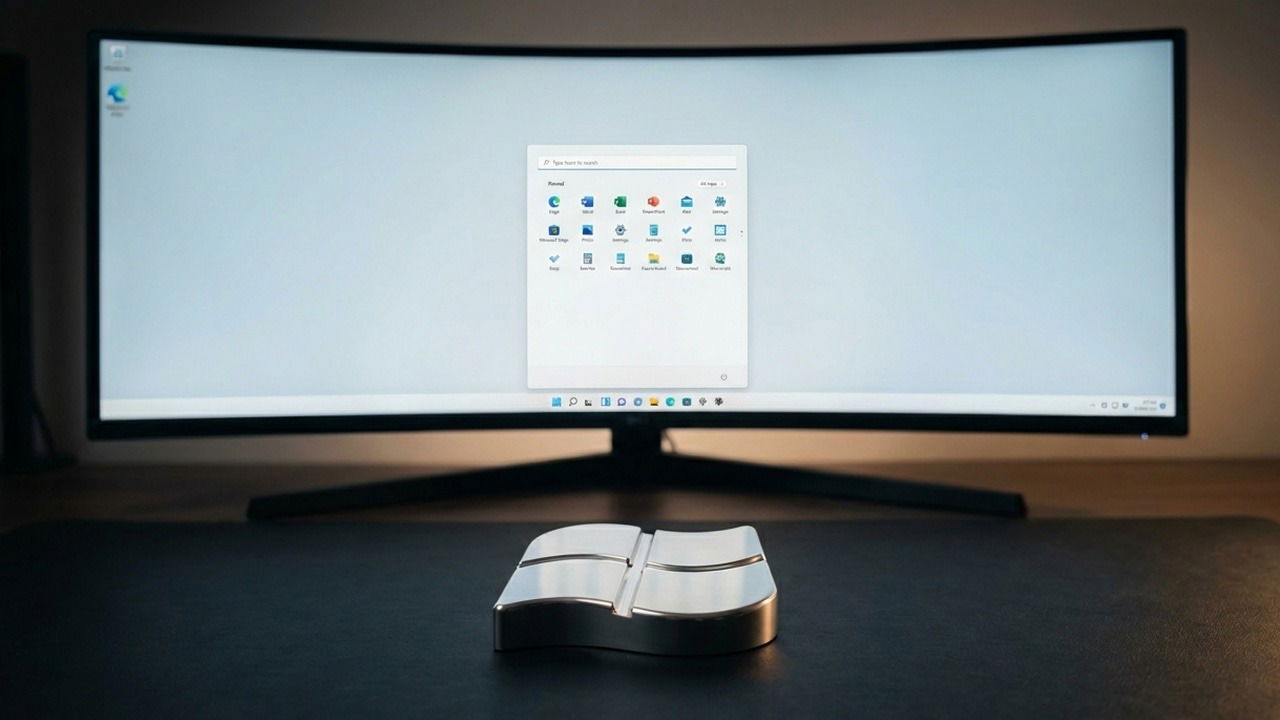
I don’t believe the Windows 11 Start Menu should be an all-access hub. I treat mine as a curated space for only the essentials; however, the “Recommended” and “All” sections in the Start Menu just clutter my view with unneeded items. If you also want a cleaner, more personal setup, here is how I removed all the unnecessary items in the Start menu.
Why I Remove “All” and “Recommended” Sections in the Start Menu
I use the Start Menu mainly to quickly access files and apps. For this, I pin frequently accessed apps to the Start Menu, and I use the Search bar for everything else. The “All” and “Recommended” sections don’t actively help me with this goal. Here’s why I find both redundant:
- The “All” section shows you all your apps and executable programs, which is great if you want to see what’s on your PC. However, after going through the list once, I’ve never used this section to access an app. There are so many the same apps instead of scrolling through a mega list.
- The “Recommended” section is mainly populated with recently installed or accessed apps/files. This means it’s dynamic and changes with every action. It makes it impossible to build muscle memory around it to quickly access things. It doesn’t help that Microsoft drops its own annoying app recommendations (Windows ads) there.
While they add minimal benefits, they clutter the Start Menu and turn it into an irrelevant scrollable list. I also really dislike that they reveal recent activity and literally everything on the PC, which is a privacy risk when working in public or sharing the screen.
Removing “Recommended” Section from Windows Start Menu
The “Recommended” section is highly customizable, and you can easily change what it shows right from Windows Settings. However, if you disable all the things it can show, it just disappears instead. Here’s how:
Open Windows Settings and go to Personalization → Start. Disable the following options:
- Show recently added apps
- Show recommended files in Start
- Show recommendations for tips, shortcuts, new apps, and more
- Show websites from your browser history

Once disabled, the Recommended section will immediately disappear from the Start Menu.
Removing “All” Section from Windows Start Menu
Unfortunately, there isn’t a way to remove the “All” section using Windows Settings. You’ll have to edit the Windows Registry to remove it. Here’s what you need to do:
Warning: make sure you back up the Windows Registry before making the following changes, as an incorrect change can corrupt the system.
Open the Windows Registry and move to the following location:
HKEY_CURRENT_USER\Software\Microsoft\Windows\CurrentVersion\Policies\ExplorerIf the Explorer folder isn’t there, right-click on the Policies folder, select New → Key, and name it Explorer.

Now, select the Explorer folder, right-click in the right panel, and select New → DWORD (32-bit) Value. Name this value NoStartMenuMorePrograms, double-click on it to open it, and set it to 1.

This should immediately remove the “All” section in the Start Menu. If it doesn’t, you’ll have to restart the File Explorer for the changes to take effect.
If you don’t want to edit the Registry yourself, you can also use a PowerShell command to automatically make these changes. Open PowerShell as administrator and run the following command:
$path = "HKCU:\Software\Microsoft\Windows\CurrentVersion\Policies\Explorer"; if (-not (Test-Path $path)) { New-Item -Path $path -Force }; New-ItemProperty -Path $path -Name "NoStartMenuMorePrograms" -Value 1 -PropertyType DWORD -ForceAfter removing both of these sections, you’ll only see your pinned apps and the Search bar in the Start Menu. You’ll be able to pin twice as many apps without activating the scrollbar. If you want to further personalize the Start Menu, check out these tips to customize the Windows 11 Start Menu like a pro.
