


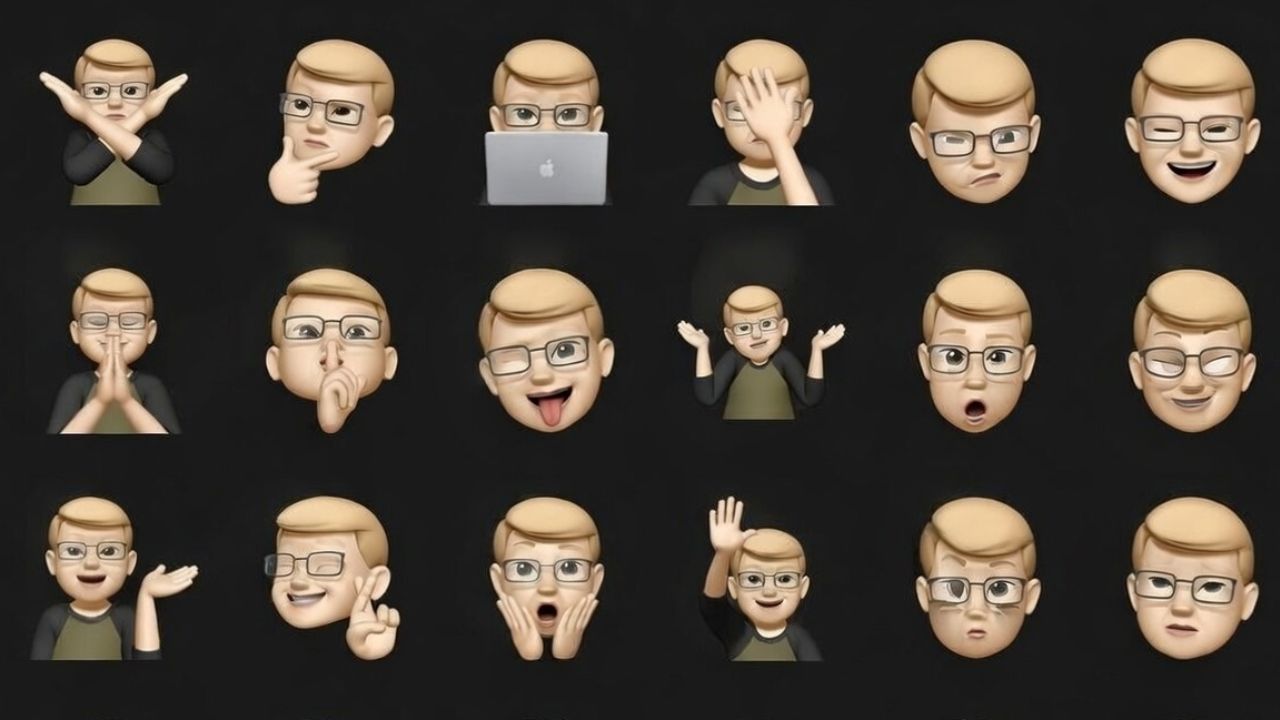
Tired of boring emojis? Memoji stickers on iPhone let you send fun, expressive mini-versions of yourself in chats. These stickers are originally generated from a custom avatar of your face. Once you create a Memoji, iOS automatically converts it into a full sticker pack with various expressions and reactions.
These cartoon avatars are a creative play on the original Bitmoji stickers (which Snapchat uses). They add a personal touch to Messages, FaceTime calls, and even apps like WhatsApp. With the latest iOS updates, making them is easier than ever.
Creating Your Memoji
To make your first Memoji sticker, open the Messages app and start a new conversation or open an old one. Then tap the Plus button at the bottom, swipe up, or tap More and select Memoji.

Hit Add New. You can customize your avatar by choosing skin tone, hairstyle, eyes, clothes, accessories, and clothing. Then, tap Done to save.

Your Memoji sticker pack is created automatically. For more fun, try Genmoji to add AI twists, mix in photos, or use the emoji kitchen.
Sending Memoji Stickers
Once you’ve designed a Memoji, sending it is very easy. As mentioned before, Memoji have their own separate keyboard that you can use to select stickers and send. Stickers are automatically created for every new Memoji you create and can be found in the Memoji keyboard.
To send Memoji stickers, open a chat and tap the Plus button. Then tap Stickers and tap the Memoji tab. Select one for your mood and tap send or drag it into a message bubble to react.

Note: Dragging a sticker lets it stick directly to a message, which works well for quick reactions. Beyond that, you can pair it with these Message effects.
You can also take Memoji stickers on iPhone beyond Messages to third-party apps like WhatsApp, Telegram, or Facebook Messenger.

Simply switch to the iOS emoji keyboard and scroll to the sticker section. Your Memoji stickers should appear there alongside other stickers.
Using Animated Memoji in Messages and FaceTime
Apple continues to expand how Memoji are used. Now, if your iPhone supports facial ID, you can use animated Memoji.
In Messages:
Tap Plus, swipe up, and tap Memoji. Select a Memoji and tap Record.

Make faces or talk for up to 30 seconds, then tap Drop. Send the clip or drag it as a sticker.
In FaceTime:
During a call, click Effects, and select your Memoji to overlay it. Your face is replaced with the animated avatar in real-time.
Doing this makes calls far more engaging and fun. And if you already use these FaceTime tricks, Memoji fits naturally into that.
Managing and Editing Your Stickers
To manage the stickers easily, open Messages and go to the Memoji section. Select a Memoji and tap the More option. Then choose Edit, Duplicate, or Delete.

Further, if you prefer to hide the stickers entirely, go to Settings → General → Keyboard and turn off Stickers.

More helpful tips:
- Sync the Stickers via iCloud if enabled and access the emoji keyboard from anywhere.
- You can create multiple Memojis for different looks and moods.
- Keyboard auto-suggest Memojis based on your typing context (fun for birthdays, reactions, and so on)
- Stickers work on older iPhones, but animations require Face ID.
- The newer Genmoji enhances sticker animation further.
So, start creating your Memoji stickers on iPhone today and watch your chats come alive!
