


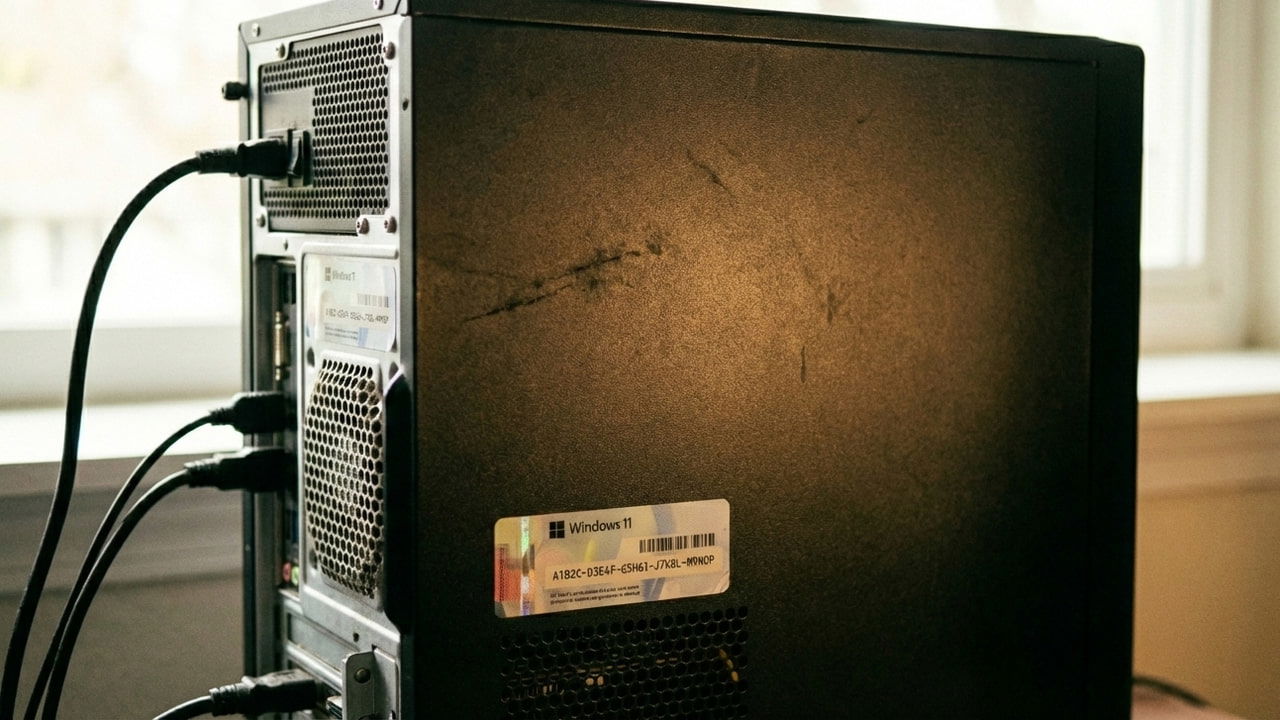
Before upgrading to a new PC, you should uninstall the Windows product key from your old PC. Doing so prevents activation errors on your new system and ensures a future owner cannot use your license if you sell the old computer. This guide shows how to uninstall your Windows product key and transfer it to a new PC.
Understanding OEM and Retail Windows Product Key Difference
Windows has two types of licenses for individual consumers: OEM and retail. New PCs that come activated with a Windows copy generally have an OEM key, while a retail key is the one you directly buy from Microsoft or an official distributor.
The OEM key is attached to the PC hardware and can’t be uninstalled or transferred to a new PC. Only a retail Windows product key can be transferred to a new PC. The instructions in this post only apply to PCs with a retail product key.
To check what type of product key your PC is activated with, press Win + R keys and type slmgr.vbs /dli in the Run dialog. A pop-up will open showing whether your license channel is OEM or retail.

Uninstall Windows Product Key On the Old PC
If you intend to sell or give away your PC, it’s crucial that you manually remove the Windows activation key from it. Even with a fully reset PC, the new owner can still extract the product key to not only activate the current PC but also use your key on other PCs (possibly restricting you).
Even if you don’t want to give away the PC, it’s still best to uninstall the product key to avoid any future restrictions on the product key due to multiple activated devices. However, you can skip this step if you intend to repurpose the old PC for other uses; Microsoft usually allows 2 PC activations even if official terms say only one device is allowed.
Unfortunately, Windows doesn’t have a GUI method to uninstall a product key, as Microsoft prefers licenses stay with hardware. Instead, you’ll have to use command prompt commands to uninstall it properly:
Note: If you have bypassed the Microsoft account requirement and your key isn’t registered with a Microsoft account, you should first find your product key and save it before following the instructions. You’ll need it to activate your new PC offline.
Open Command Prompt and run the following commands:
slmgr /upk
slmgr /cpky
The first command will uninstall the product key from Windows, and the second command will remove it from the Registry, preventing anyone from extracting it later. You should fully reset the PC immediately after and not log in with your Microsoft account.
Transfer Windows Product Key to the New PC
Transferring the product key to a new PC is actually very easy, thanks to digital licensing. Your retail product key is attached to your Microsoft account, so all you have to do is log in with the same Microsoft account while setting up the new PC, and it will be activated automatically.
In case it isn’t activated automatically, open Windows Settings and go to System → Activation. Click Troubleshoot and select I changed hardware on this device recently. You can then select your old device and click Activate to move the product key.
Once activated, it’s crucial that you remove the old PC from your Microsoft account. Otherwise, Microsoft will automatically activate the old PC when it comes online, as its hardware ID is registered on Microsoft servers. Open your Microsoft account’s devices section and click on Remove device under the old device.

In case you are using the new PC without a Microsoft account, you’ll have to manually provide the product key you noted down earlier to activate it. Just go to System → Activation and click on the Change button next to the Change product key option. Provide the 25-digit product key and click Next to verify and activate.

To avoid license identification issues, ensure your old PC stays linked to your Microsoft account until the new one is fully activated. Once you are up and running, use this guide to configure your system and install these essential optimization apps.
