


Smartphone cameras have come a long way, being used to create feature-length films. The apocalyptic saga 28 Years Later, which was launched in 2025, was filmed using multiple iPhone 15 Pro Max devices, while the 2019 documentary Midnight Traveler was shot using three different Samsung phones. If you, too, would like to create professional-looking videos that rival those made by professional directors, you, too, can put your Android to work.
1. Check Your Phone’s Native Camera App
Many phones, especially higher-end, running the latest Android OS, are equipped with capable camera apps, complete with manual controls to shoot in RAW format. The native apps can provide access to a wide range of tools that can significantly improve your videography efforts.
It’s important to highlight that many smartphones offer the services of high-quality lenses from industry leaders, such as Zeiss or Leica. This stronger optical foundation gives the phone better data to work with, resulting in superior results across a wider range of shooting conditions. Learn how to easily read your Android smartphone’s specs.
2. Install a Manual Camera App
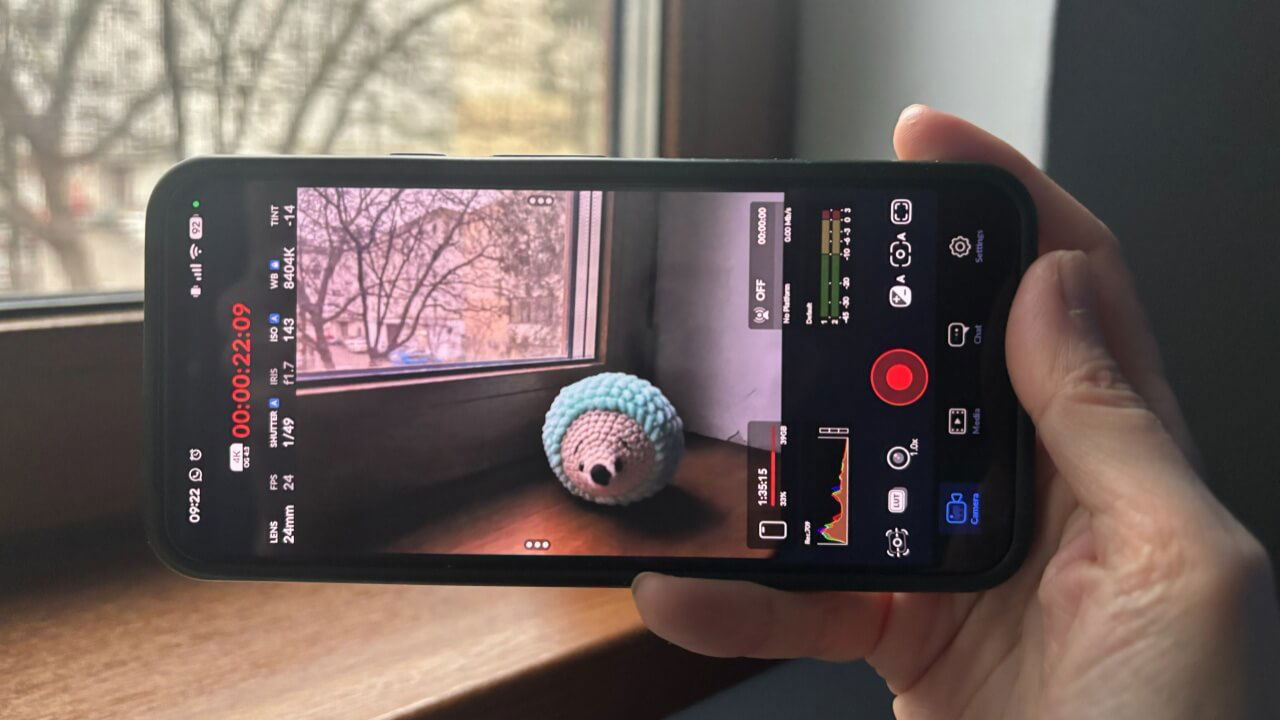
If you want to take things even further, consider installing a third-party camera app, such as Blackmagic Camera. This is a fantastic tool that offers loads of customization. It’s also 100% free and doesn’t include any ads.
3. Film in the Highest Quality Possible
Depending on what your device can handle, shooting at a higher resolution generally produces better results. You can switch to a higher resolution on a Pixel device by tapping Video at the bottom of your Camera app, then pressing the gear icon on the left.

Switch to 4K for the highest resolution your phone supports.
With the Blackmagic Camera app, tap on the Settings icon in the bottom menu. Go to Resolution, select 4K, and in the Aspect Ratio section, opt for the Open Gate 4:3 option, if available.
This enables the camera to record video using every pixel available on the sensor. In contrast, the native Camera app on Pixels only uses a part of the sensor to record and crops it to a standard aspect ratio of 16:9.
Be aware that shooting at a higher resolution will significantly increase the size of the video files. This is beneficial from a movie-making perspective, as your videos will contain much more data. It will come in handy when manipulating your footage during editing.
The downside, of course, is that it will chew up storage space. If this is a concern, opt for a minimum bitrate of 10 Mbps when shooting in 1080. If shooting in 4K, you’ll want significantly more, around 40 to 50 Mbps. To adjust the bitrate in the Blackmagic Camera app, go to Settings → Codec.
4. Set the Right Frame Rate
Frame rate, or frames per second (FPS), is the frequency at which frames are displayed on a screen. Optimal frame rates vary. For example, video games on a PC are generally recommended to be run at 60 FPS.
Since 1927, Hollywood movies film at 24 FPS. Television doesn’t have a “standard” frame rate. However, most shows fall between 24 and 30 FPS. Of course, with advances in technology, some directors have been increasing the frame rate of their films. For example, Peter Jackson filmed The Hobbit trilogy at 48 fps, double the norm.
You can set your frame rate higher, but generally speaking, Hollywood films are locked in at 24 FPS. If you want your footage to look as much like a Hollywood movie as possible, it’s best to stick to 24 FPS.
For smoother playback, often used online, switch it up to 30 FPS. For slow-motion shots, the range is between 60 and 120 FPS.
In your native camera app, go to the Video settings again, tap the gear icon, and set your frame rate from there.
If using the Blackmagic app, press the FPS button at the top of the camera app to change the rate.
5. Lock the Exposure and Focus
Cameras in phones adjust the exposure wildly, so your videos go from light to dark and back again, all in the span of time that it took you to read this sentence. This constant state of flux makes your videos look amateurish.
Like automatically adjusting the exposure, cameras found in phones automatically adjust the focus based on what they think you want to shoot. This can be incredibly frustrating as your phone pops in and out of focus.
Fortunately, you can prevent this type of behavior by long-pressing somewhere within the frame in the Blackmagic Camera app, then tapping the AE/AF Lock option.
In your phone’s native camera app, try long-pressing on the screen. On my Pixel device, a padlock icon pops up, which locks in focus, as well as the exposure.
6. Play with Shutter Speed
Smartphones often use high shutter speeds, which can make footage appear jittery, due to the lack of natural motion blur. Lowering the shutter speed can help, but keep in mind that this reduces depth of field and lets in more light. To compensate, use an ND or IRND filter over the lens to control exposure.
If it’s not possible to use an ND filter, you may need to use a higher shutter speed to achieve proper exposure, yet this may lose some natural motion blur in moving elements.
Most phones don’t offer shutter speed control for video by default, but the Blackmagic Camera app can help. Tap on the Shutter button at the top, and make the necessary adjustments from there.
7. Experiment with Multiple Focal Lengths
Today, it’s common for phones to have more than one lens, such as standard (main), ultra-wide, and/or telephoto lenses.
If your phone has multiple lenses, try switching between them to add variety and depth to your videos.
Reserve the main lens for times when image quality is a priority, as it delivers the best low-light performance and most consistent colors. Opt for the ultra-wide lens when capturing dynamic and fast-moving scenes. When lighting is strong, the telephoto lens can help you explore more dramatic perspectives.
To change the focal length from Android’s native camera app, use the fixed zoom buttons:
- 1x – main
- 0.5x – ultra-wide
- 3x/5x – telephoto
In the Blackmagic camera app, tap the Lens icon, press Auto on the right, and make your selection.
Make sure you switch focal lengths between shots, not mid-clip, to avoid smeared details and visible quality jumps.
If your phone only has one lens, you can invest in a smartphone lens.
8. Stabilize Your Shot
To stabilize your shot, you need additional equipment. At the very least, you need a decent tripod. If you’re strapped for cash or want to start shooting immediately, there are other options.
First, use your environment. Look for a fence, a stack of books, anything sturdy that you can rest your phone on top of. This will help to eliminate the slight tremors from your hands.
If you want to shoot video on the move, buy a quality gimbal. Also, make sure you turn off in-app stabilization to avoid distortion.
In the Blackmagic app, tap on the camera icon at the bottom and make sure the option is set to Off.
In the Pixel Camera app, the option is available in the Video settings menu.
Alternatively, if you can’t afford a gimbal, try a selfie stick. It won’t be as good, but the selfie stick will be a huge improvement over holding your phone in your hand.
9. Apply Color Grading
Color grading is an essential post-production step, allowing you to enhance the look and mood while maintaining visual consistency across all shots.
If you’re using the Blackmagic Camera on your phone, skip this step in post-production. Tap the LUT button at the bottom to explore different effects.
Alternatively, use an app like CapCut or Adobe Premiere Rush for post-production, which support color grading.
If you enjoy experimenting with your Android camera, learn how to take better photos at night with your Android phone.
Blackmagic Camera
Price: Free
