


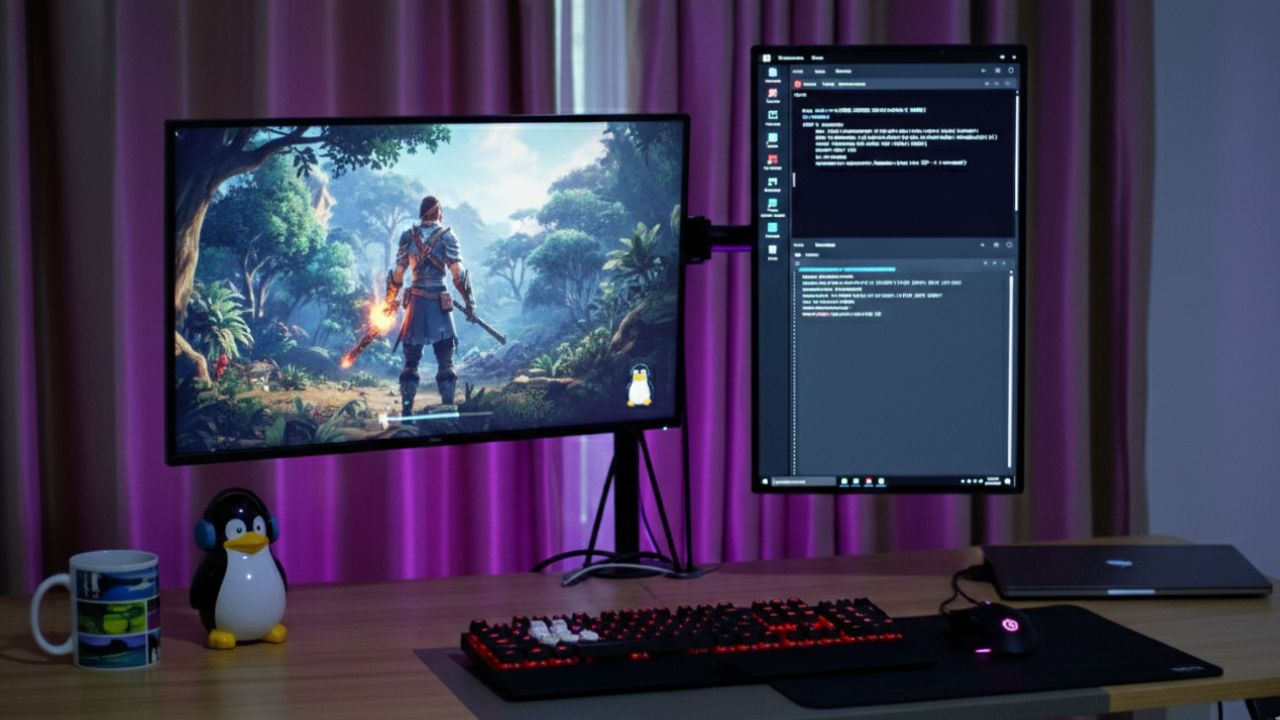
When you launch a game on Linux with dual monitors connected, it usually tries to open on your primary screen. However, depending on your setup and display server, fullscreen mode does not always behave perfectly. The game might stretch oddly, open in borderless mode, or allow your mouse to drift onto the second monitor instead of staying locked where it should.
With the right settings and a few simple tweaks, you can keep your game perfectly fullscreen on one display while your other screen remains fully usable. If you prefer an ultra-wide experience, you can also span the game across both monitors at once, using tools like Gamescope or by creating a virtual super-resolution monitor with XRandR or Nvidia TwinView.
Try Changing Your Display Server to Wayland
Unlike Windows, Linux supports multiple display stacks, primarily X11 and Wayland. On the legacy X11 system, your monitors often behave like one large virtual canvas. As a result, a full-screen game might stretch across both screens, launch on the wrong monitor, lose focus when your mouse crosses displays, or drop to the lowest refresh rate shared between monitors.
Wayland, the modern replacement, handles this much better. It properly manages exclusive fullscreen requests, confining the game to one monitor without affecting the rest of your desktop. Most major distros like Fedora or Ubuntu use Wayland by default, and gaming on it generally feels more polished. If you are still using X11, switching to Wayland could solve many of your problems immediately.
First, determine your session type by opening a terminal and typing:
echo $XDG_SESSION_TYPE
If the output says x11, you are on the legacy system. If it says Wayland, you are on the modern standard. On most distros, log out, click the gear icon on the login screen, and select Wayland (or Plasma on Wayland for KDE), then log back in.
Set Your Primary Monitor Properly
Many fullscreen issues occur simply because the wrong monitor is marked as primary. On KDE, go to System Settings and then Display to set your gaming monitor as Primary. On GNOME, go to Settings and then Displays to do the same.
Restart the game after making this change. If the game still opens on the wrong monitor, try launching Steam directly on the monitor where you want the game to appear, as many games inherit Steam’s position.
Switching to Borderless Window Mode
The performance difference between exclusive fullscreen and borderless mode on Linux is now minimal, especially under Wayland and modern compositors like KDE Plasma or GNOME.
To set this up, open your game settings, change the Display Mode to Borderless Windowed, set the resolution to your monitor’s native resolution, and ensure your gaming monitor is marked as Primary in your system display settings.
This method works because the compositor remains in control. There is no display mode switching, the second monitor does not go black, and Alt + Tab works smoothly. For most games, this is all you need. If the game does not support this mode natively, do not worry; there are tools to force it.
Use Gamescope Compositor
Gamescope is a micro-compositor built by Valve and used on the Steam Deck to create a controlled environment for your game. It traps the mouse, forces resolution, manages refresh rates, fixes multi-monitor focus issues, and prevents fullscreen glitches.
Gamescope can be installed in multiple ways depending on your Linux distribution. On rolling and up-to-date distros like Arch Linux and Fedora, it’s available directly in the official repositories. For example, on Arch Linux (and Arch-based distributions), you can install it with:
sudo pacman -S gamescopeOn Fedora, use:
sudo dnf install gamescopeIf your distribution does not provide a recent version, you can always build Gamescope directly from its official GitHub repository.
Once installed, add the following to your Steam Launch Options:
gamescope -f -w 2560 -h 1440 -r 144 -- %command%Adjust the -w and -h flags to match your monitor’s resolution, and set the -r flag to match your refresh rate. The -f flag forces fullscreen mode. Gamescope effectively contains the game so it cannot interfere with your second monitor.
Additionally, you can also check your distro’s Gamescope package documentation for the latest flags, as they may evolve over time.
Tweaks for Steam, Lutris, and Heroic
Since most Linux gamers rely on Steam with Proton, there are a few other practical tweaks you can try if fullscreen behaves strangely on a dual-monitor setup. In Steam, right-click your game, open Properties, and look for the Launch Options field under the General tab. There, you can add:
SDL_VIDEO_FULLSCREEN_DISPLAY=0 %command%
This environment variable tells SDL-based games which monitor to use for fullscreen. If the game still launches on the wrong screen, change the 0 to 1 (or another number) depending on your monitor order.
It is also worth testing different Proton versions by going to the Compatibility tab and selecting Proton Experimental or the latest stable release. Some fullscreen, focus, or multi-monitor bugs are specific to certain Proton builds, so switching versions can immediately resolve the issue without changing anything else on your system.
For non-Steam games, tools like Lutris and Heroic Games Launcher offer similar controls. In Lutris, right-click the game, choose Configure, go to Runner Options, and enable Windowed (Virtual Desktop).

This feature creates a virtual Windows desktop inside a single window at a resolution you define. Set that resolution to match your monitor’s native size, and the game will stay confined within that virtual space, preventing it from stretching across both monitors or losing focus when you Alt + Tab.
In Heroic Games Launcher, you can open the game’s Wine or Proton Settings and enable Gamescope with a simple toggle. Gamescope acts as a lightweight compositor that wraps the game, controls resolution and refresh rate. Further, it also keeps it locked to one display without requiring manual command-line arguments.
Use XRandR to Control Displays
If you prefer to stay on X11, you can manually control your monitors using the XRandR tool. First, open a terminal and run xrandr to list your connected displays and identify their exact names (for example, HDMI-1 or DP-1).
To temporarily disable your secondary monitor before launching a game, use:
xrandr --output HDMI-1 --offReplace HDMI-1 with your actual secondary monitor identifier. After you finish gaming, re-enable it with:
xrandr --output HDMI-1 --autoAlthough this method is more of a brute-force solution, it guarantees the game runs truly fullscreen on the remaining monitor.
Both KDE (KWin) and GNOME (Mutter) include settings such as unredirect fullscreen windows or options to disable compositing for fullscreen applications. Enabling these can improve performance and eliminate minor stuttering issues.
Final Thoughts
Linux works best when you take a little time to understand your setup. You can easily configure multiple monitors and use them for gaming, while keeping your second monitor open for other tasks without interrupting your game. You should also check out how you can improve gaming performance in Linux using GameMode.
