


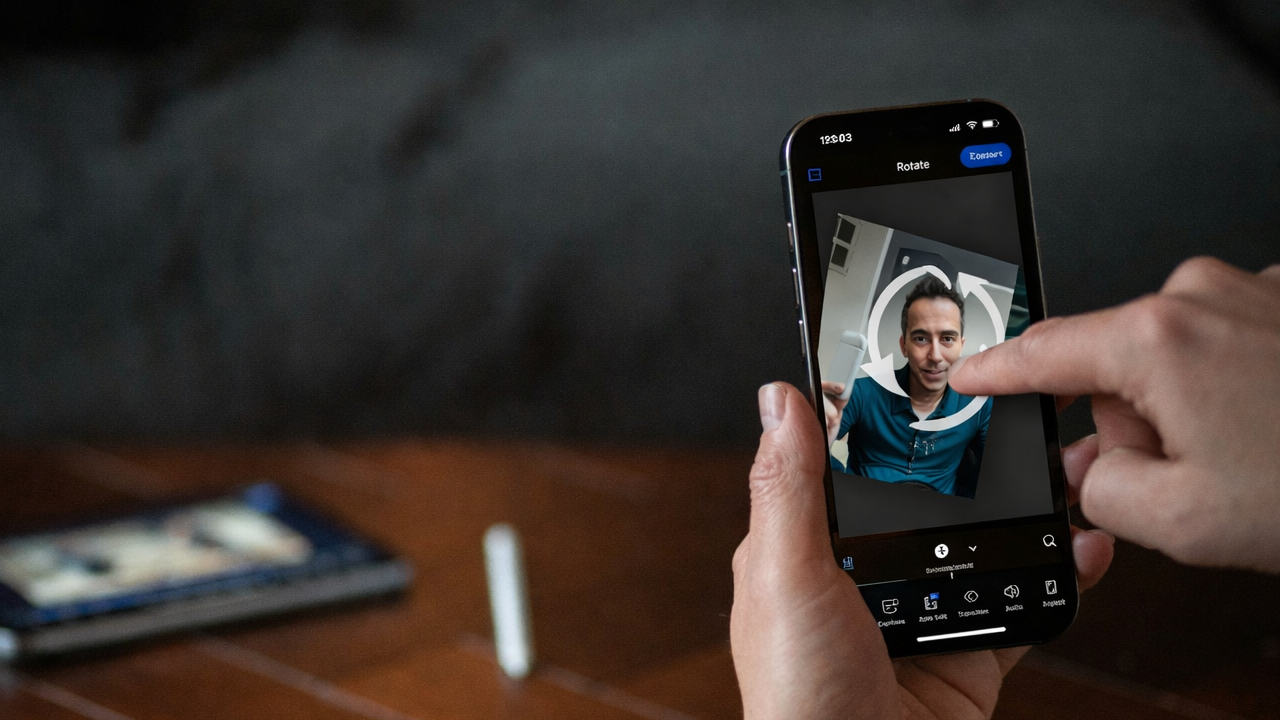
If you shoot a video on your iPhone and the orientation isn’t right, just rotate the video later. If you’re not sure how to rotate a video on your iPhone, you have several methods to do it quickly, no matter what version of iOS you’re using.
Rotate a Video using Photos App
With the release of iOS 13, Apple finally gave iPhone users the ability to record and save a video, then rotate it directly within the video editor in the Photos app.
Open the Photos app, select your video, and tap the Edit icon at the bottom. Tap Crop to open the rotation and orientation options.

Tap the Rotate icon at the top to rotate your video 90 degrees at a time. Keep tapping it until it’s the correct orientation.

Tap Done to save the edits.
The Photos app is available for all versions of iOS, but editing features are limited to iOS 13 and later. You can rotate photos, but not videos.
Rotate a Video on Your iPhone (iOS 12 and Older)
Older versions of iOS still work great, so if you need to know how to rotate a video on iPhone iOS 12 or older, don’t give up just because Photos doesn’t work for you. Instead, download the iMovie app. It’s completely free.
Open iMovie and tap Start New Project → Magic Movie. Select a video clip from your library. iMovie pulls in videos from the Photos app.
Use two fingers to rotate the video on the screen. A white arrow appears showing the direction of the rotation. Repeat this until it’s the orientation you want. Tap Done, and the app exports the edited video back to your camera roll. Simply repeat the process for any other videos you need to rotate.

Alternately, open the Photos app, open your video, tap the three dot menu, and select iMovie to edit within the iMovie app.
Other Ways to Rotate a Video on Your iPhone
Using iMovie isn’t the only way to rotate videos on an iPhone. This is handy, as there are some situations iMovie doesn’t handle well, such as, when a video is upside down.
Exact features of video editing apps may vary based on your version of iOS. But, all the following options are free and help you rotate videos on your iPhone:
- Google Photos – Despite being the default Android photo and video app, Google Photos works on iPhone too. Open your video, open the Crop editor, and use the Rotate icon. It works similar to Apple’s Photo app.
- Video Rotate + Flip – As the name implies, this app lets you rotate and flip iPhone videos easily. Use the editor menu to flip or rotate as needed.
- InShot – This advanced video editing app also includes a rotate option. Open a new project in the app, select your video, and tap the Rotate option in the list below the video.
- CapCut – Even if you don’t need all the extra editing features, use the app to rotate videos. Open a new project, select your video, tap the timeline, select the Edit menu, and tap Rotate until your video’s the correct orientation. If CapCut is down for any reason, try these alternatives for photo/video editing.
- Filmora – Want AI editing features? Rotate and edit with AI with this app. To rotate, open a new project in the app, select your video, tap the video in the timeline, and tap Rotate from the menu that appears.
Choosing the right one depends on what other features you might want, along with your iOS version. Some apps may not work on older versions of iOS.
Troubleshooting When Rotating Videos
If you’re having issues when trying to rotate when shooting or viewing a video, check that the Orientation Lock isn’t enabled on your iPhone. This keeps videos from being rotated, even while viewing them. It also keeps you from rotating your iPhone screen at all.
Open Control Center on your iPhone and tap the Orientation Lock icon (small lock icon) if it’s red. If it’s grey, it’s already off.

Also, an app you download might not offer full features on certain versions of iOS. Check to see if your version iOS is supported by an app. If it’s not, you might still be able to open the app, but it won’t let you edit or save videos correctly.
As a final troubleshooting step, if you can’t find your video after editing it, check to see where your video editing app is saving the final result. If you’re using Photos, it saves back to your photo gallery. If you’re using a third-party app, check the app’s settings. It may create a new folder in your gallery.
No matter how you deal with rotating your videos, you don’t want to lose them when you’re done. That’s why a backup strategy is important to keeping your data safe. Take a look at our guide to backing up your iPhone if you’re not sure how to get started. Also check out our guide on how to fix cellular data when it stops working on your iPhone or iPad.
Google Photos
Price: Free (with in-app purchase)
Video Flip + Rotate
Price: Free (with in-app purchase)
InShot
Price: Free (with in-app purchase)
CapCut
Price: Free (with in-app purchase)
Filmora
Price: Free (with in-app purchase)
