


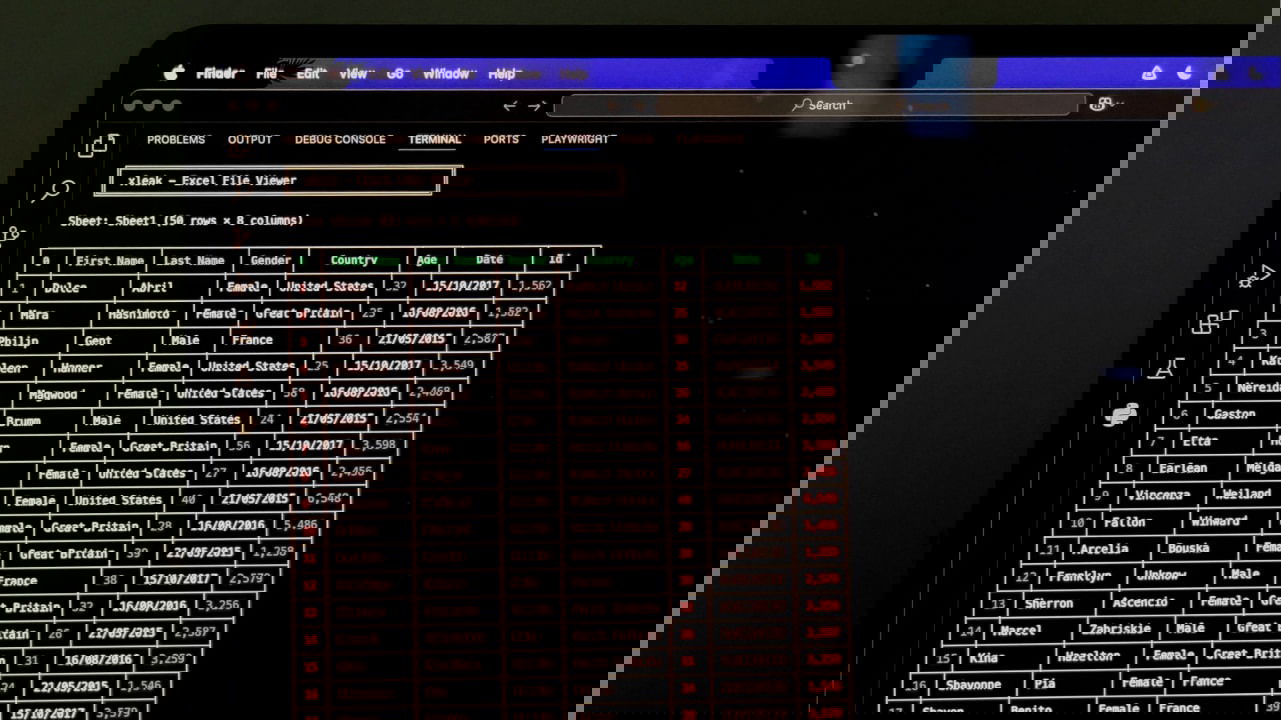
If you spend a lot of time in the terminal, you probably prefer staying there. Jumping to a full spreadsheet app just to quickly inspect a spreadsheet can feel like overkill. That is where Xleak comes in. It lets you open and browse spreadsheets directly inside your terminal window. You might not immediately see how useful it is, but once you start using it, it clicks. For example, when working on data pipelines with Python’s pandas or polars, you often generate data artifacts for others to use, whether as CSV or Excel files. It can be a hassle to leave the terminal just to view them. Xleak solves that.
What Xleak Is and Why It Exists
Xleak is a terminal-based viewer for Excel spreadsheets. Instead of opening your xlsx file in a graphical app, you open it right inside your shell. It renders rows and columns in a structured, scrollable interface, and with interactive mode enabled, you can navigate large sheets that would not otherwise fit on a single screen.
The core use case is simple. You have a spreadsheet, and you want to inspect it quickly. Maybe you exported data from a tool, maybe you received a report, maybe you are debugging something, and just need to confirm values. Instead of launching a full desktop application, you stay where you are and open it with command line.

The tool is still relatively new. During testing, I noticed a few rough edges. For example, the remnants of the original command text are still visible in the interface, like stray characters in a column name. So yes, it is fresh out of the kitchen. But it is already usable, and for many workflows, it is genuinely helpful.
Another important detail is that Xleak focuses on Excel files. Support for CSV files is being considered, which could eventually make it a single tool for both formats. For now, if your workflow revolves around xlsx files, this is where it shines.
Setting up Xleak
Getting Xleak up and running is straightforward.
On macOS or Linux, you can install it using Homebrew. If you already use Brew for your packages, you can get started in minutes.
brew install bgreenwell/tap/xleakOn Windows, you can install it using Scoop. First, add the required bucket, then install the tool.
scoop bucket add bgreenwell https://github.com/bgreenwell/scoop-bucket
scoop install xleak
Once installed, you can simply run the command xleak to confirm it is available.
Xleak Configuration
Unlike some similar tools that don’t come with any config options, Xleak gives you options you may want to tweak. The configuration file lives in different places depending on your system.
On Linux, it is stored at:
~/.config/xleak/config.tomlOn macOS, you will find it at:
~/Library/Application Support/xleak/config.tomlOn Windows, it is located at:
%APPDATA%\xleak\config.tomlYou can edit this file to change how the interface behaves. For example, you can adjust the maximum number of rows displayed or tweak column widths. You can also change the theme and keybinding profile.
Here is an example configuration that sets a different default color scheme and enables a Vim-style keybinding profile.
[ui]
max_rows = 50
column_width = 30[theme]
default = "Github Dark"
[keybindings]
profile = "vim"
If you are already comfortable with Vim-style navigation, you can make the tool behave the way you expect. You are not locked into defaults. Over time, you can tune it so it matches your workflow almost exactly.
A full configuration example is available in the GitHub repository, but even small tweaks like theme and keybindings can make a big difference in day-to-day use.
Using Xleak to Open Spreadsheets in the Terminal
Once Xleak is installed, opening a spreadsheet in the Terminal is simple. The most important thing to remember is the interactive flag. Without it, large files can be hard to navigate. With it, you get a much better browsing experience.
To open a spreadsheet in interactive mode, run:
xleak example.xlsx -iThe spreadsheet loads directly in your terminal. If the file has more rows or columns than fit on your screen, interactive mode lets you scroll and navigate through them.

The real advantage shows up when you are already on a terminal-heavy workflow, whether you just generated a spreadsheet from a script or you are SSHed into a remote machine without a graphical environment available. Instead of downloading the file or setting up port forwarding to open it elsewhere, you can simply view it in place.

It is also useful for quick inspections. You do not always need formulas, charts, or editing features. Sometimes you just need to confirm that row 248 has the right value, or that a column header matches what you expect. Xleak handles that scenario very well. That said, because the tool is still new, you may encounter small glitches.
There is also an interesting overlap with other terminal data tools. Many keybindings seem familiar, and with configuration, you can align them even more closely with tools you already use. If CSV support lands in the future, Xleak could potentially replace multiple viewers in my toolkit.
You can do a lot more from the terminal than you think. For example, I have tried using a browser right from the terminal, and the experience was not too bad. If you need more ideas, check out some useful things you didn’t know you could do in your Linux terminal.
