


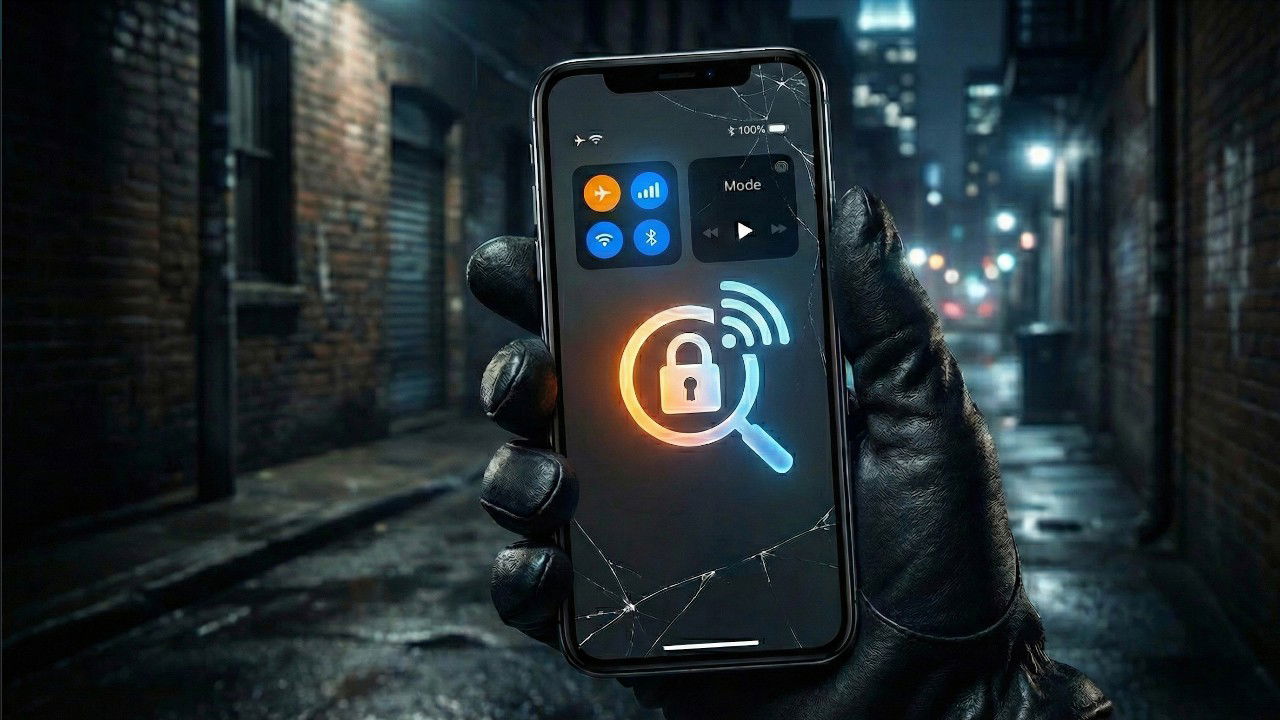
When a thief steals an iPhone, their immediate goal is to prevent you from tracking it. To do this, they almost always do one thing within the first ten seconds: swipe down and enable Airplane Mode. While your Find My network can still use Bluetooth to connect to nearby Apple devices when your phone is offline, it is significantly slower and less precise than a cellular connection.
How Airplane Mode is Used to Defeat Find My iPhone
Find My iPhone relies on GPS coordinates and a method for transmitting those coordinates to Apple’s servers.
With airplane mode enabled, that transmission is killed, buying the thief time to disassemble the phone for parts or use specialized hardware to bypass your phone’s security system.
Airplane mode is instantaneous, requires no authentication, and can be easily executed to disconnect a device from the internet.
By default, you can have Control Center access from the Lock Screen, meaning anyone holding your phone can toggle Airplane Mode without unlocking it. To close this loophole:
- Open Settings and scroll down. Then, tap Face ID & Passcode (or Touch ID & Passcode). Enter your phone’s passcode.
- Scroll down to the Allow Access When Locked section.
- Toggle Control Center to the Off position.

Now, the good part is that if your phone is locked, a thief cannot easily enable Airplane Mode. Meaning they are forced to either leave the phone online, making it trackable, or power it off completely.
Create an Anti-Airplane Mode Automation
It’s great if your phone is locked and you have toggled your Control Center off. But what if a thief snatches your phone right out of your hand while you are texting? Your phone is unlocked, meaning they have full access to the Control Center.
To counter this, I suggest you use Apple’s Shortcuts app to build something of a trap. If someone turns on Airplane Mode, your phone will instantly lock them out and force the internet back on:
- Open the Shortcuts app and tap the Automation tab at the bottom.
- Tap New Automation or the + icon in the top right to create a new automation.
- Scroll down the list and select Airplane Mode. Make sure Is Turned On is checked, and select Run Immediately.
- Make sure Notify When Run is toggled OFF. You don’t want the thief to see a notification about what is happening.
- Tap Next.
Once you enter the new screen, tap Create New Shortcut. Then, tap the Search Action search bar to find and add the following actions in this exact order:
- Lock Screen: Here, you should search for Lock and add the Lock Screen action. This is important because the moment anyone taps Airplane Mode, the screen goes black, and then requires Face ID to get back in.
- Set Airplane Mode: Tap the action to change it to Turn Airplane Mode Off.
- Set Mobile Data: Tap to change it to Turn Mobile Data On.
- Set Wi-Fi: Tap to change it to Turn Wi-Fi On. For this, if your phone moves out of your usual Wi-Fi range, leaving this as On improves the accuracy of the location if it passes nearby open networks.
- Set Brightness (Optional): Set this to 0%. For me, I think this makes the phone look like it has died or shut down, potentially confusing the thief.
Tap Done to save. Now, if your unlocked phone is put into Airplane Mode, it will instantly lock anyone out and reconnect to the internet so you can send a remote erase command from another device.
Note: The trade-off here is that each time you tap on Airplane Mode, this automation runs. As long as you have no problem with that, your phone’s protection is at least guaranteed.
Trigger Lost Mode
The entire point of this Shortcuts automation is to buy you a bit of time. Since whoever has your phone is temporarily locked out and your iPhone is forcefully reconnected to the internet, you must act quickly before they realize they need to turn off the device completely.
As soon as you realize your iPhone is missing, borrow a friend’s phone, open any web browser, and sign in to your iCloud account, or open Find My on another iPhone. Select your missing device from the list and immediately activate Lost Mode.
Activating Lost Mode suspends all your Apple Pay cards, completely disables Face ID and Touch ID unlocking, and displays a custom message on the screen with a backup phone number. Because your Shortcuts trap successfully kept the device online, this command can reach your phone in seconds.
What This Automation Protects (And Doesn’t Protect)
This automation is a brilliant tool, but I noticed that its limitation is your SIM card tray. If a thief realizes they cannot use Airplane Mode, their next step is often to use a paperclip to pop out your physical SIM card. Once the SIM is removed, your cellular data is gone, regardless of what your automation does.
To make this trap completely bulletproof, you should contact your carrier and switch your physical SIM to an eSIM. An eSIM is digital and cannot be removed by a thief. As long as the phone has power, it will fight to stay connected to your cellular network, ensuring your Find My tracking remains live.
Limitations You Need to Know
While this is, to an extent, a good security layer, it does have a few limitations. First, it cannot prevent a thief from simply holding the physical buttons to power the phone off entirely. On the bright side, forcing them to power it off still prevents them from accessing your unlocked data.
Second, this automation will block you from using Airplane Mode during normal situations, like when you’re boarding a flight. When you try to turn it on, your phone will lock you out and turn the data back on. To manage the automation when flying or in other situations:
- Open the Shortcuts app and go to Automation.
- Under the Automation section, tap it and select Don’t Run.
- Tap Done.
This, at least, pauses the automation without deleting all your hard work. Once you’re settled and feel like you can run it again, simply go back into the app and change it back to Run Immediately so your protection remains active.
To maximize your security, ensure Stolen Device Protection is also enabled in your FaceID & Passcode settings. You can also read our guide to learn to use Find My to protect and track your iPhone.
