


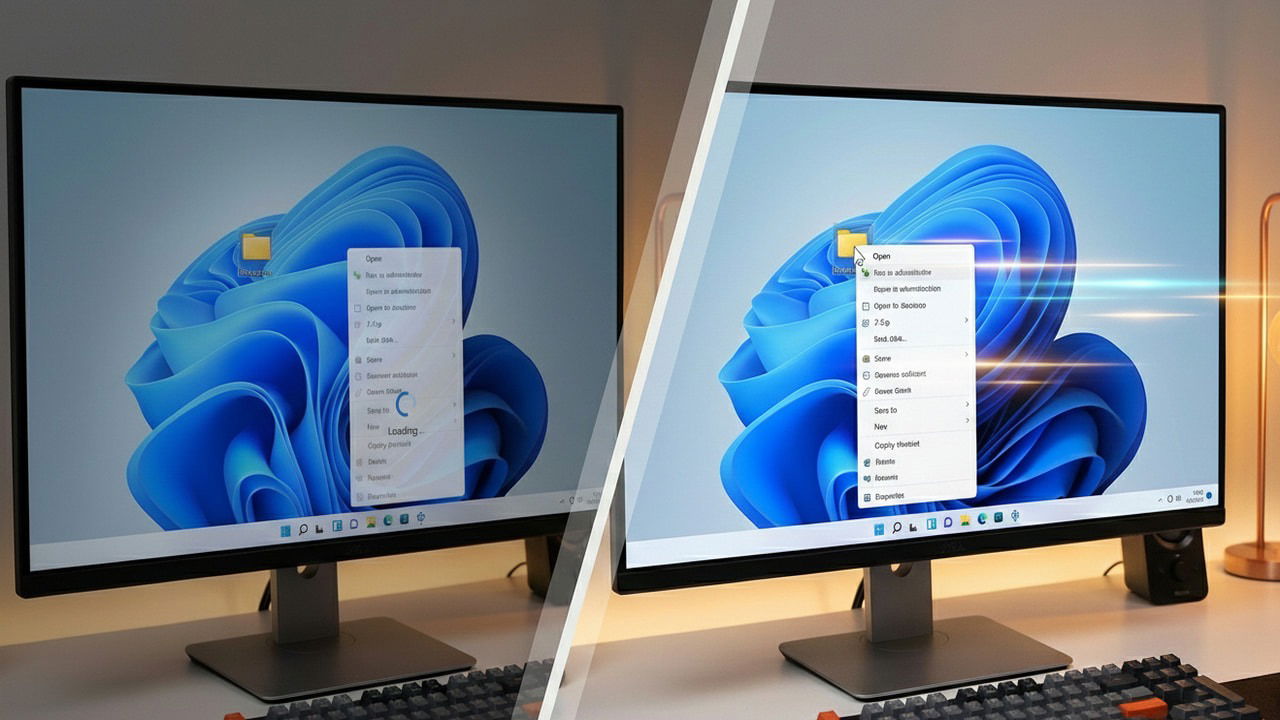
The Windows context menu (right-click menu) typically becomes slow over time, which isn’t just a nuisance, but a total productivity killer. However, you don’t have to settle for a context menu that stutters every time. Let’s look at how to strip away the bloat and make your right-click feel instantaneous again.
Clear File Explorer History to Get Rid of Bloated Cache
While it might seem unrelated, your File Explorer history can actually add delay to your context menu. When you right-click, Windows doesn’t just show a bunch of commands; it queries file history to determine “Open with” suggestions, “Recent” metadata, and other dynamic information. If your File Explorer history is bloated or corrupted, it can cause a context menu slowdown.
Thankfully, you can easily fix this by clearing the File Explorer history. To do so, open File Explorer, click on the three dots menu at the top, and select Options. Here, click on Clear next to the Clear File Explorer history option under the General tab. Your recent file activity will immediately reset, and your context menu may speed up if that was the cause of slow performance.

Many third-party apps add their function entries to the context menu for quick access, like Dropbox, antivirus software, secure file deleters, etc. If you have many such entries or a malfunctioning app, it can slow down the context menu. You can disable these items to speed up the context menu.
ShellExView is a free tool that can both reveal third-party entries in the context menu and disable them. Launch the tool, click on Options, and select Hide All Microsoft Extensions. This will disable all Windows built-in extensions and show third-party ones.

Now, select all entries here, right-click on them, and select Disable Selected Items. This will disable all items from the context menu. You’ll have to restart the File Explorer or restart the PC for changes to take effect.

If this speeds up the context menu, it means either the context menu was bloated or an app’s entry is causing a delay. Open ShellExView again and enable necessary entries one by one (restart File Explorer in between) to check which entry is causing the issue.
Alternatively, you can also give these third-party context menu editors a try.
Check for “Ghost” Network Drives Slowing Context Menu
If the context menu is taking an unusually long time to open (like 5 sec+), then a common cause is a “ghost” network drive. If you have a network drive – like a NAS – that your PC is unable to reach, it will slow down the context menu as Windows tries to find all storage locations. Windows will try to access the network drive and wait until the timeout period before showing the context menu.
Your best bet is to ensure the drive is working and the connection to it is stable. If there is a drive that you don’t need anymore, you can just open This PC, right-click on the drive, and select Disconnect.
Disable Visual Effects to Make Context Menu Snappier
If you dislike Windows 11’s context menu’s slower opening/closing animations, you can make them snappier by disabling animations. Additionally, on older devices, disabling visual effects may speed up the PC, including the context menu.
Type “adjust performance” in Windows Search and open Adjust the appearance and performance of Windows. Here, uncheck the following visual effects to make the context menu snappier:
- Fade or slide menus into view
- Fade or slide ToolTips into view
- Fade out menu items after clicking
- Animate controls and elements inside windows

Keep in mind that these effects will be removed from other areas of Windows as well. You might also want to disable transparency effects in Windows if you have an old PC.
Windows 11’s new context menu is more visually appealing than Windows 10’s context menu. However, it’s also generally slower than the classic context menu. You can test that right now: just hold the Shift key and right-click an item. The classic menu will open, which should be faster than the default one.

If you want a faster context menu, you can either hold the Shift key while right-clicking or permanently switch to classic context menu using a Registry hack. Check out our step-by-step guide to restore the classic context menu in Windows 11.
After making these changes, your Windows context menu should open almost instantaneously. If it’s still slow, you might be interested in replacing it completely with a third-party context menu.
