


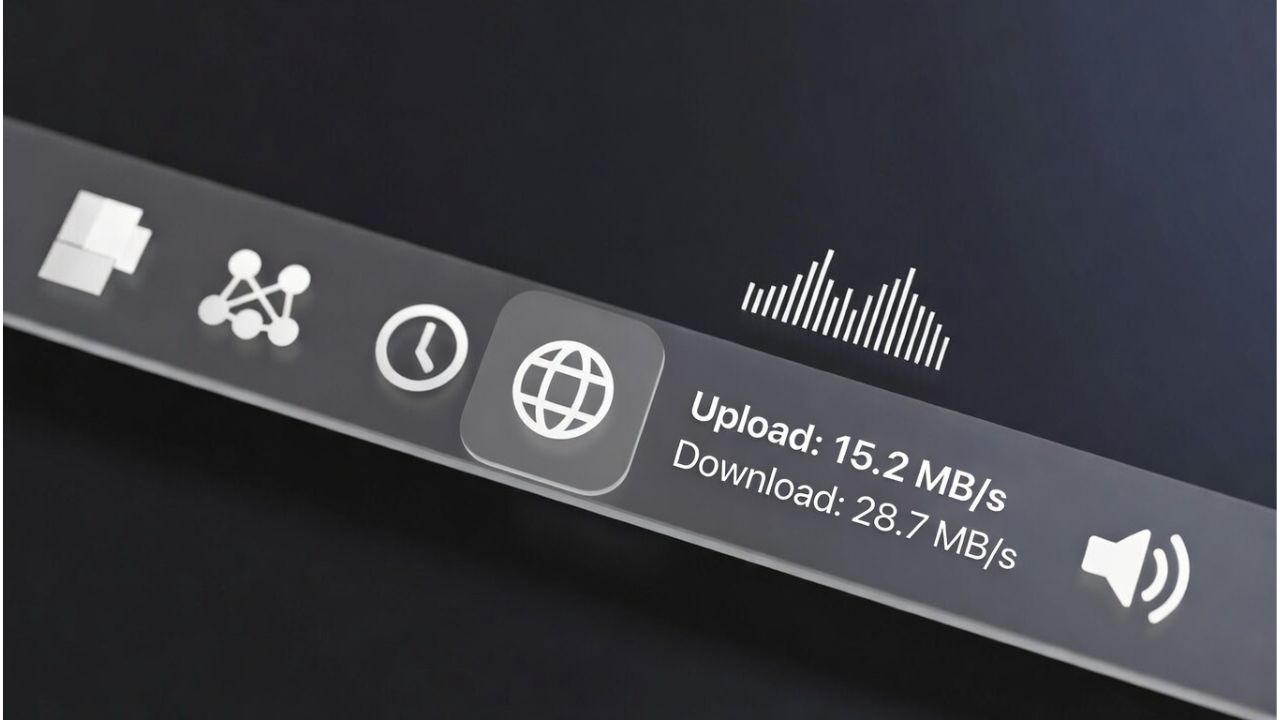
When the Internet is crawling slowly, it is a good idea to be able to view your live internet speed on the Windows taskbar. When Chrome stops loading, YouTube pauses, or OneDrive slows everything down, you can instantly see if your connection is the problem.
Windows 11 removed the API that older tools relied on to embed into the taskbar, so the working options are fewer than you would expect. The two below work reliably on Windows 11 and serve different needs.
Using Net Speed Meter For Quick Glance
Net Speed Meter comes straight from the Microsoft Store, so it installs cleanly and safely. Once running, it shows real-time download and upload speeds directly on your taskbar. This is useful for knowing at a glance whether a drop in streaming quality is a connection issue or just the service acting up. It’s probably the easiest way to monitor your internet usage in Windows.
To set it up, open the Microsoft Store. Search for Net Speed Meter and click Get.

Launch the app. A small meter appears on your desktop. Right-click its icon in the system tray and select Keep in Taskbar.

The free version is all you need. Right-click the meter to open Settings, where you can switch between Kbps and Mbps, pick your Color & Themes, or reposition the readout alongside the taskbar.

Use TrafficMonitor For More details and Customization
TrafficMonitor goes a step further by displaying network speed, CPU usage, and RAM usage together in the same taskbar strip. That combination is more practical than it sounds. If a game stutters or a video call degrades, you can see immediately whether your bandwidth dropped, your CPU is maxed out, or both, without opening a separate diagnostic tool. It’s open-source, completely free, and runs without installation.
Extract the ZIP file and run TrafficMonitor.exe. A floating window will appear on your desktop.

Right-click it and select Show Taskbar Window to move the display into your taskbar.

From there, right-click the new taskbar strip and open Display Settings to configure the layout.

To add CPU and memory stats alongside network speed, check the corresponding boxes.

To set your preferred speed unit, go to Options and switch from Bytes to KB/s or MB/s. Font size and typeface are adjustable here too, which makes a noticeable difference on high-resolution screens where the default text can feel too small.

If you want the strip to run every time you start your PC, enable Run at Windows Startup from the same Options menu.

You can also change the visual skin by right-clicking the floating window and selecting Change Skin. This is handy if the default clashes with your taskbar color.
Which one should you choose?
Net Speed Meter is the right pick if you want something installed and running within two minutes. TrafficMonitor is the better fit if you want a fuller system readout and the flexibility to customize every detail of what appears in the strip. Either way, once it’s set up, the information is always there when you need it.
For more taskbar tips, read the best tips to use and customize the Windows 11 taskbar. If your taskbar becomes unresponsive after installing an app, see how to fix an unresponsive Windows 11 taskbar.
Net Speed Meter
Price: Free
TrafficMonitor
Price: Free
