


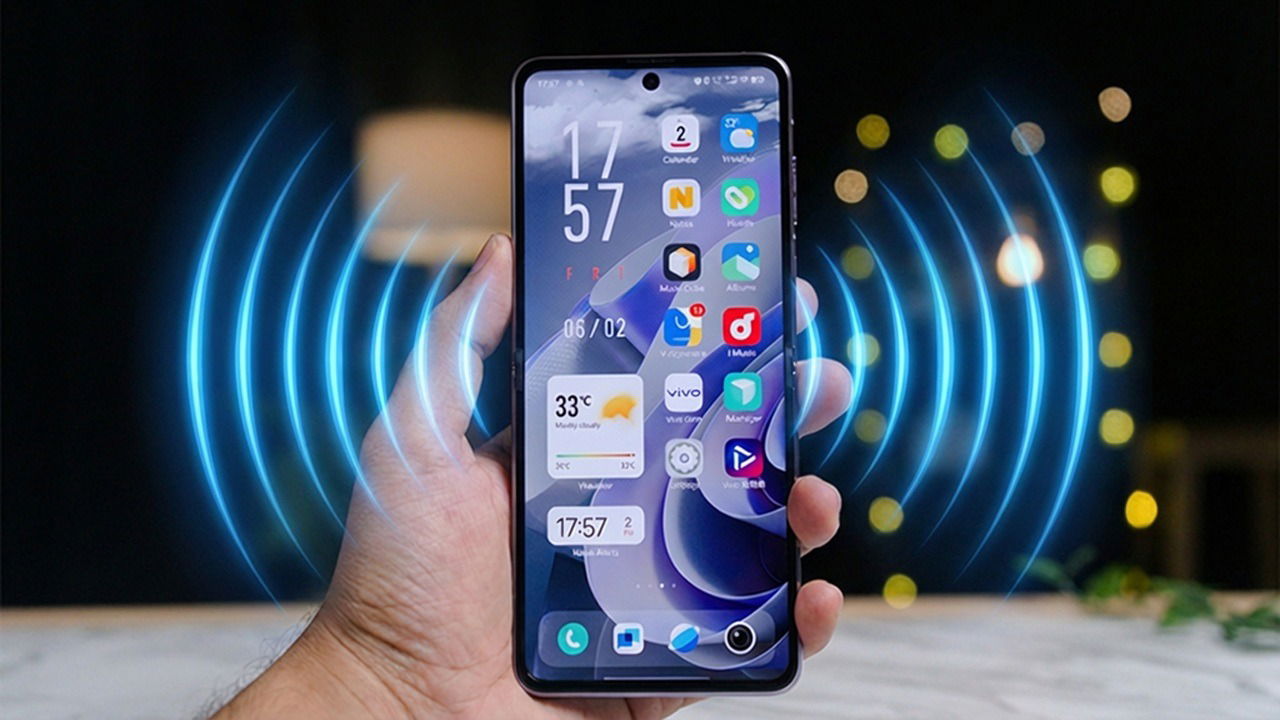
We’re constantly bombarded with notifications, and ironically, that makes it easier to miss the ones that actually matter. To cut through the noise, I started using voice notifications on my phone to highlight the alerts that actually need my immediate attention. This way, I don’t have to worry about missing the really important notifications. If this sounds like something you’d like to try as well, here’s how you can enable voice notifications on your Android device.
The Advantages of Using Voice Notifications
With voice notifications enabled, my phone reads out important alerts, keeping me in the loop even when I’m not looking at the screen.
My phone is constantly buzzing with notifications all day, but if I’m in the middle of something, I don’t always check it right away. That can be an issue, because some notifications can’t wait.
In cases like this, voice notifications make all the difference, allowing you to continue with your tasks while still being notified when something urgent comes up.
Moreover, I often like to listen to music on my headphones while out for a walk, and even though I can hear notification sounds, it’s still inconvenient to pull out my phone every time it chimes. With voice notifications enabled, I only take it out when I really need to.
Getting Voice Notifications on Android
I explored a few options for voice notifications, and the method I liked best involves the free Voice Notify app, as it enables a hands-free approach to getting your notifications read out loud.
Note: your phone needs to have sound on for you to receive voice notifications. If your phone is on vibrate, you won’t hear them.
Once the app is installed, open it and tap on the first option on the main screen to enable the Voice Notify service. You’ll need to grant the app permission to access your Android notifications, then you can turn Voice Notify on and off at will from the app. Whenever you feel that voice notifications aren’t needed, you can quickly shut them off.

The app doesn’t turn on voice notifications for everything at once, as that would be over the top and could quickly become overwhelming. Instead, you can enable the service for specific apps.
Tap on App List. Here you’ll find a long list, which also includes many of your Android processes.
Use the search feature to find the apps you want, then tick the box next to each of them.
You can adjust the list based on your daily needs and schedule. For instance, if you’re expecting a food delivery but don’t want to be idle while waiting, enable voice notifications for your food delivery app to know when the courier is nearby.
Decide What Kind of Voice Notifications to Get
Voice Notify offers granular controls, enabling you to define the types of notifications you wish to receive. To begin, open the app and go to Require Text.
In the window that appears, type the words that the notification needs to include to qualify for voice. Separate each new entry with a new line. You can also use Regex. Note that once you create the rule, only notifications that include at least one of the terms in the list will qualify for voice treatment.
Say you’re waiting for an important email from your boss or team, but you don’t want to hear other alerts, you could add the names of your coworkers, as well as words such as “urgent”, “meeting”, or “schedule.”
I noticed that for Gmail notifications, Voice Notify doesn’t read out the email body by default, even if it is visible in the notification preview. To fix this, you need to go to Text-to-Speech from the main app interface. Select TTS Message.
Here, you can customize what parts of the notification Voice Notify reads out to you. The default is #A (app title), #C (content title), #M (content message). Add a #B (big content text) to include the body of the email in the voice notification.
From the Text-to-Speech section, you can also set up text shortcuts via TTS Text Replacement. This allows you to substitute text to be spoken and can help with pronouncing certain terms, for instance.
Alternatively, Voice Notify allows you to create a list of terms you don’t want included in your voice notifications by going to Ignore Text. For instance, if you don’t want to hear alerts from your overly noisy friend, you can add their name to the list.
Other Alternatives to Enable Voice Notifications on Android
Android has a built-in option that allows text to be read out after you tap it. This includes notifications. Yet, this method comes with a caveat. You have to have your phone in your hand to actually tap the text you want to hear. If you are suffering from a visual impairment, this method might be of use.
To enable this feature on your Android, go to Settings → Accessibility → Select to Speak. Turn on the toggle for Select to Speak shortcut.
A new toggle will now appear in your Quick Settings menu. Place it where you can easily reach it without having to swipe two times, preferably in the first two rows.
Tap on it to enable it. The screen will flash once and will display a green border. Next, open the notification shade and tap the alert you want to hear. During reading, each word is highlighted in a green box.
Another option is to use Google Gemini, which now comes pre-installed on many Android phones. Just say something like “Hey Google, read my notifications“. Gemini will oblige and read out alerts from apps such as WhatsApp, Instagram, etc. But since the virtual assistant can only read out message notifications, it will ignore notifications from apps such as Gmail.
If you prefer not to use voice notifications, you can still make sure you don’t miss important alerts by enabling flash notifications on Android.
