


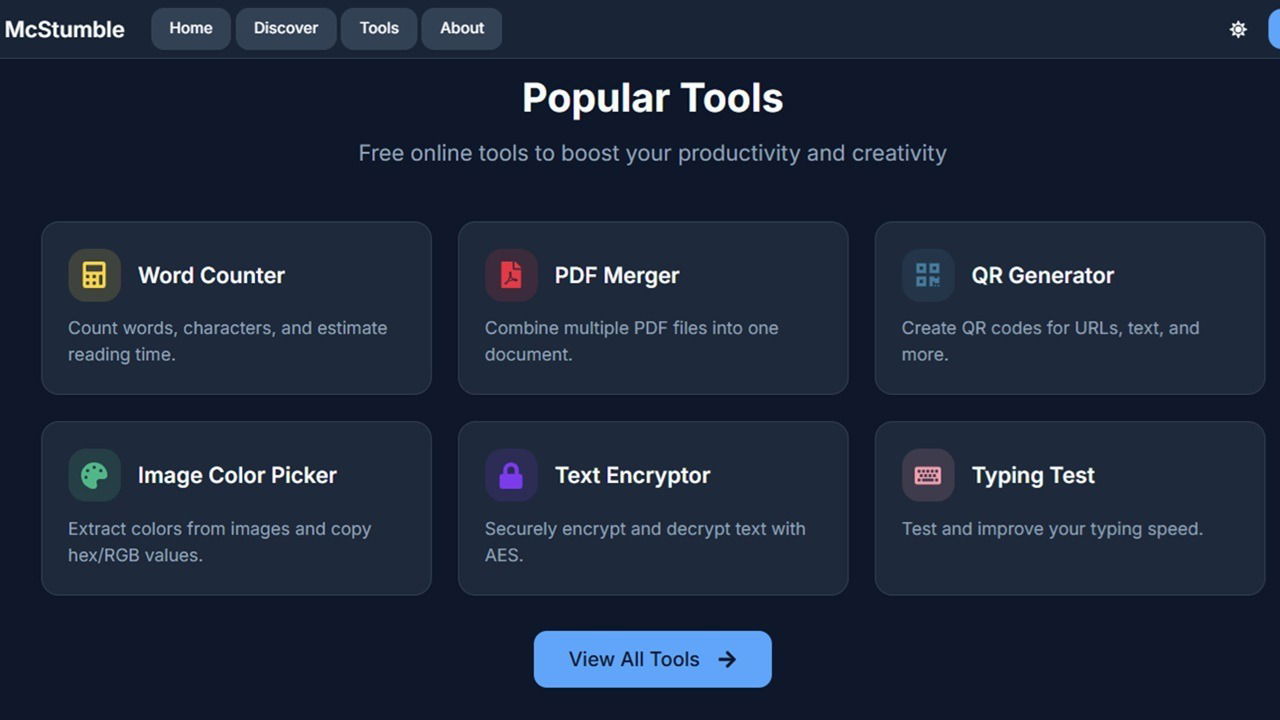
At one point, I had over a dozen productivity apps on my PC to tackle various tasks. Then, I stumbled onto McStumble, the ultimate productivity secret that let me replace all those tools without having to install a single app.
You might think what’s the harm in having a bunch of different productivity tools on your desktop. All those tools take up valuable storage space for more important apps, especially on smaller hard drives.
Plus, I always had to remember the name of each tool to access it. For some tools, I only used them once in a while, but others I used almost daily.
I had tools to resize and compress images, convert image types, convert units, generate passwords, generate countdown timers, convert PDFs, merge PDFS, and more. I even had a Pomodoro Timer app. Trust me, having all these different apps doesn’t make me more productive. It just means spending more time jumping between apps.
What Makes McStumble So Productive?
I know the name doesn’t inspire confidence, so stick with me here. At the time of writing, the site has over 50 tools for you to use whenever you need them.
McStumble is a minimalist looking website with tools in various categories. Each tool has its own easy to see block/card format. Click it and start using it.

There are three things I absolutely love that keep me coming back, besides all the tools themselves:
- You don’t need an account. You can create one if you want, but it’s not necessary to use any of the tools on the site. Mainly, a free account is to save files or bookmark sites you find in the Discovery section.
- All data is processed locally. You never upload files to a random cloud with questionable security. Anything you upload is processed within your browser. Clear your cookies and everything’s gone.
- True cross-platform compatibility. It doesn’t matter whether you’re using Windows, Linux, iOS, or some obscure operating system no one’s ever heard of. If you have Internet access and a modern browser, you have access to these tools.
So, it’s easy to use, free, and private. There’s nothing to lose by trying it out.
All tools are listed in the following categories:
- Text tools
- Image tools
- Productivity tools
- Developer tools
- Design tools
- PDF tools
Admittedly, I don’t use every tool on the site and you probably won’t either. But, they’re there if you ever need them.
I do wish there was a drop-down menu, but you will have to either scroll to the section you need or use the quick search box to find the tool you want.

This will obviously vary based on your needs, but for me, I have a handful of tools I use on a regular basis.
Under Text Tools, I often use Word & Character Counter. All I have to do is copy/paste my content and let it count. No matter what text editor I’m using, I have a counter available. But, my favorite part is it also includes a read time. Since I often write content based on read time, this is a handy feature I didn’t expect.

Another useful tool is the Text Encryptor & Decryptor. If you ever need to send encrypted text, just copy the text into this productivity tool on McStumble and let it encrypt it for you using AES, DES, Rabbit, or RC4 encryption. Anyone with the password can copy the encrypted text into the tool to decrypt it. Bitwarden also lets you send encrypted text, but you must have an account.

Though not as frequently, I do use the HTML to Markdown and Markdown to HTML converters for some writing projects.
Under Image Tools, my favorite is by far the Image Compressor. I just upload a file, select JPG or WebP format, choose my quality, and compress. The image conversion tools are limited, but VERT works great for this.

If you need to resize an image, the Image Resizer & Cropper tool makes it so easy. Choose your width and height, format, and aspect ratio. Everything’s resized in your browser for you to download.

I know memes aren’t exactly productive, but there’s also a fun Meme Generator when you’re taking a break.
I often use several tools in the Productivity Tools area. My favorites include the Pomodoro Timer, Kanban Board, Unit Converter, and Password Generator. If you’ve never used Kanban boards before, they’re perfect for organizing your tasks. Just enter your tasks and export the board. Import the board when you want to make changes. I typically create a new one each week.

And, forget about trying to find the right Pomodoro Timer app. Simply customize this one in your browser and even get notifications for breaks and work periods. Try Flowmodoro to see what your optimal periods should be.

Right now, I don’t often use the Developer Tools, though I occasionally use the JSON to CSV converter.
For color-coding templates, the Color Palette Generator is a lifesaver. I just choose a base color, harmony rule, and generate a palette. McStumble lets me download CSS variables and JSON arrays. Or, just look at the color codes when hovering over a color.

Finding the right PDF tools, especially free ones, isn’t easy. That’s why I love McStumble’s PDF Tools. I can merge, extract pages, convert images to PDF and vice versa, and convert plain text to PDF. It’s the simplest tool I’ve ever used for merging PDF pages. Just drag and drop, reorder, and merge. It’s that simple.

McStumble Quick Tips
I personally prefer using the Dark Mode version as it’s easier to see. Switch back and forth using the Sun or Moon icon at the top right.
If you use this as often as I do, install McStumble as an app on your desktop or mobile device. On desktop, open the site, open your browser’s menu, click Cast, Save, Share (or similar option depending on the browser), and select Install page as app.

You don’t always need to download more apps to be productive. There are even a variety of online privacy and security tools with no download required.
