


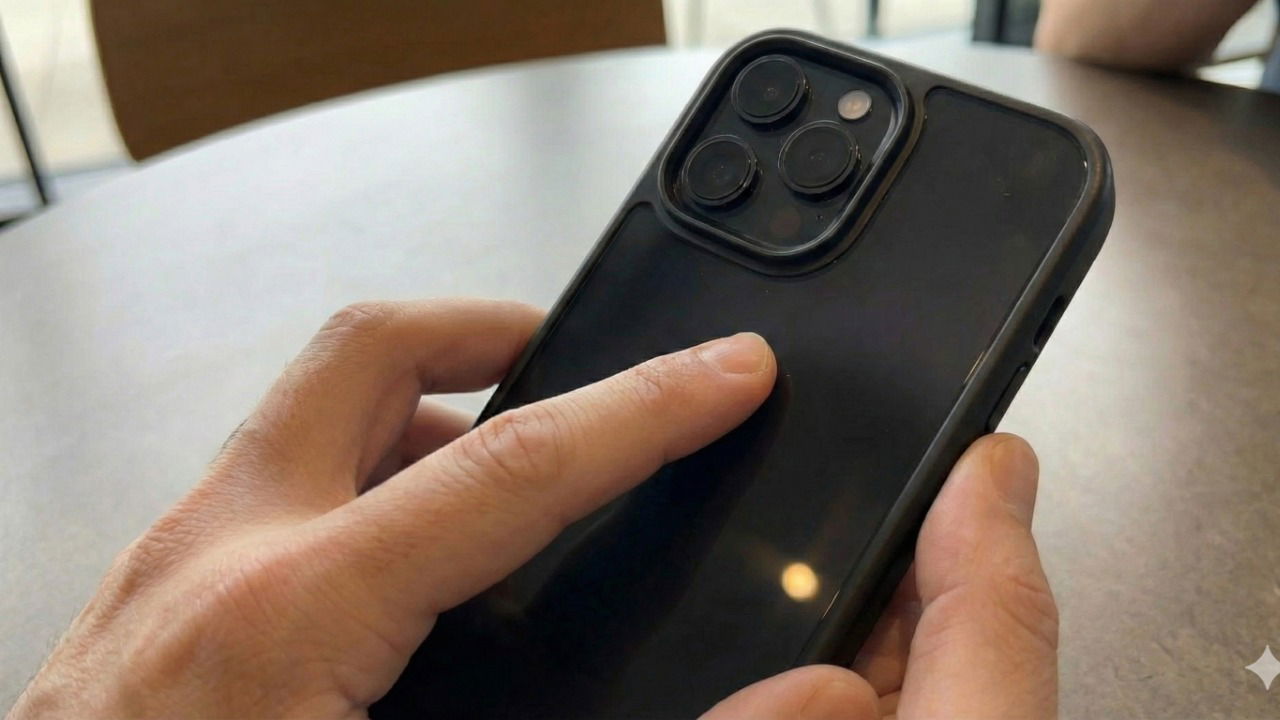
Most iPhone users treat Back Tap as a gimmick, using it for simple tasks like taking screenshots or opening the Camera. But by pairing it with Shortcuts, I turned it into a trigger that secures my screen the moment someone looks over my shoulder or when I’m in a sensitive environment.
What iPhone Back Tap Is (and Why It’s Underused)
Think of the iPhone’s Back Tap feature as a big button on the back of your phone that you can map to a specific function. Apple introduced it in iOS 14, so it works on iPhone 8 and newer models.
Back Tap is widely underused because options like Control Center, Siri, or the new Action Button feel more obvious. However, Back Tap has a unique advantage: it can trigger Shortcuts. This allows it to run automations that would normally require digging through menus or swiping down the Control Center, actions that are often too slow when you need privacy immediately.
The Privacy Problem Back Tap Can Solve Instantly
We have all been in situations where you’re viewing sensitive emails, photos, or banking details in public, and then you realize the person standing over you is reading your screen.
Fumbling to open the Control Center to lower brightness or enable Do Not Disturb takes 3 – 4 seconds and draws attention to what you are doing.
A subtle triple-tap on the back of your phone will instantly dim the screen brightness to 0%; switch the system to Dark Mode, making it harder to read from angles; pause any playing media; and activate a restrictive privacy Focus Mode to hide incoming notifications.
Building an Instant Privacy Mode With Shortcuts
To build this mode, you first need to create the automation recipe that your phone will run. Open the Shortcuts app.
Then, tap the + icon in the top right to create a new shortcut.

Next, tap the arrow next to New Shortcut at the top, select Rename, and call it Privacy Mode.
Tap the Search Action spacebar, search for the following actions, and add them in this order:
- Set Brightness: Set this to 0%.
- Set Appearance: Set this to Turn Dark Mode On.
- Play/Pause: Tap Play/Pause and change it to Pause.
- Set Focus: Set this to Turn Do Not Disturb On (or your specific Privacy Focus) and tap on Off and choose until Turned Off.
To test it, tap the Play button at the bottom right. Your screen should go dark and silent immediately. If it runs correctly, you’re ready to map it to Back Tap.
Building the Privacy Focus Mode
Simply turning on Do Not Disturb isn’t enough. If your screen is at 0% brightness in a dark room or when Attention-Aware features are on, a bright white notification banner from an app like WhatsApp can still reveal information. You need to configure a Focus mode that suppresses these notification banners.
To start, go to Settings → Focus. You can use the standard Do Not Disturb or tap + to create a custom Privacy focus.
Once you select a new or existing focus mode, tap Options and toggle On the switch for Dim Lock Screen. This makes sure that even if you lock your phone, the screen stays discreet.
Also, toggle On the switch for Hide Notification Badges.
Value Add: Scroll to Focus Filters → Add Filter. Choose Apps, then silence apps like WhatsApp, Slack, or banking apps. This helps keep your sensitive content hidden even if you accidentally raise the brightness.
Mapping Privacy Mode to Back Tap
Now that you’ve laid the groundwork, you need to connect it to Back Tap. Go to Settings → Accessibility → Touch.
Scroll to the bottom and select Back Tap. Choose Triple Tap.
I recommend Triple Tap for the privacy trigger because Double Tap is easier to trigger accidentally while putting the phone in your pocket. You don’t want your screen to go dark randomly.
Scroll down to the Shortcuts section of the list. Then, select Privacy Mode, and a blue checkmark will appear.
Good to Know: Back Tap works through most cases, but very thick rugged cases or cases with pop-sockets can occasionally affect the detection, requiring a firmer and more difficult tap.
How to Exit or Reset Privacy Mode Safely
This is an optional step because it may seem like it conflicts with the recommendation I gave on triple-tapping. However, if you feel you will have no problems double-tapping or triple-tapping, then you should do this.
Since your screen is now at 0% brightness, resetting your phone’s settings can be difficult, especially outdoors. You most likely need a button to restore your phone to normal.
Open Shortcuts and create a new shortcut called Reset. Then, add these actions:
- Set Brightness: Set to your preferred level.
- Turn Do Not Disturb Off.
- Tap Play/Pause and change it to Play/Pause.
- Turn Light Mode On (if you prefer it this way).
Go back to Settings → Accessibility → Touch → Back Tap.
Map Double Tap to this Reset shortcut.
Now, you have a complete loop in the form of Triple Tap to go dark and secure, and Double Tap to instantly restore your phone to normal use.
Now that you’ve mastered this automation, check out how to unlock more Back Tap actions on your iPhone or learn how to create more advanced Siri Shortcuts.
