


It’s easy to replace TV and movie streaming services as there are tons of free software to do so. But the same cannot be said for music streaming services. You’re dealing with discovery, metadata, playlists, syncing across devices, and the reality that maintaining an on-disk music library still takes effort. That said, I’ve landed on a stack that works well for me. Here’s a proper look at how I’ve set it up and what you’ll need to replicate it.
Navidrome As The Foundation
Every streaming service has a backend. Spotify, Apple Music, and YouTube Music all rely on massive infrastructure that stores your library, manages metadata, and streams audio on demand. When you build your own streaming stack, Navidrome becomes that backend.
Navidrome is a self-hosted music server that scans your library, organizes it, and exposes a streaming interface that works across web, desktop, and mobile clients. It supports the Subsonic API, which means you can connect modern players that feel just as polished as Spotify.

There are multiple ways to install Navidrome, including running the container directly from Docker Hub. However, using Docker Compose is the better approach, especially if you plan to expand your stack with automation tools like Lidarr and download clients later.
I am using a Mac for this tutorial. The steps should be identical on Linux and easy to replicate on Windows as well.
Before installing Navidrome, you need a clean folder structure. This keeps your music, downloads, and service data organized. Open Terminal and run:
mkdir -p ~/docker/music-server
cd ~/docker/music-servermkdir -p music
mkdir -p downloads
mkdir -p compose
The “music” folder will contain your actual library, while “downloads” will be used later for automation. Now, navigate into the compose folder:
cd ~/docker/music-server/composeCreate the Docker Compose file:
nano docker-compose.ymlPaste the following configuration:
services:
  navidrome:
    image: deluan/navidrome:latest
    container_name: navidrome
    ports:
      - "4533:4533"
    volumes:
      - navidrome_data:/data
      - ../music:/music
    restart: unless-stopped

volumes:
  navidrome_data:
Save the file, then start Navidrome:
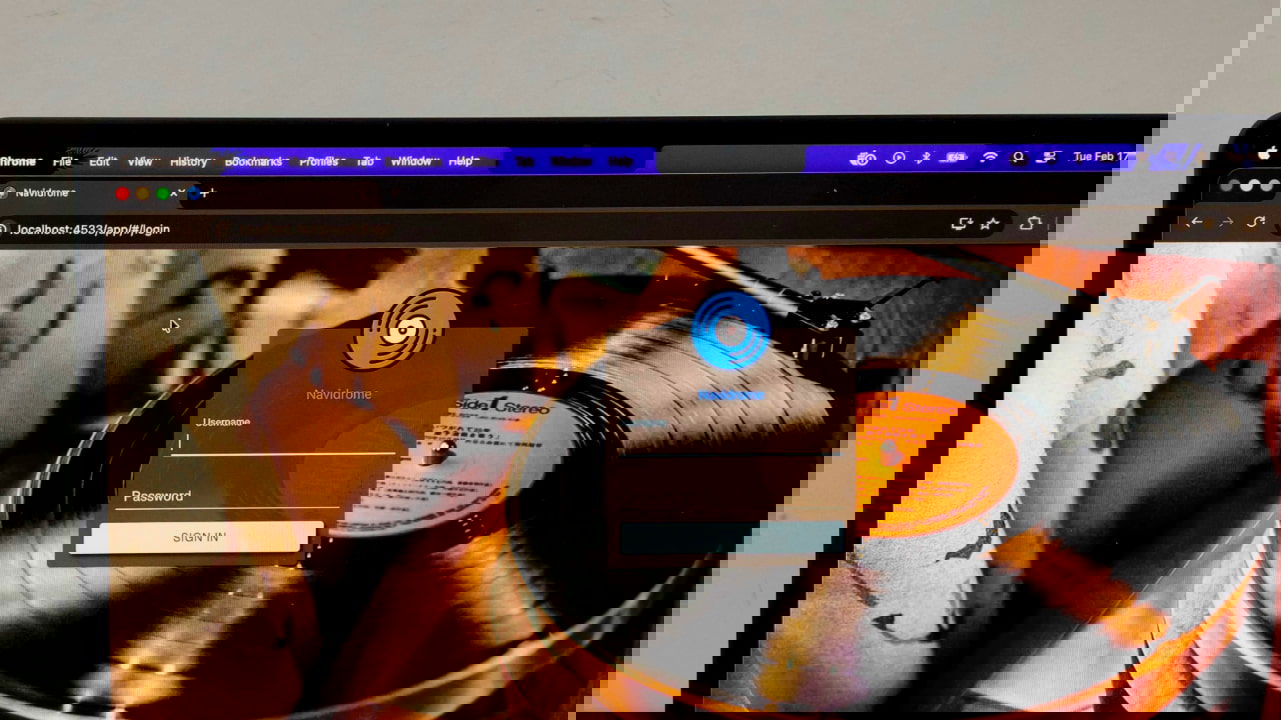
docker compose up -dDocker will download the Navidrome image and start the container automatically. Open your browser and go to http://localhost:4533.
You will be prompted to create an admin account. Once logged in, Navidrome will scan your music folder automatically. If you already have music files inside the music directory, they will appear in your library immediately.

At this point, you now have a fully functional streaming backend running locally. You can upload FLAC, MP3, or any supported format, and Navidrome will stream it on demand.
But Navidrome alone does not replace Spotify. It handles the backend, but the user interface still feels basic. To complete the experience, you need a proper frontend.
Adding Feishin for a Modern Spotify-Like Interface
Navidrome includes a built-in web interface, but it is designed more for functionality than polish. It works, but it does not deliver the kind of experience most people expect from a modern streaming service.
Feishin solves that problem. It’s a dedicated Subsonic-compatible player with a modern interface, smooth animations, and proper queue management. It looks and feels much closer to Spotify, with support for albums, artists, playlists, and playback controls that behave exactly as you would expect.
More importantly, Feishin connects directly to Navidrome and streams your music instantly. To install Feishin, open your Docker Compose file again and update it to include Feishin:
services:
  navidrome:
    image: deluan/navidrome:latest
    container_name: navidrome
    ports:
      - "4533:4533"
    volumes:
      - navidrome_data:/data
      - ../music:/music
    restart: unless-stopped
  feishin:
    image: ghcr.io/jeffvli/feishin:latest
    container_name: feishin
    ports:
      - "9180:9180"
    restart: unless-stopped

volumes:
  navidrome_data:
Start Feishin:
docker compose up -dOnce Feishin is running, open it in your browser (http://localhost:9180) and connect it to Navidrome. Select Subsonic as the server type and enter your Navidrome server address, which should be http://localhost:4533 if everything is running locally. Then sign in using the same username and password you created earlier in Navidrome.

As soon as the connection is established, Feishin will load your entire library, including artists, albums, and playlists.
Automating Your Library With Lidarr
Manually downloading and organizing music becomes tedious quickly. Lidarr automates the entire process. Lidarr monitors artists you follow, searches for their albums, downloads them automatically, and organizes everything into your music library. Once downloaded, Navidrome detects the new files instantly, and they appear inside Feishin without any manual intervention.

Edit your Docker Compose file again to add Lidarr:
services:
  navidrome:
    image: deluan/navidrome:latest
    container_name: navidrome
    ports:
      - "4533:4533"
    volumes:
      - navidrome_data:/data
      - ../music:/music
    restart: unless-stopped
  feishin:
    image: ghcr.io/jeffvli/feishin:latest
    container_name: feishin
    ports:
      - "9180:9180"
    restart: unless-stopped
  lidarr:
    image: linuxserver/lidarr:latest
    container_name: lidarr
    ports:
      - "8686:8686"
    volumes:
      - lidarr_config:/config
      - ../music:/music
      - ../downloads:/downloads
    restart: unless-stopped

volumes:
  navidrome_data:
  lidarr_config:
Start Lidarr:
docker compose up -dIn your browser, open http://localhost:8686. From here, you can add artists, and Lidarr will manage your library automatically. Once integrated with a download client, Lidarr handles everything from discovery to organization.
You Can Keep Upgrading Your Stack
At this point, you already have a fully functional self-hosted music streaming setup. Navidrome handles your library and streaming, while Feishin provides the interface, and Lidarr automates library management. For many people, this is enough to replace Spotify, especially if you already maintain your own music collection.
I intentionally kept my setup limited to these core tools. The goal was to build something simple, reliable, and easy to maintain. I am comfortable managing my library manually and deciding what to add. But if you want to go further, there are a few upgrades that can make it feel even closer to a full streaming service.
Right now, your server works only within your home network. Adding remote access lets you stream your library from anywhere. Tools like Tailscale or WireGuard create a secure connection to your home server, allowing access from your phone, laptop, or work computer. It’s one of the most impactful upgrades, but it also requires careful configuration. Opening access beyond your local network introduces security risks.
Organization is another area where streaming services excel. Album art appears instantly, artist names remain consistent, and everything is structured properly. You can achieve the same level of polish using beets. It’s a command-line metadata manager that integrates with MusicBrainz. It can automatically tag tracks, fix naming inconsistencies, download artwork, and enforce a consistent folder structure.
Music discovery is harder to replicate, but not impossible. Spotify’s recommendations rely on years of listening data and proprietary algorithms. Open-source tools like ListenBrainz can track your listening history and generate recommendations based on your habits. Tools like Explo can then use those recommendations to automatically create playlists inside Navidrome.
Self-hosting services take effort, but it’s fun and can also save you the money you’d otherwise pay for subscriptions. For example, you could self-host your photos with Immich and ditch Google Photos or create your own document manager using Papra.
