


Clawdbot is a personal AI assistant that, according to the developer, “clears your inbox, sends emails, manages your calendar, and checks you in for flights, all from WhatsApp, Telegram, or any chat app you already use.” The name was very similar to Claude, and when the folks at Anthropic noticed, they asked the developer to rebrand. It was renamed Moltbot, and while I was drafting this article, the developer decided to change the name again, this time to OpenClaw. Regardless of the name, it’s been making waves online, and I wanted to see for myself. I used it as my personal assistant for a few days, and I have to say, it does come in handy.
What Is Clawdbot?
Clawdbot (AKA Moltbot or OpenClaw) is a self-hosted personal AI assistant designed to actually do things for you, not just chat back with suggestions. You run it on your own hardware, connect it to your accounts, and then talk to it through apps you already use, like WhatsApp, Telegram, Signal, Slack, or Discord.
Once it’s set up, you can ask it to clear your inbox, send emails, schedule meetings, manage reminders, look up information, or even handle things like flight check-ins. The key difference is that Clawdbot has access. It can log into services, interact with websites, read emails, and trigger actions instead of stopping at “here’s how you can do this.”

Under the hood, it works more like an AI agent than a chatbot. It keeps context across conversations, remembers preferences, and can chain multiple steps together to complete a task. You don’t have to explain everything from scratch every time. If you usually want meetings booked in the afternoon or emails written in a certain tone, it learns that over time.
Setting Up Clawdbot
Setting up Clawdbot looks long in the docs, but the actual flow is pretty linear. I hosted it on a Mac, but the same steps apply on Linux, and on Windows if you’re using WSL2.
The first thing you do is install the Clawdbot CLI. On macOS and Linux, the fastest way is to run the official install script:
curl -fsSL https://openclaw.ai/install.sh | bashOn Windows, this is done from PowerShell instead:
iwr -useb https://openclaw.ai/install.ps1 | iexWith the CLI installed, you move straight into onboarding. The onboarding wizard walks you through a few choices. You’ll be asked whether you want a local or remote gateway. For most people, local is the right call, especially if you’re running this on your own machine. You’ll then configure the AI model by selecting the model you want to use and adding its API key.

Next, the wizard asks which providers you want to connect. WhatsApp uses a QR login, while Telegram and Discord require bot tokens. You’ll also be asked about runtime. Stick with Node. Bun is not recommended, especially for WhatsApp and Telegram.
During this process, the wizard also generates a gateway token automatically and stores it in the config. It bootstraps a workspace, installs default skills, and sets up secure pairing defaults. If you allowed it to install the daemon, Clawdbot is now running in the background using launchd on macOS, systemd on Linux, or systemd inside WSL2 on Windows.
Once onboarding finishes, the gateway should already be live. You can confirm that immediately by checking its status:
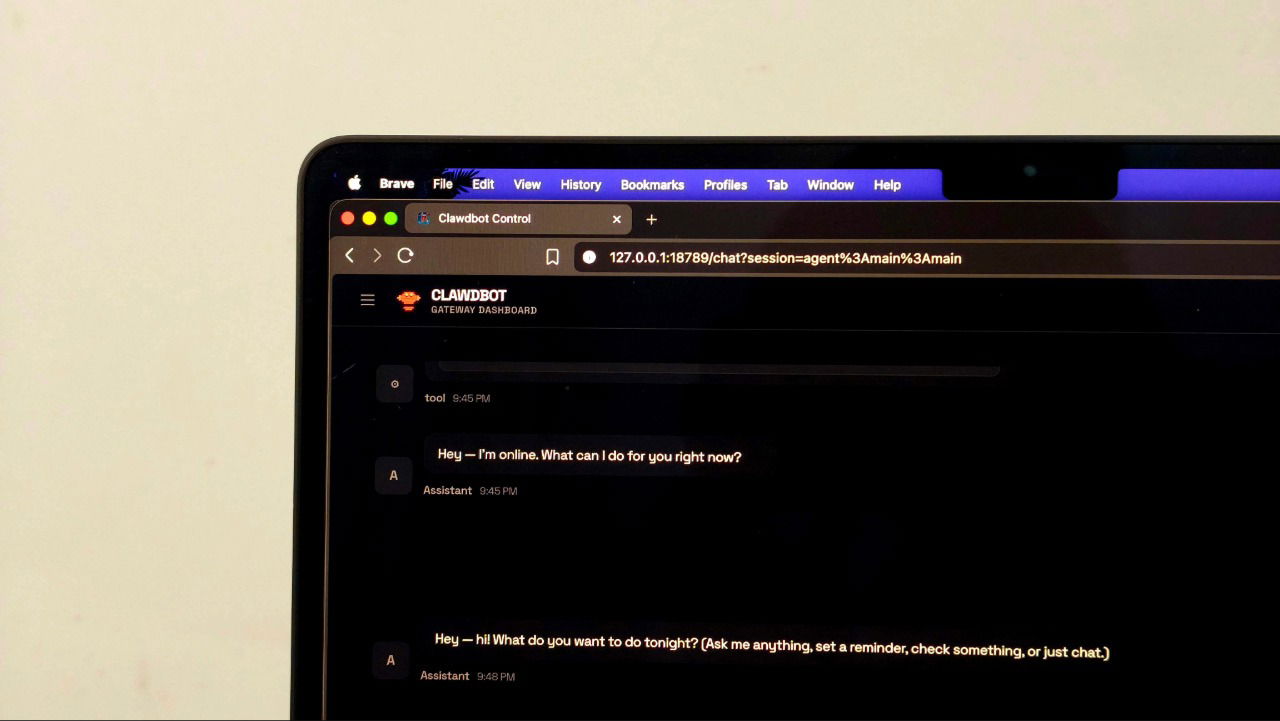
openclaw gateway statusWith the gateway running, you can open the Control UI in your browser at http://127.0.0.1:18789/
This dashboard lets you chat with Clawdbot directly in the browser and tweak settings. If a gateway token is configured, you may need to paste it into the Control UI settings once. This is also the quickest way to confirm that your model auth is working before you wire up chat apps.
To connect WhatsApp, you run:
openclaw channels loginThis prints a QR code in the terminal. On your phone, open WhatsApp, click the three dots menu on the upper right corner, then select Linked Devices, and scan the code. This works exactly like WhatsApp Web. Once linked, Clawdbot appears as an active session under your WhatsApp account.
Telegram, Discord, and other platforms work a little differently. The onboarding wizard can write the required tokens and config for you, but you can also add them manually later. One thing to keep in mind with Telegram is that your first DM returns a pairing code. Until that pairing is approved, the bot won’t respond.
Adding Skills to Clawdbot
By default, Clawdbot is just a language model wired into a chat app. It can respond to messages, hold context, and remember things, but it can’t actually do much beyond that, unless you add skills. Skills are what let Clawdbot interact with the outside world, things like searching the web, reading files, running commands, or calling APIs.
To configure skills, run the command below in your terminal. This opens an interactive configuration panel.
openclaw configure From here, select Local Machine, since that’s what this setup is using. The next screen lets you choose which part of the system you want to configure. Select Skills.
You’ll then be asked whether you want to configure skills now. Select Yes.

Next, it asks which Node package manager to use for skill installs. Choose npm here. This is the safest option and works consistently across macOS, Linux, and WSL2. Once selected, Clawdbot moves on to the actual skill list.
At this point, you’ll see a long list of supported skills. Each skill maps to a real capability, often backed by a local binary, API, or system permission. Some skills are platform-specific, like Apple Notes or Apple Reminders on macOS, while others work everywhere.

The list includes things like password managers, note-taking apps, media tools, file utilities, summarization helpers, transcription, shell access, and system automation tools. Skills like Obsidian, 1Password, Apple Notes, Reminders, Whisper, PDF tools, log and file processors, and command-line utilities all show up here. You don’t need to enable everything. In fact, you probably shouldn’t.
When you choose to install a skill, Clawdbot automatically pulls in whatever dependencies it needs using npm and wires them into your workspace.
Using Clawdbot on a Daily Basis
Once Clawdbot was set up, what stood out to me was that it actually executed tasks instead of stopping at suggestions. I could message it through WhatsApp, and those messages translated into real actions on my system. That meant reading and responding to emails, managing my calendar, creating reminders, booking flights, or even running scripts locally. Clawdbot keeps state and memory, so it handles multistep requests and remembers preferences over time.

The difference really showed up in how work got finished. When I ask a typical chatbot how to schedule a meeting, it explains the steps. When I asked Clawdbot, it checked my calendar and scheduled it. I could ask it to draft a reply to an email, but I could also ask it to send it, and it would, as long as I’d allowed that permission. That made it genuinely useful for the kind of small coordination tasks that usually pile up.
Another thing I didn’t expect to use as much was the fact that it could initiate messages on its own. It sent summaries, reminders, and alerts without me having to prompt it first, which made it feel closer to an actual assistant. Once I started adding skills, it became even more flexible. I could extend it to browse the web, work with files, or automate small workflows and then reuse those capabilities without rewriting prompts every time.
Because Clawdbot is self-hosted, all of this ran on my own machine. My workspace, memory, and configuration stayed local instead of living in a browser tab tied to someone else’s cloud. That gave me a lot more control, but it also made the risks obvious. I was explicitly granting it access to real accounts and systems, so misconfiguration could cause real damage.
Aside from the obvious privacy concerns, Clawdbot is something you can actually use on a daily basis. Just be very careful about publicly revealing any information and when handling API keys. While you’re at it, check out n8n, which is a safer way to automate tasks.
