


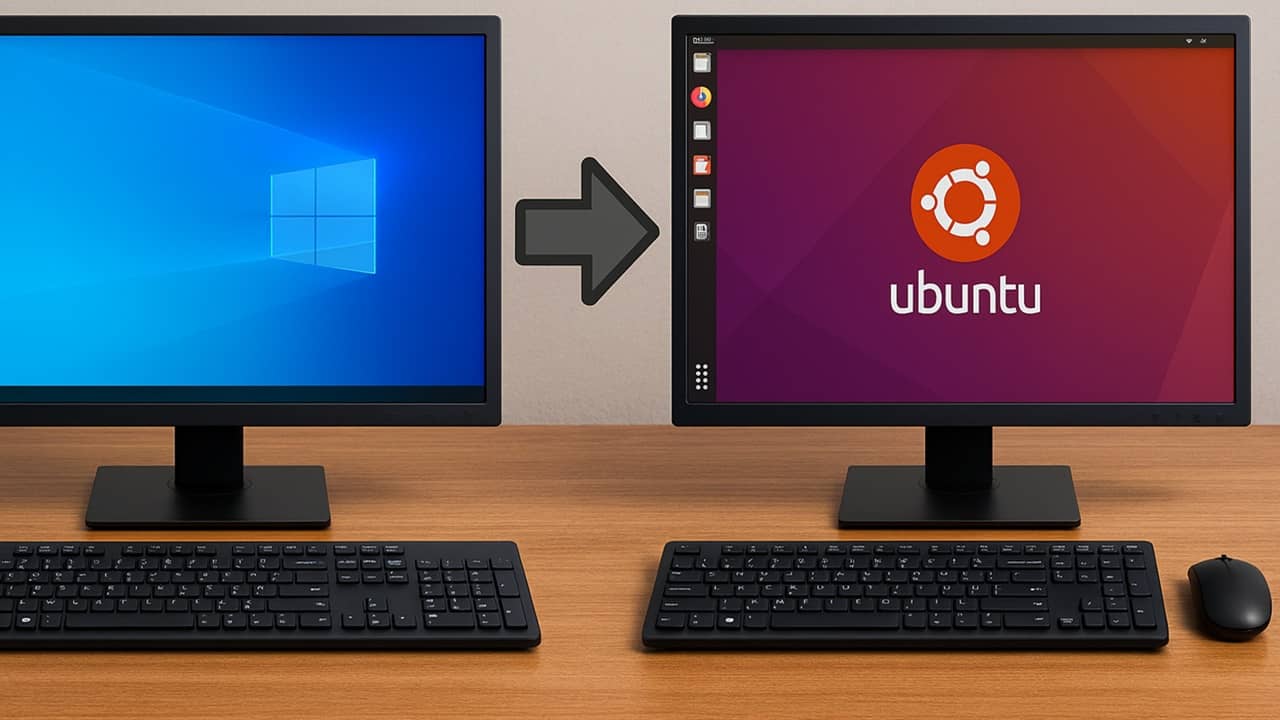
I’ve been a Windows user since Windows 95, but I got frustrated with the growing issues. So, I made the move from Windows to Linux. Just like me, you’ll be able to do pretty much everything in Linux that you do in Windows and probably even more. Here is our guide to help you migrate to Linux from Windows.
Why Make the Switch to Linux
If you’re a long time Windows user like me, switching to a completely new operating system is daunting. But, Microsoft keeps increasing the requirements to upgrade to Windows 11. Even some Windows 11 users can’t upgrade to the latest versions.
With Windows 10 support now at an end (unless you qualify for extended updates), it’s a massive security risk to stick with an outdated system.
For me, Linux offered something Windows didn’t. Compatibility. It didn’t matter if my PC was brand new or eight years old, there’s a version of Linux that lets me do everything I need without spending hundreds on a new PC. Plus, I’ll still get system and security updates for my Linux distribution. Or, I can always switch to a different one if I want.
Start by Picking a Linux Distribution
My initial fear was where to start. With thousands of Linux distributions available, it can be confusing and overwhelming. Since Ubuntu is one of the most popular, I started there. But you don’t have to follow suits. If you are confused, you can check out DistroWatch to learn more without having to manually try every distro.

In hindsight, I’d recommend opting for a desktop that looks and feels more like Windows to make the transition easier. Check these Linux distributions for Windows users. Or, if you’re worried about how to move from Windows to Linux as a complete beginner, try Linux distributions perfect for beginners.
Best Linux Distros for Windows Users
Some Linux distros mimic the look and feel of Windows. No, it’s not exactly the same, but trust me when I say it makes the transition easier. Consider the following for a more Windows-like experience:
- Linux Mint – Designed to work straight out of the box with no extra configurations. It’s simple to set up, even if you’re completely new to Linux. It even feels similar to Windows. It’s built on Ubuntu and Debian.
- Zorin – Let’s you customize to get a desktop experience to fit with Windows, macOS, or a more traditional Linux style. Has an Ubuntu foundation and even has Windows app support for many Windows apps.
- Deepin – Mimic the Windows 11 desktop with a ready straight out of the box installation. It’s based on Debian and features almost 40,000 apps to install.
- AnduinOS – A simple way to migrate from Windows to Linux while maintaining a Windows-style desktop. It’s built on Ubuntu, but designed for more privacy and performance.
- RefreshOS – Keep the feel of older Windows systems with no real post-installation configuration necessary. Overall installation and even app installation is simple and feels more like Windows.
Other Worthy Linux Distros
Other than Ubuntu, some worthy alternatives you’ll find on DistroWatch include:
- Ubuntu “flavors” – For everyone who wants all the support that comes with Ubuntu but doesn’t like its default desktop and apps
- Fedora – For users who prioritize productivity and a clean, no-nonsense desktop.
- Debian – For those who want even more stability or to avoid any hint of closed-source software
- Arch Linux – As a rolling release distro, your operating system’s always up to date. This might make it feel more like Windows. It’s also perfect for customizing. There are also other distros based on Arch Linux.
- Gentoo – For the power uses whose value customization above anything else.
Try Linux Before Installing
Personally, I recommend trying out Linux on Windows without installing anything by using online emulators. I used these to get a feel for different distros and see if Linux really was right for me.
For most Linux distros, simply create a Live USB. This lets you install the system on a USB drive and boot directly into it. There’s no need to format your PC. When you exit and boot your PC normally, you’re back in Windows.
Or, create a virtual Linux machine on Windows. VirtualBox and VMWare are your best options. I’ve used this method to quickly switch operating systems without needing to reboot constantly. In this case, Linux runs in a separate container within Windows. It doesn’t change any Windows settings and you can delete it at any time.
Installing Linux on Your PC
If you’ve always been a Windows user, I know installing Linux on your PC is probably your fear. Trust me, it’s not as difficult as it seems. The steps are pretty much the same for every Linux distro.
As an example, for installing Ubuntu, start by downloading the latest Ubuntu ISO file, or any other version or distro you want. Make sure you download the version that matches your PC’s specs, such as 32-bit or 64-bit.
Next, create a bootable USB that allows you to boot up to Linux. The linked tutorial uses balenaEtcher, but that’s not your only option. I personally prefer using Rufus since it’s lightweight and portable. Ventoy is another great option.

Once created, restart your PC and boot from the USB. If your PC doesn’t boot from the USB drive, change your Windows boot options to boot from USB first.
Overall, the installation process feels a lot like installing Windows from scratch. I set up the language, network, time zone, etc. For beginners not sure how to move from Windows to Linux, choose the Interactive installation (if available). I loved the guided process. It made everything so much easier.

The most important step is partitioning. The installer steps you through partitioning. Unless you’re planning a dual-boot option, I’d recommend using the entire disk. Otherwise, choose an empty partition to avoid overwriting Windows. For dual-boot scenarios, I suggest using a partition tool to divide your hard drive before installing Linux.
Make sure you set up a strong password, though, for security purposes. And, choose a fun alias for your user account.
Start Using Your New Desktop
Depending on the Linux distribution you are using, you will have different desktop environments. Gnome 3 is used by Ubuntu while Linux Mint is using Cinnamon.
Check out our user guides for the various desktop environments:
The most customizable and “Windows lookalike” desktop environment is KDE, so you might want to start with it first.
Set It Up/Customize It/Make It Your Own
Although each desktop environment in Linux comes with its own settings, I find them to be more organized and straightforward than Windows. We all know how scattered Windows settings tend to be.
I do want to point out that Linux isn’t Windows. It’s not going to be exactly the same. Before giving up, take a deep breath, and embrace the differences. I always spend hours customizing a new Windows PC. With Linux, I did the same thing, though I had far more options.
Run the Settings app found in your distribution’s main menu and go through the categories of options. You can do the following:
- Choose a theme
- Change the wallpaper
- Control notifications
- Select your preferred applications
- Sync online accounts
- Set up sharing
- Configure your hardware

Don’t be afraid of making a mistake. I didn’t “learn Linux” overnight. I’m still learning and that’s half the fun.
Finding Alternative Apps
Many of the apps you use on Windows are available for Linux. Some proprietary apps, like Microsoft Office and Adobe, aren’t available for Linux desktops, but you can always switch to the online versions if free Linux alternatives aren’t to your liking.
Switching doesn’t mean you have to give up your favorite apps. There are even ways to run Windows apps on Linux where a solid alternative isn’t available.
Some of the most popular apps for different tasks are:
- Browsers – Most popular options work with Linux, including many privacy focused browsers, though Firefox and Brave are top alternatives
- Internet/Networking – Signal (calling/video calls), Pidgin (chat), UFW (firewall), Remmina (remote desktop)
- Antivirus – Yes, even Linux needs antivirus. Even if you take precautions yourself, install a reliable antivirus.
- Productivity/Office: LibreOffice (my personal favorite), qOwnNotes, or many free Microsoft Office alternatives
- Audio/Video: VLC, Audacity, Kdenlive, Handbe
- Graphics/Photo Editing: GIMP, Darktable, Gwenview, InkScape, PencilSheep

Most Linux distributions come with a Software Center or Package Manager where you can easily find software to install. Think of it like the Microsoft Store, but for Linux. But, you do have multiple methods to install software on Ubuntu and other distros.

Linux was never considered a gaming powerhouse, but thanks to Valve’s efforts, it now has access to a significant chunk of Steam’s collection. And projects like Lutris can help you manage all your games. No, it won’t replicate Xbox, but I still got an incredible gaming experience on Linux.
Learn to Love the Terminal
I was certain I’d never learn to use the terminal when I made the move from Windows to Linux. It just felt too much like going back to MS-DOS and I didn’t want to do that. As a newcomer to Linux, you’ll likely feel the same way.
Still, like everyone else, you’ll gradually find it irreplaceable. Don’t worry, though, you don’t have to rely on the terminal most of the time. We suggest you start getting familiar with the basics. I personally found it highly useful for searching for files, folders, etc. Of course, there are numerous uses for the terminal or stick mainly with the GUI (graphical user interface) if you’re more comfortable with it.

Make the Move from Windows to Linux Easily
I know it sounds like a lot right now. But, I suggest taking a weekend and diving right in. Explore Linux distributions, find Linux alternatives for your favorite Windows apps, install Linux, and start customizing it. You don’t have to be a Linux expert to do this. No, Linux isn’t always for everyone and if you don’t like it, that’s okay.
If you’re still not sure, check out some of the most commonly asked questions for those trying to figure out how to move from Windows to Linux. Also, check out Linux forums. The community truly is supportive.
