


DeskIn has been positioning itself as a flexible, mobile-friendly remote desktop software alternative to big names like TeamViewer and AnyDesk. With its newest updates, DeskIn aims to deliver faster connections, smoother mobile experiences, and more advanced features than what I tested a couple of years ago. I used DeskIn on macOS, Windows, and Android and compared those tests with the productivity and remote-work scenarios the company uses in its introductory materials.
This is a sponsored article and was made possible by DeskIn. The actual contents and opinions are the sole views of the author, who maintains editorial independence, even when a post is sponsored.
Getting Started With DeskIn
Much like my previous experience with the app, installation of DeskIn remains quick and straightforward. Creating an account only requires an email address and verification code, which is consistent with DeskIn’s streamlined onboarding from my earlier review.

Unfortunately, I struggled with the permission setup process, especially on macOS. DeskIn requires several system-level permissions (Accessibility, Screen Recording, and Full Disk Access), and on my MacBook Air, the app had to close and relaunch after each permission was granted. This added a few extra steps before I could begin using remote control features, but once completed, everything worked smoothly.
On Android, however, setup was immediate. I installed the app on my Google Pixel 9a, logged in, and was ready to connect within seconds. No restarts. No permission loops. This contrast is worth noting for users who regularly switch between desktop and mobile devices.
Interface and Ease of Use
DeskIn’s interface leans heavily toward simplicity and functionality with a clean layout and easily accessible controls. Device lists, settings, and connection modes are all neatly organized.

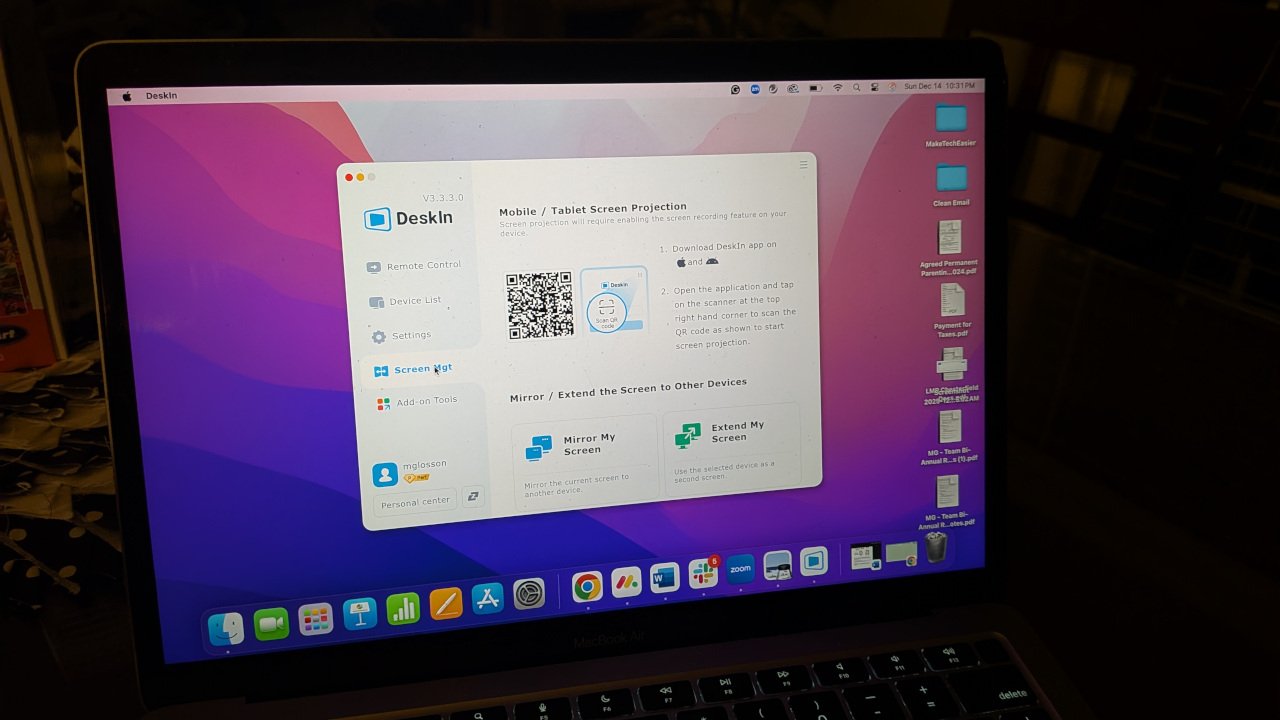
That said, I ran into one notable limitation on macOS: the window size was fixed. The app occupied only about a quarter of the screen, and I could not drag to resize it. Although instructions were provided, they were unclear, so I decided to explore the settings on my own to find a solution.
By changing some display settings (default session display and resolution), I was able to change the window size, but only when actively connected to the remote control of another device. The native screen when you open the app (see above) is fixed in size regardless of the display settings selected.

Mobile UI, thankfully, felt natural. Swipes, taps, and gesture controls worked as expected once I learned DeskIn’s touch equivalents.

Performance and Stability
DeskIn emphasizes its expanded global node network and improved connection stability, and many of my tests supported those claims. Connections from any combination of Mac, Windows, and Android devices loaded quickly with minimal latency. The remote display remained consistently responsive when navigating the file system or opening apps.
However, I did encounter occasional freezes and app restarts on Android. On my Pixel 9a, the DeskIn app would hang during a session, requiring me to close and relaunch it. Given that the Pixel 9a is plenty capable for a task like this and I was using the same high-speed internet connection for both devices, I don’t believe hardware was the issue; it felt more like intermittent app instability that could be smoothed out with future updates.

But outside of those moments, the experience was smooth. Once connected, DeskIn’s low-latency streaming and clear display quality lived up to the company’s claims.
Features That Stand Out
DeskIn’s introduction document highlights a wide range of features, and many of them genuinely enhance the remote-work experience when tested in real use cases:
Remote Control Across Platforms
DeskIn supports Windows, macOS, Android, and iOS, allowing nearly any combination of devices to connect. This multi-platform flexibility is consistent not just in my experience, but also in thousands of other reviews.
File Transfer
Transfers worked reliably between Mac and Windows, and between Android and PC. DeskIn advertises speeds up to 12MB/s with no file-type restrictions. My tests weren’t quite that fast, but transfers were consistent and easy to manage.

Screen Extension
Using my iPad as a second monitor for my MacBook worked surprisingly well, though this use case may appeal more to students or travelers who want a lightweight dual-screen setup.
Privacy and Security Tools
Features like privacy screens, whitelist/blacklist controls, and unattended access are great additions—especially for anyone using DeskIn within a business or IT-support setting.

Remote Boot and Remote Camera
The ability to wake a device or use an idle phone as a camera opens up some fun and practical scenarios. DeskIn promotes everything from remote presentations to using an old phone as a home security camera.
Mobile Screen Projection
Want to watch an Instagram reel on a larger screen? Need to pull up a presentation saved in your Canva account? With DeskIn’s screen mirroring feature, you can do all of this and more.

To begin, you access a QR code on your computer, scan it with the DeskIn app on your mobile device, and begin projecting. This feature doesn’t let you control the mobile device, but it does enlarge the view as needed.
Remote Control of Mobile Devices
DeskIn’s Remote Control feature lets you control an Android phone from another device (such as a laptop). You can click, scroll, or even use the built-in whiteboard feature to mark items on the mobile screen for the other person. This is a great way to provide tech support to friends or family who may not be exceptionally tech-savvy.

When using this feature, I highly recommend disabling anything that causes the screen to turn off on the mobile device, as this did interrupt the connection. It’s also best to select “entire screen,” otherwise, you will be limited in how much control you have over the device.
Gaming and Creative Work
DeskIn also advertises support for 4K 60FPS and 2K240FPS streaming for gaming or remote design workflows. While I didn’t push it to those extremes, casual gameplay and drawing-tablet-based tasks responded well enough to justify the claim.
Final Verdict
DeskIn continues to evolve into a capable, flexible remote desktop solution that works well across all major operating systems. Its interface is approachable, its feature list is impressively long, and its connection performance (when stable) is fast and responsive.
DeskIn feels more powerful and more mature than previous versions, with improvements in file transfer speed, device management, and remote capabilities. And because the free plan still supports three devices, it remains a strong choice for users who need occasional remote access or want to help less-tech-savvy family members troubleshoot issues.
Still, the app has room for polish, especially on macOS and Android stability. If DeskIn smooths out those usability quirks, it could easily stand next to major players in the remote desktop space.
