Close Menu
Financblog
    What's Hot

    Anthropic’s Claude tops App Store charts as backlash builds against OpenAI’s ChatGPT

    March 2, 2026

    Bank of Japan deputy governor says rate hikes likely to continue

    March 2, 2026

    The whole world is watching this critical energy chokepoint as Iran conflict enters more dangerous phase

    March 2, 2026
    Facebook X (Twitter) Instagram
    Financblog
    Facebook X (Twitter) Instagram
    • Home
    • Personal Finance
    • Passive Income
    • Saving Tips
    • Banking
    • Loans
    Financblog
    Home»Saving Tips»Can’t Stand iPhone Gestures? Try This Navigation Hack
    Saving Tips

    Can’t Stand iPhone Gestures? Try This Navigation Hack

    adminBy adminFebruary 19, 2026No Comments4 Mins Read
    Facebook Twitter LinkedIn Telegram Pinterest Tumblr Reddit WhatsApp Email
    Navigation Buttons Iphone Featured
    Share
    Facebook Twitter LinkedIn Pinterest Email

    Ever since the iPhone X ditched the Home button, navigating on iPhone has meant mastering swipe gestures. But if you’re missing the simplicity of tap-based controls, there’s a helpful workaround built into your iPhone. Here’s how to set up a navigation bar-style option.

    Why Get Navigation Buttons on iPhone

    Unlike many Android phones, newer iPhones don’t have on-screen navigation buttons. Earlier iPhone models used to have a physical Home button, a detail that many longtime Apple users are nostalgic about.

    For users switching from Android to iOS, the change feels even less intuitive (that’s not to say Android lacks gesture controls; here are a few worth exploring). Apple has fine-tuned its gesture controls to make them more intuitive and user-friendly, yet many people still favor the simplicity and convenience of navigation buttons. Gesture controls have a learning curve, but with navigation buttons, new or less tech-savvy users, such as seniors, don’t have to spend time discovering how these gestures work.

    At the same time, tapping a button is often more reliable than swiping, especially for users who might be suffering from reduced dexterity, such as seniors.

    While you can’t fully replicate Android-style navigation buttons on your iPhone, there are some workarounds worth trying, which we will detail below.

    Add a Multi-Purpose Navigation Button on iPhone

    On Android, the standard on-screen navigation buttons include the Home, App Switcher, and Back buttons. On iPhone, you can get access to only two of these.

    On your iPhone, open the Settings app and navigate to Accessibility. Tap on the Touch option in the Physical and Motor section. Select AssistiveTouch.

    Accessing
    Navigation Buttons Iphone Assistive Touch

    On the next screen, at the top, toggle on AssistiveTouch.

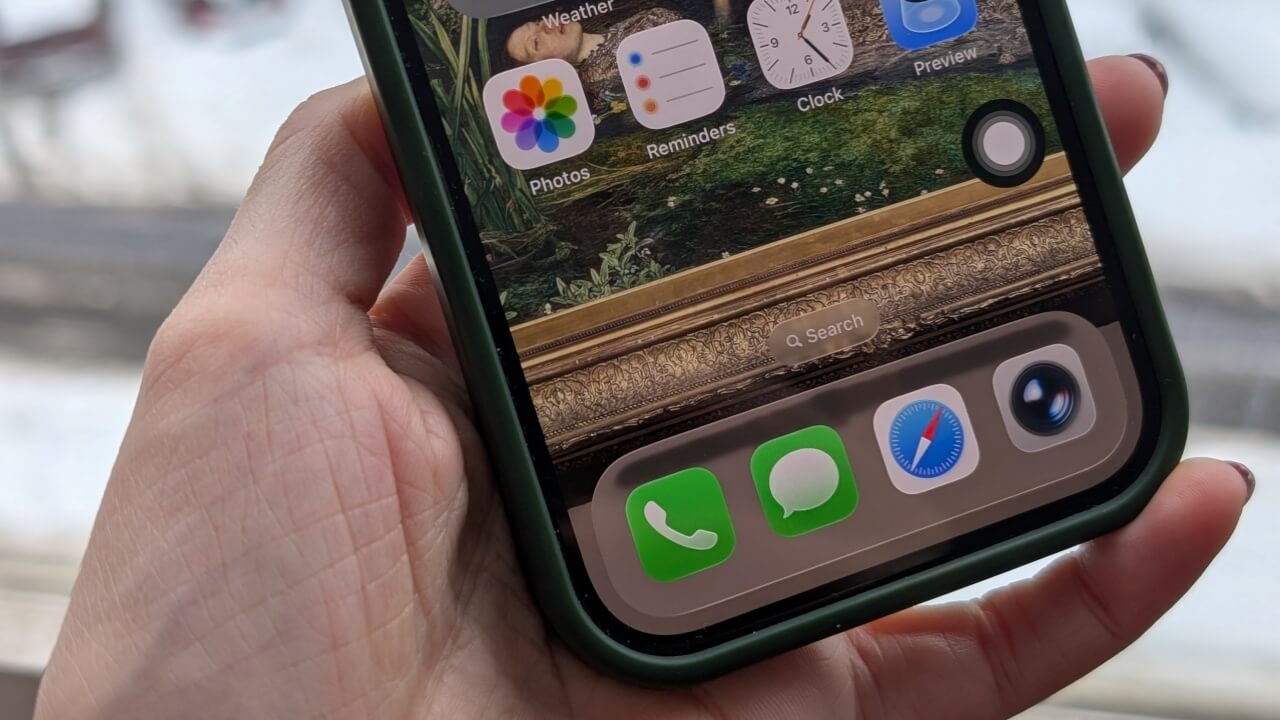
    A floating button should now appear on your screen. You can use your finger to move it around on your display and place it anywhere you like.

    On-screen navigation bar visible on iPhone screen.

    Next, in the Custom Actions section, select Single-Tap. From the list of available actions, select Home.

    Navigating to
    Navigation Buttons Iphone Single Tap Home

    Go back and tap on Double-Tap. Find the App Switcher option in the list and select it.

    Setting Double-Tap action to App Switcher in iPhone Accessibility settings.

    Now whenever you tap the floating button, you’ll be taken to the Home screen. Double-tap it, and it will open the App Switcher screen.

    Unfortunately, there’s no way to add a Back function to your on-screen navigation button. To do this, you’ll still have to rely on swiping from the left side of the screen. Alternatively, in some situations, you can use the Home function to go back.

    You can expand your navigation bar beyond the simple two controls for Home and App Switcher.

    On the AssistiveTouch page, tap on Single-Tap again, and this time set it to Open Menu. As for Double-Tap, set it to None.

    Setting new Custom Actions for Navigation bar and tapping on

    Next, tap on Customize Top Level Menu. Here you can add the shortcuts you want the menu to include. By default, there are 6 shortcuts to customize, but you can add more or have fewer by pressing the +/- buttons.

    Customizing top level menu of tap shortcuts in Accessibility settings on iPhone.

    Tap on a button to select an action. For instance, I opted to include Home and App Switcher first. Then I added four more: Lock Screen, Control Center, Restart, and Notifications Center.

    Now, when you press the floating button, a menu showing all these options will pop up on the screen. This is an easy way to access various settings and menus on your iPhone without swiping or pressing buttons.

    Viewing navigation menu on iPhone home screen.

    Using Back Tap as a Navigation Button

    If you don’t want to have a floating button on your screen all the time, you can move your navigation bar to the back of the phone.

    First, toggle off AssistiveTouch in Accessibility. Then go back to the Touch screen. Towards the bottom, you should find the Back Tap option. Select Double Tap. Set it to Home.

    Navigating to
    Navigation Buttons Iphone Settings Back Tap Options

    Move on to Triple Tap and set it to App Switcher.

    Now all you have to do is tap your phone whenever you want to go back to the Home screen or view the App Switcher screen. This method has the advantage of being more subtle.

    There’s a lot more you can do with Back Tap. For instance, here’s how to use it to trigger a full-on privacy mode.

    Gestures Hack iPhone Navigation stand
    Share. Facebook Twitter Pinterest LinkedIn Tumblr Telegram Email
    Previous Article‘I won’t take out a loan’: I need $18K in house repairs. Do I take it from my Roth, 401(k) or IRA?
    Next Article Best Student Loan Refinance Rates for February 19, 2026: Low as 3.69%
    admin
    • Website

    Related Posts

    How to Move Your WhatsApp Stickers to iMessage

    February 28, 2026

    DoNotNotify Lets You Block Android Notifications Without Disabling Everything

    February 28, 2026

    Why Self-Hosting Isn’t Always Better Than Subscriptions

    February 28, 2026
    Add A Comment
    Leave A Reply Cancel Reply

    Top Posts

    Anthropic’s Claude tops App Store charts as backlash builds against OpenAI’s ChatGPT

    March 2, 2026

    Bank of Japan deputy governor says rate hikes likely to continue

    March 2, 2026

    The whole world is watching this critical energy chokepoint as Iran conflict enters more dangerous phase

    March 2, 2026

    Subscribe to Updates

    Get the latest sports news from SportsSite about soccer, football and tennis.

    About Us

    Welcome to FinancBlog, your trusted online resource for personal finance insights, money management tips, and financial education designed to help you make smarter financial decisions.
    At FinancBlog, our mission is simple: to make personal finance easy, understandable, and accessible for everyone. Whether you are looking to save more money, understand banking products, explore loans, or build passive income streams, we provide well-researched and easy-to-read information to guide you.

    Facebook X (Twitter) Instagram Pinterest YouTube
    a1
    Top Insights

    Anthropic’s Claude tops App Store charts as backlash builds against OpenAI’s ChatGPT

    March 2, 2026

    Bank of Japan deputy governor says rate hikes likely to continue

    March 2, 2026

    The whole world is watching this critical energy chokepoint as Iran conflict enters more dangerous phase

    March 2, 2026
    Get Informed

    Subscribe to Updates

    Get the latest creative news from FooBar about art, design and business.

    © 2026 inancblog.com. All rights reserved. Designed by DD.

    • About Us
    • Contact Us
    • Terms & Conditions
    • Privacy Policy
    • Disclaimer

    Type above and press Enter to search. Press Esc to cancel.

    Ad Blocker Enabled!
    Ad Blocker Enabled!
    Our website is made possible by displaying online advertisements to our visitors. Please support us by disabling your Ad Blocker.