


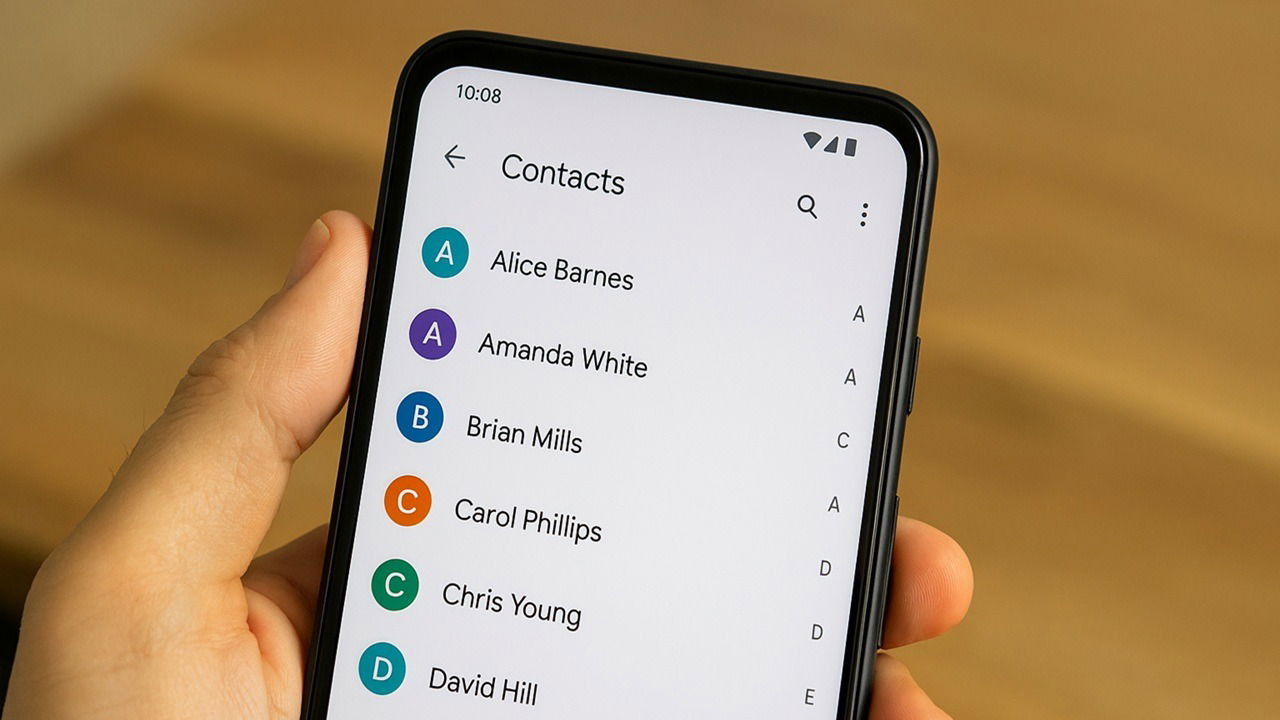
We rely on our phones to store all our important numbers and losing them is a real pain. From a crashed Android phone to accidentally deleting the wrong one, it’s frustrating, but you do have multiple ways to recover deleted phone numbers on Android.
For many Android phones, Google Contacts is the default contact manager. The great news is the app stores your deleted contacts in a Trash folder for 30 days before they’re deleted permanently. I’ve had the Trash folder save me a ton of hassle over the years.
Just remember, you only have 30 days. If it’s been longer, you’ll have to use another method to recover deleted Android phone numbers. Also, you must have auto-sync turned on in your Google account to do this on your phone. I don’t know why there isn’t a local trash bin, but Google demands you to sync contacts if you want to recover them.
Open the Google Contacts app (usually just called Contacts). Tap Organize and select Trash.

Tap the three dot menu at the top right. Tap Select or Select All (to recover all deleted phone numbers on Android). Select the number(s) you want to recover. Tap the three dot menu again and tap Recover.
2. Undo Changes to Deleted Numbers
I’ve had some deleted numbers not show up in the Trash folder. If you act within 30 days, undo any recent changes like they never happened. The only part I don’t like is it undoes all changes, including if you’ve added new contacts. So, if you’ve recently added new contacts, make a note of them so you don’t lose them too.
Once again, you must have auto-sync turned on. Otherwise, there aren’t any recent versions of your contact list to recover changes from.
Open the Google Contacts app, tap Organize, and select Settings. Tap Undo changes.
Choose the account associated with the missing contact(s). Select the time frame, up to 30 days. Tap Confirm when you’re done.
Don’t panic if you don’t see your deleted Android phone numbers return immediately. I’ve had it take over an hour for everything to come back.
3. Import Phone Numbers Again from Google Account
I’ve personally had some numbers disappear, and I know for certain I didn’t delete them. Random glitches or a corrupted app update might make your contacts seemingly disappear. If this happens, it may be a good idea to again import contacts to your device from your Google account.
As long as you’ve synced your contacts, this is an easy fix. Open the Google Contacts app, tap Organize, and tap Restore contacts.
Tap Restore on the backup you want to restore from. If you’ve recently restored, there might not be any recent backups.
I highly recommend using backups to import contacts when you get a new phone. It’s so much easier than manually entering every number.
SIM cards have a small storage capacity to store limited contacts, and many users still use them to store their phone numbers. If you’re one of them, recover deleted phone numbers on Android by importing them again from your SIM card, including from eSIM cards.
Open the Google Contacts app. Tap Organize at the bottom and select Manage SIM. Select the SIM card you want to use (if you have more than one). Tap the deleted contacts you want to recover, and select where you want to import the contacts (your account and device).
If you don’t want to use the Contacts app to restore the numbers saved to your Google Account, you can also do so via Settings. This is perfect if you’re using a different app for contacts that syncs with your Google account.
Open Settings on your phone, tap Google, open the All services tab, and tap Restore contacts under Backup & restore.
Tap Restore under the backup you want to restore and wait for the process to complete. Depending on the number of contacts, this may take several minutes.


If you don’t see a backup, this means you don’t have Google contact backups in place. You can turn backups on by tapping Backup in the Backup & restore section of the Google services page in Settings.
I’d also suggest implementing a full Android backup strategy to prevent losing anything in the event of a random crash, virus, or even theft.
6. Recover Deleted Android Phone Numbers from PC
If you deleted contacts, but now your phone won’t let you back in, don’t worry. As long as you have your contacts synced with your Google account or another backup service, your contacts aren’t gone forever. Just use your PC and a browser to sync them to a new Android device.
As an example, I’m restoring deleted Android phone numbers from my Google account. But, if you back up your contacts elsewhere, log in to that site instead and restore contacts using their recovery method. For instance, Samsung Galaxy users have their own Samsung backup accounts.
Log in to the Google Contacts site. Click Trash in the left sidebar to view deleted contacts. Click Restore beside the contact(s) you want to restore. This also syncs them to any Android phones logged into your account.

Just make sure you don’t accidentally click Delete forever.
Samsung Galaxy devices have their own Contacts app and it’s easy to restore contacts from the trash.
Go to Settings → Device care → Storage → Trash → Contacts.
Long tap the contact(s) you want to recover and tap Restore at the bottom. As with Google Contacts, you have 30 days before the trash auto-empties.
Alternatively, access the Trash by opening the Phone app on Samsung and tapping Contacts. Tap the three dot menu at the top right and select Trash.
If you have Samsung Cloud backups enabled, go to Settings → Samsung Account → Samsung Cloud → Restore Data. Choose your device and select Restore.
We all know backups are important, but just like you, I’ve made the mistake of not backing up phone numbers. It was only after I deleted the wrong one that I realized I had no backup to rely on and it’d been over 30 days, so no option to dig through my digital trash.
The best chance to restore contacts on Android without a backup is your call history. As long as you haven’t deleted the call history, you might be in luck.
Open your phone’s Phone app. Most Android phones, no matter the manufacturer, has a Phone app that lists your call history. Tap Recents, Call History, or something similar, depending on your device.
Scroll through until you find the missing number. Since you have deleted the number, you won’t see a contact name. Tapping the number lets you add it to your contacts, where you can add a name once again.
If you’re not sure which number is the right one, I suggest using the caller-identification and spam blocker app Truecaller. It works like a phone directory and will help you identify all the unknown numbers in your call history.
You don’t have to set it as your default dialer. But, you do have to give it permissions to view your contacts, call history, etc. Once installed, browse through your call history on the app to view more details about each number.
Even when you know how to recover deleted phone numbers on Android, it’s still a hassle, especially without a backup. Android devices offer a free way to back up your Android contacts. Set up backup options now to avoid losing any important numbers in the future.
Download the Google Contacts app if it’s not preinstalled. You’ll need this to restore contacts later. Even if you’re using a Samsung phone, this method works, or skip the Samsung section for another option.
Go to Settings → Google → All Services. Scroll down to Backup & restore and tap Google Contacts sync.
Tap Also sync device and SIM contacts. Toggle on Sync device and SIM contacts automatically. This ensures any contacts store just on your device or SIM sync with your Google account.
Any contacts listed in other apps and not managed by Google aren’t backed up. Make sure you back this up within those specific apps.
If no contacts are being synced at all, tap the message under Status and turn on Google Contacts sync. You may have to choose your Google account.
If you ever change your Google account, make sure you switch the account you back your contacts up to.
Back Up Contacts Using Samsung Cloud
Samsung devices offer a second contacts backup option. Go to Settings → Accounts and backup. You must be signed in to your Samsung account. If you’re not, sign in when prompted.
Tap Back up data. Turn on Contacts and any other data you want to back up. Tap Back up now to start an immediate backup.
Samsung devices also offer users a wallet for storing passwords and other important information so you don’t lose it.
Never Lose Android Phone Numbers Again
I know the pit in stomach feeling when you realize you accidentally deleted a phone number. No matter what type of Android phone you’re using, you can recover deleted phone numbers on Android. Just remember, the quicker you act, the easier it is to recover the numbers. And, if you accidentally delete a text message, you can recover it too.
