


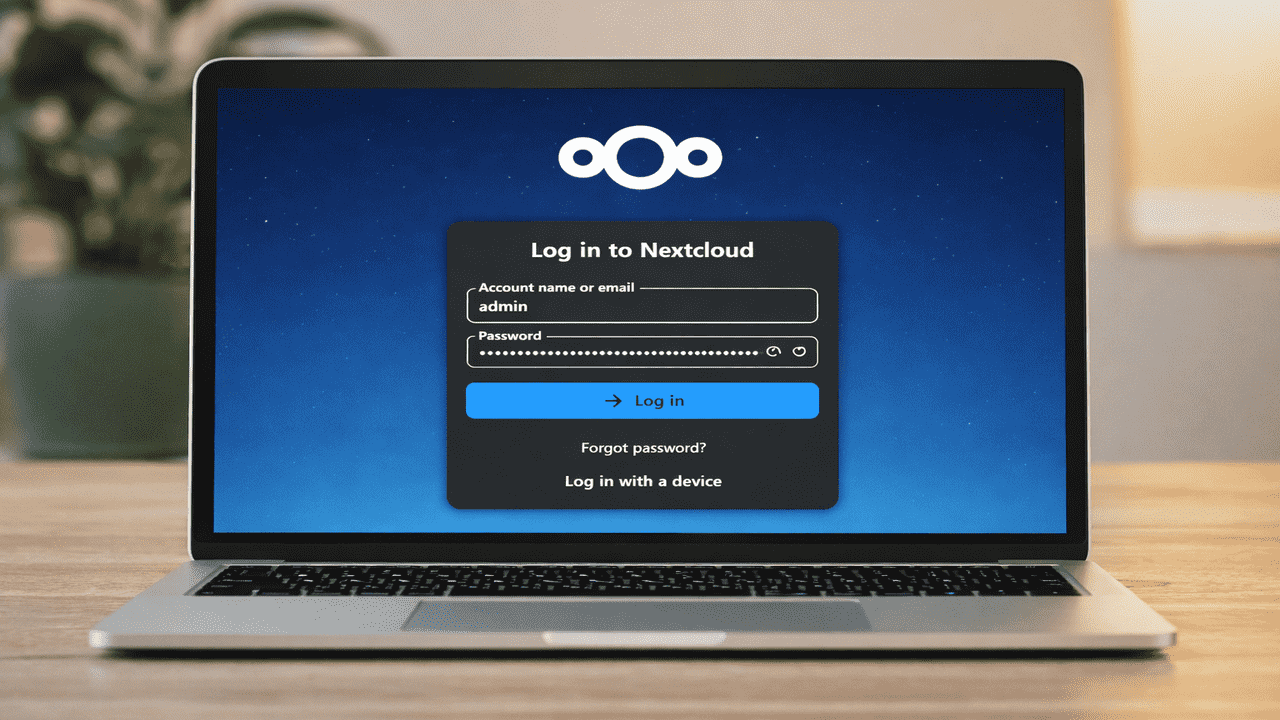
If you are running out of storage space in Google Drive or Dropbox, and are looking for alternatives that don’t cost you a bomb, you might want to consider self-hosting Nextcloud on your own server. Nextcloud is an open-source, self-hosted cloud platform that lets you store, manage, and share your files securely. It works similarly to Google Drive or Dropbox, but instead of storing your data on a third-party server, you host it on your own server and maintain full control over your information. Here, we show you how to install and run Nextcloud on Ubuntu.
Why You Should Run Your Own Nextcloud Instance
Nextcloud is a great alternative to Google Drive, Dropbox, or any other cloud storage that you are using. It lets you upload and organize files, sync them across devices, share documents, and collaborate using built-in apps like Office and Talk. It also allows you to create users, assign permissions, and control access according to your needs. Nextcloud is probably the best all-in-one productivity package that you can get for free, and still have control over your own data. There is no predefined storage limit (your hard drive space is the only limit), no personalized ads, and no eavesdropping on your conversation. It’s probably the best way to get all the convenience of the “cloud storage” while keeping your data strictly under your own roof.
Install Nextcloud Using Nextcloud All-in-One (AIO)
Nextcloud All-in-One (AIO) is a Docker-based installation package that simplifies Nextcloud deployment. When you install Nextcloud manually, you must configure the database, web server, caching system, HTTPS security, and ongoing updates yourself. Nextcloud AIO removes this complexity by installing and managing all required services automatically through Docker containers.
It combines essential components and optional tools into one organized setup and provides a web-based dashboard to control everything from a single place. Nextcloud AIO manages configuration, containers, and updates automatically, reducing setup errors and simplifying the deployment of a complete private cloud environment.
Prerequisites
Before you begin, ensure your system meets a few essential requirements. You need to be running Ubuntu 22.04 or 24.04 and have a user account with sudo privileges. Docker should already be installed on your machine, and ports 80, 443, and 8443 must be open and accessible.
Note: While we are using Ubuntu for this tutorial, the steps will work on any platform that has docker installed.
Install Nextcloud AIO Using Docker Desktop
There are several ways to install Nextcloud, depending on your setup and needs. For local testing on Ubuntu, you can use Docker Desktop. However, for servers and production environments, Docker Compose is the recommended approach.
On Docker Desktop, navigate to the Images section, search nextcloud/all-in-one, and select the official image from the results.

Click the Pull button to download the official nextcloud/all-in-one:latest image.

After this, locate it in the Images section and click Run.

Docker Desktop will open a configuration window where you must define container settings.
- Set a clear container name, such as
nextcloud-aio-mastercontainer, so you can easily identify and manage it later. - Map host port
8443to the container port8443since the Nextcloud AIO setup interface runs securely on this port. - Mount the Docker socket
/var/run/docker.sockto allow the master container to create and manage internal containers automatically. - Create a named volume, e.g.,
nextcloud_aio_mastercontainer, and mount it to/mnt/docker-aio-configto keep configuration data persistent across restarts and updates.

Finally, click Run, go to https://localhost:8443 in your browser to access the Nextcloud AIO setup interface.

Install Nextcloud AIO Using Docker Compose
Alternatively, you can install Nextcloud AIO using Docker Compose. To do this, first, create a dedicated folder for your Nextcloud AIO setup and move into it:
mkdir -p ~/nextcloud-aio
cd ~/nextcloud-aio
Now create a new “docker-compose.yml” file:
nano docker-compose.ymlThen paste the following configuration into the file:
services:
  nextcloud-aio-mastercontainer:
    image: nextcloud/all-in-one:latest
    container_name: nextcloud-aio-mastercontainer
    restart: always
    ports:
      - "80:80"     # Required for Let's Encrypt if using domain
      - "8080:8080" # Main AIO interface
      - "8443:8443" # Optional secure AIO interface
    volumes:
      - nextcloud_aio_mastercontainer:/mnt/docker-aio-config
      - /var/run/docker.sock:/var/run/docker.sock:ro
volumes:
  nextcloud_aio_mastercontainer:
Finally, run the following Docker command to start the container in detached mode:
docker compose up -d
Access the Nextcloud AIO Dashboard
After installing Nextcloud AIO, open its web interface. If you are on the same server, visit https://localhost:8080 in your browser. To access it from another device, use the server’s IP address, such as https://your-server-ip:8080.
Important: Always use the server’s IP address on port 8080 and do not use a domain name. The interface runs over HTTPS with a self-signed SSL certificate, so your browser will show a security warning such as “Your connection is not private“. This is normal and safe. Click Advanced or a similar option, then proceed or accept the risk. Avoid using a domain name during the initial setup, as HSTS may prevent access if HTTPS is not configured properly.
Once the interface loads, the Nextcloud AIO Dashboard appears, showing a generated passphrase. Save it securely, as you will need it to log in later. Losing it requires removing the Docker volume and restarting the setup.

Now, provide your passphrase and click the Log in button to access your Nextcloud AIO account.

Configure Your Domain and Complete the Setup
Now, configure your domain and enable HTTPS for secure access. Nextcloud AIO uses Let’s Encrypt to set up HTTPS, but this only works with a valid domain pointing to your server’s public IP. For local testing, automatic HTTPS will fail unless you configure DNS, enable port forwarding, or use a reverse proxy.

After this, you can choose the optional add-ons you want to use, set your timezone, and then click Download and Start containers to download and launch them.

The setup takes 5–10 minutes, as the master container automatically downloads and configures all required containers.

After this, a status screen will appear showing that the services are still initializing. During this stage, Nextcloud performs the initial setup automatically in the background.

Once all containers are running (indicated in green), you will see the initial username (admin) and a generated password. Make sure to write down this password, as you will need it to log in.

Next, open your browser and visit your domain. Use the username admin and the generated password to log in.

Once logged in, your Nextcloud AIO installation is fully set up and ready to use.

Security and Post-Installation Notes
After logging into Nextcloud, it’s important to secure your instance and prepare for safe usage:
- Change the default admin password if you haven’t done so during setup.
- Enable two-factor authentication for all accounts to increase security.
- Ensure HTTPS is properly configured with a valid SSL certificate (Let’s Encrypt is recommended).
- Regularly check Admin Settings for warnings and address any minor issues promptly.
- Enable BorgBackup, the built-in backup solution, early and create an initial backup from the AIO dashboard before making major changes or installing additional apps. This ensures you can quickly restore your system if needed.
- Keep Nextcloud and Docker containers updated from the AIO dashboard to maintain security and performance.
User Management
To manage users in Nextcloud, click on the Profile icon and open Accounts.

From there, you can create new users, edit existing accounts, and control their access. You can also assign users to specific groups and set permissions for files, folders, and apps to ensure everyone has the appropriate level of access.

File Management
For file management, click the +New button and select Upload file, or simply drag and drop files directly into the browser window. You can organize your data by creating folders and moving files as needed. To share a file or folder, use the Share option to generate a link or send access via email. Nextcloud AIO also lets you protect shared links with a password and set an expiration date, giving you full control over who can access your content and for how long.

Similarly, you can open the Photos app in Nextcloud AIO to manage all your images and videos from one place. Once inside, you will land on the All your media page, as shown in the screenshot. This is your central dashboard for viewing everything you have uploaded. To add new photos or videos, simply click the + Add button at the top and select files from your system to upload them to your library.

From the left sidebar, you can switch between sections like All media, Photos, Videos, and Albums, etc., depending on how you want to browse your content. For example, use Albums to create and organize collections, or open Videos to view only video files. These options help you filter and manage your media more easily without going through everything manually.
Wrapping Up
Nextcloud All-in-One (AIO) makes it easy to set up a private cloud with secure access, simple file and user management, and optional collaboration tools, all in one easy-to-use interface. It’s perfect for personal use or small teams who want a complete cloud solution without the usual complexity. Apart from Nextcloud AIO, you can check out other self-hosted cloud solutions like OwnCloud and Seafile, and choose the one that aligns perfectly with your requirements.
Nextcloud All-in-One
Price: Free
