


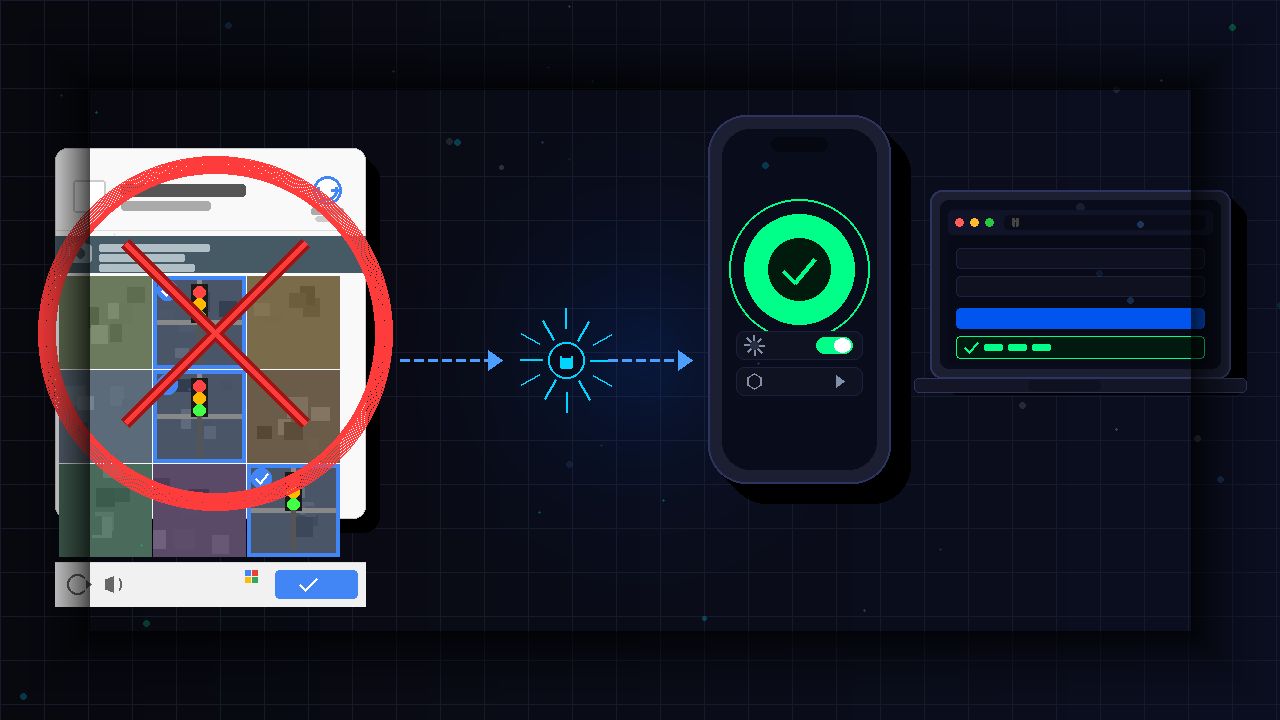
Solving Captchas is one of those small but genuinely annoying parts of being online. You just want to log in, and suddenly you’re squinting at blurry traffic lights. You’ve probably done this hundreds of times without realizing you can automatically skip Captchas on iPhone and Mac. Here’s how to set it up and save yourself that hassle.
Using Apple’s Automatic Verification
You need to understand what is happening behind the scenes because the feature is smarter than most people expect. Captchas exist for a reason. They help block bots and automated programs from spamming websites, creating fake accounts, or running brute-force attacks. The downside is that real users constantly get caught in the middle.
Apple’s Automatic Verification tackles this using Private Access Tokens. Think of it as a silent background handshake. When a supported website asks for proof that you are a human, your device communicates with Apple, Apple confirms the device is legitimate, and a secure token is sent back to the site in under a second. You never see a puzzle. You never click a checkbox. The site just lets you through.
Apple takes iPhone data privacy seriously, and this feature is no exception. The website does not learn your Apple ID, your name, or any identifying data. It only receives confirmation that a real person is using a trusted device. In my experience, this not only saves time but also gives peace of mind, knowing your info stays locked down while you browse faster.
Enable Automatic Verification on iPhone and Mac
The feature is turned on by default on supported devices, but it’s worth confirming, especially if you’ve been getting hit with Captchas more than usual. The whole process takes less than a minute.
On iPhone:
Open Settings and tap your name at the top. Tap Sign-In & Security.


Then, tap Automatic Verification and toggle it on if it isn’t already.

That’s it. Once it’s enabled, your iPhone handles the verification silently whenever a supported site requests it. No action needed on your end.
On Mac:
Open System Settings and click your name in the sidebar. Click Sign-In & Security.

Now, click Automatic Verification and toggle it on, then click Done.

The same requirements apply. Your Apple ID must be signed in, and you need macOS Ventura or later. Once active, the feature runs silently in the background.
Why You Might Still See Captchas
Enabling the feature doesn’t mean Captchas disappear everywhere. A few things can get in the way.
- The site doesn’t support it yet. This is the most common reason. Private Access Tokens require websites to opt in. Plenty of sites still rely on older CAPTCHA systems like Google’s reCAPTCHA, so you may still face those from time to time. If you’re running into image-based ones specifically, there are ways to bypass those reCAPTCHA challenges.
- You’re not signed in to your Apple ID. The token exchange requires your device to be connected to an Apple ID. No sign-in, no token, and no skip.
- Your software is out of date. Automatic Verification needs iOS 16 or later on iPhone and macOS Ventura or later on Mac. If you’re running an older version, the feature won’t work even if the toggle is on.
- You’re using a VPN. This one catches a lot of people off guard. VPNs mask your IP and can make your traffic look suspicious, which causes some sites to trigger Captcha challenges regardless. If you’re seeing more Captchas than usual while connected to a VPN, try temporarily disconnecting to test whether that’s the cause. If you want a reliable option, check out some of the best secure VPNs to help reduce unnecessary flags.
What About Android, Windows, and Chrome Users?
There is currently no full OS-level equivalent on Android or Windows. However, Chrome is gradually rolling out support for the same Privacy Pass technology that Apple uses. For most users, this works automatically at the browser level. You don’t need to flip any switches.
The limitation is adoption. Many websites have not fully implemented the standard yet, so the real-world impact varies. In the meantime, these habits can reduce Captcha frequency on any platform:
- Stay signed in to your Google account while browsing.
- Keep cookies enabled on trusted sites.
- Avoid constantly switching VPN servers. Constantly switching servers can make your traffic pattern look like a bot, which is exactly what Captchas are designed to catch.
These steps will not eliminate Captchas completely, but they can noticeably reduce how often they appear.
Apple’s Automatic Verification is one of those features that does a lot of quiet heavy lifting once it’s on. The setup takes under a minute, it doesn’t compromise your privacy, and on supported sites, it automatically skips the Captcha step without you having to think about it.
As more websites adopt the privacy pass standard, this kind of verification will become the norm across platforms. For now, iPhone and Mac users have a clear head start.
