


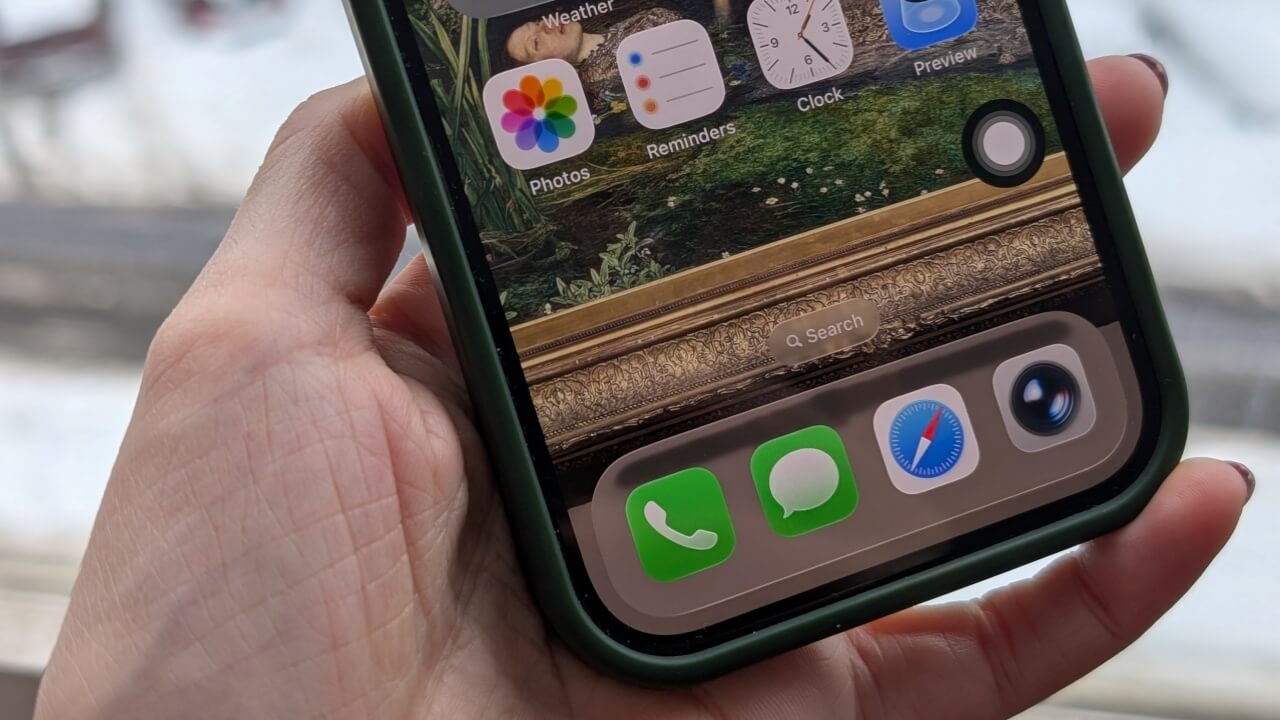
Ever since the iPhone X ditched the Home button, navigating on iPhone has meant mastering swipe gestures. But if you’re missing the simplicity of tap-based controls, there’s a helpful workaround built into your iPhone. Here’s how to set up a navigation bar-style option.
Why Get Navigation Buttons on iPhone
Unlike many Android phones, newer iPhones don’t have on-screen navigation buttons. Earlier iPhone models used to have a physical Home button, a detail that many longtime Apple users are nostalgic about.
For users switching from Android to iOS, the change feels even less intuitive (that’s not to say Android lacks gesture controls; here are a few worth exploring). Apple has fine-tuned its gesture controls to make them more intuitive and user-friendly, yet many people still favor the simplicity and convenience of navigation buttons. Gesture controls have a learning curve, but with navigation buttons, new or less tech-savvy users, such as seniors, don’t have to spend time discovering how these gestures work.
At the same time, tapping a button is often more reliable than swiping, especially for users who might be suffering from reduced dexterity, such as seniors.
While you can’t fully replicate Android-style navigation buttons on your iPhone, there are some workarounds worth trying, which we will detail below.
Add a Multi-Purpose Navigation Button on iPhone
On Android, the standard on-screen navigation buttons include the Home, App Switcher, and Back buttons. On iPhone, you can get access to only two of these.
On your iPhone, open the Settings app and navigate to Accessibility. Tap on the Touch option in the Physical and Motor section. Select AssistiveTouch.

On the next screen, at the top, toggle on AssistiveTouch.
A floating button should now appear on your screen. You can use your finger to move it around on your display and place it anywhere you like.

Next, in the Custom Actions section, select Single-Tap. From the list of available actions, select Home.
Go back and tap on Double-Tap. Find the App Switcher option in the list and select it.
Now whenever you tap the floating button, you’ll be taken to the Home screen. Double-tap it, and it will open the App Switcher screen.
Unfortunately, there’s no way to add a Back function to your on-screen navigation button. To do this, you’ll still have to rely on swiping from the left side of the screen. Alternatively, in some situations, you can use the Home function to go back.
You can expand your navigation bar beyond the simple two controls for Home and App Switcher.
On the AssistiveTouch page, tap on Single-Tap again, and this time set it to Open Menu. As for Double-Tap, set it to None.
Next, tap on Customize Top Level Menu. Here you can add the shortcuts you want the menu to include. By default, there are 6 shortcuts to customize, but you can add more or have fewer by pressing the +/- buttons.

Tap on a button to select an action. For instance, I opted to include Home and App Switcher first. Then I added four more: Lock Screen, Control Center, Restart, and Notifications Center.
Now, when you press the floating button, a menu showing all these options will pop up on the screen. This is an easy way to access various settings and menus on your iPhone without swiping or pressing buttons.
Using Back Tap as a Navigation Button
If you don’t want to have a floating button on your screen all the time, you can move your navigation bar to the back of the phone.
First, toggle off AssistiveTouch in Accessibility. Then go back to the Touch screen. Towards the bottom, you should find the Back Tap option. Select Double Tap. Set it to Home.
Move on to Triple Tap and set it to App Switcher.
Now all you have to do is tap your phone whenever you want to go back to the Home screen or view the App Switcher screen. This method has the advantage of being more subtle.
There’s a lot more you can do with Back Tap. For instance, here’s how to use it to trigger a full-on privacy mode.
