


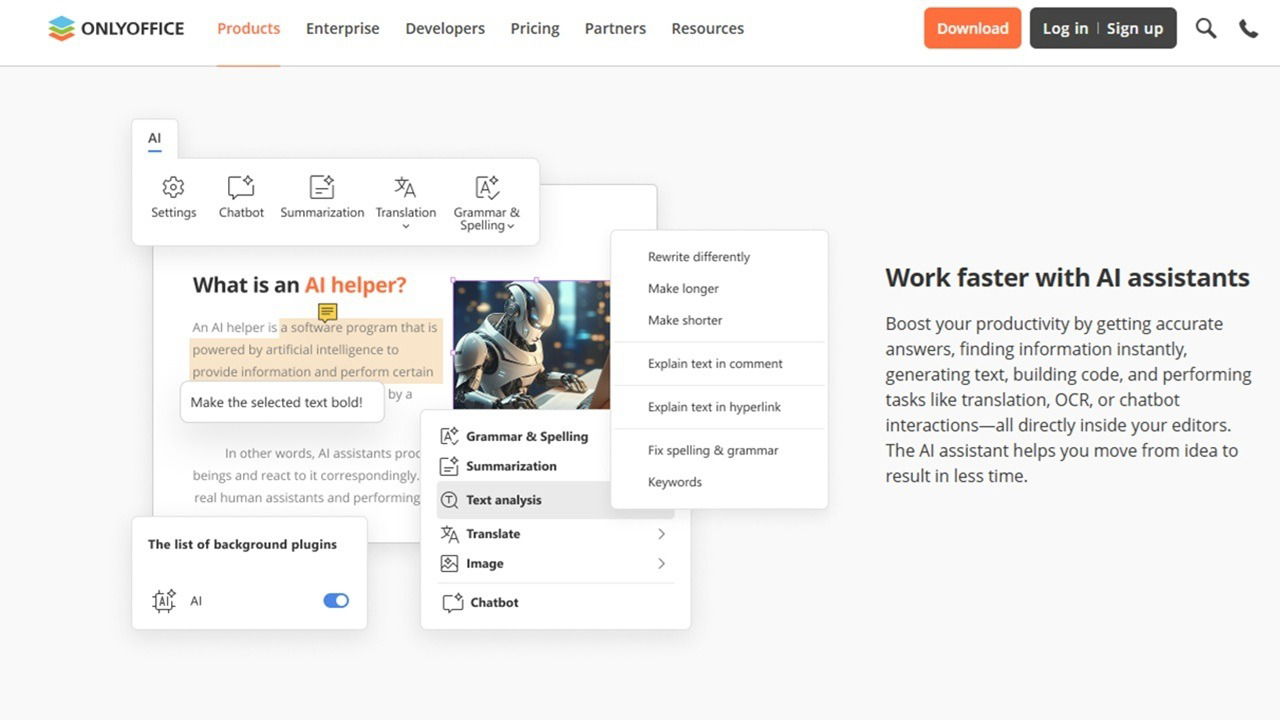
I was excited when ONLYOFFICE released AI support for it’s cloud-based productivity suite. Now, ONLYOFFICE Desktop Editors AI support lets me integrate my favorite AI tools directly into the desktop editor. I tried the new feature to see just how well it works.
This is a sponsored article and was made possible by ONLYOFFICE. The actual contents and opinions are the sole views of the author, who maintains editorial independence even when a post is sponsored.
Endless Options With AI Agent Support
The latest version of ONLYOFFICE Desktop Editors integrates AI agent support, but you’re not limited to what ONLYOFFICE chooses, unlike some other productivity suites that limit you to their proprietary models.
At launch, there’s support to connect:
- Anthropic
- Ollama
- OpenAI
- TogetherAI
- OpenRouter
Seeing Ollama on the list is rather impressive, as this lets you deploy local models straight from your device. This is perfect for improved privacy and security.
There’s even support for MCP servers to configure a more customized experience. You don’t have to set this up, but it’s rather useful for those who use AI frequently.
This update lets you handle a variety of common tasks, such as generating files, extracting data from files, answering questions, finding fillable sections of files, and even filling in forms.
The best part is that you’re able to add more than one AI model. After all, we all know some AI models are better at certain tasks than others.
Setting Up an AI Agent
The process for setting up an AI agent in ONLYOFFICE Desktop Editors is fairly straightforward. You’ll need two things first: an account with the AI platform you plan to use and an API key. ONLYOFFICE doesn’t offer direct access. This is only for integrating AI into ONLYOFFICE.
Download the latest version of ONLYOFFICE for free. Versions prior to 9.2 won’t have the AI agent feature.
Then, I only had to open ONLYOFFICE and click AI Agent in the left sidebar. Clicking Connect an AI Model got me started.

Click Add Provider and add the relevant details. Remember, you have to create an API key with your desired AI agent before you can add it to ONLYOFFICE Desktop Editors.
If everything’s successful, you’ll see your first AI agent pop up in the Connection tab. As soon as a provider is added, you can change settings for the MCP Servers and Web Search options.

I had OpenAI connected within a few minutes and that includes generating an API key with OpenAI.
Accessing the AI Agent
I love that ONLYOFFICE doesn’t shove AI in your face. It’s completely optional, and you only use it when you want to. It truly feels more like just an assistant.
Once you’ve added your chosen AI agent, it’s easy to access it at any time directly from the main ONLYOFFICE dashboard. Simply click AI Agent at the bottom left. Now, instead of prompting you to add an agent, you get the familiar AI chatbot-style window you’re used to when using AI agents on the Web.

From here, ask questions, add attachments, adjust settings, and choose between available models. The models will vary based on which AI provider you choose. I’d suggest enabling Web Search if you want to perform research within ONLYOFFICE. Click the Settings icon, and turn on Web Search.

By using the AI agent from the dashboard, you don’t even need to create a new document or open an existing one to start using the AI features. Of course, if you enable the AI Plugin, you can also use the same AI provider within new and existing documents.
When you create a document or open an existing one, right-click anywhere in the document, and select AI. Or, use the AI menu in the toolbar.
If you don’t see the AI option, open the Plugins menu in your document, select Plugin Manager, and choose AI.
The options include checking grammar, analyzing text, and bringing up the chatbot.

You’ll need to follow the prompts to choose which model(s) you want to use for various tasks. But you don’t have to set up any of this if you want to use the AI agent to create new documents, browse files, etc.
Using the ONLYOFFICE Desktop Editors AI
If you use the AI plugin, you have to first open a document or create a new one to start using the built-in AI features. For instance, I often used the Chatbot option to analyze my current document.

However, the latest version of ONLYOFFICE Desktop Editors lets you craft completely new documents from scratch simply from the AI Agent screen. A simple prompt lets you:
- Create new documents, spreadsheets, presentations, and PDFs in seconds
- Summarize and rewrite attachments
- Restructure content and attachments
- Brainstorm ideas
- Browse and search for files
To test this, I created a simple PDF event registration form for attendees to fill out their information and check off which events they’d like to attend.

In less than 10 seconds, I had a new PDF in ONLYOFFICE ready for me to edit as needed.

You can always tweak it in the AI Agent as well to create new versions as needed.
If you need to generate a spreadsheet, skip the tedious process of setting up rows and columns. Just let the AI Agent handle it for you. I created a spreadsheet filled with 30 rows of sample data for a tech startup in seconds.

Maybe you need to condense meeting notes or summarize a lengthy report. Sure, you could do it manually, but why? Just upload the file in the AI Agent, and let it do the heavy lifting. This is also useful if you need to quickly see the highlights of a document.
As an example, I asked the AI Agent to first create meeting notes for a two-hour meeting about a product called ONLYOFFICE with 10 participants. I then asked for a summary of those notes.
The result turned seven pages of notes into just two condensed pages with the key points.

More Than AI in Version 9.2
Admittedly, letting me add my own AI agent(s) in ONLYOFFICE Desktop Editors is the standout feature here. I love having control over which AI models I use.
My other favorite feature of version 9.2 is keyboard shortcuts. I’m a huge fan of saving time through shortcuts.
Open any document, click the File menu, and select Advanced Settings. Click Customize beside Keyboard Shortcuts. Either keep the defaults or create your own custom shortcuts. Personally, I enjoy having the choice to create my own to make them easier to remember.
As far as AI is concerned, there’s a shortcut for accessing the Chat Panel. You will use it often if you use AI often.

A few other notable features in 9.2 include:
- Change the color of the Redact option in documents. This is a must-have for better organizing confidential documents.
- Record macros. I have multiple tasks that I perform repetitively. Macros let me record these actions and do them in one click, saving me countless hours.
- Create fillable forms easier. New descriptive text labels make it easier than ever to create fillable forms that are user-friendly.
Try ONLYOFFICE Desktop Editors for free to see how the new AI agent support changes how you work. By not having to jump back and forth between an AI app or browser tab, I was able to accomplish more and stay focusedj easier.
