Close Menu
Financblog
    What's Hot

    Allegations of insider trading emerge over prediction-market bets tied to Iran conflict

    March 2, 2026

    Anthropic’s Claude tops App Store charts as backlash builds against OpenAI’s ChatGPT

    March 2, 2026

    Bank of Japan deputy governor says rate hikes likely to continue

    March 2, 2026
    Facebook X (Twitter) Instagram
    Financblog
    Facebook X (Twitter) Instagram
    • Home
    • Personal Finance
    • Passive Income
    • Saving Tips
    • Banking
    • Loans
    Financblog
    Home»Saving Tips»How to Convert HEIC Files to JPEG Directly on iPhone (No Apps Needed)
    Saving Tips

    How to Convert HEIC Files to JPEG Directly on iPhone (No Apps Needed)

    adminBy adminFebruary 17, 2026No Comments5 Mins Read
    Facebook Twitter LinkedIn Telegram Pinterest Tumblr Reddit WhatsApp Email
    Checking For Heic Iphone Featured
    Share
    Facebook Twitter LinkedIn Pinterest Email

    Ever since iOS 11, iPhones have been capturing images in HEIC/HEIF format by default. This usually goes unnoticed until you try to export an image and discover that some devices, apps, or websites don’t support it. As a result, you may find yourself having to convert HEIC files to JPEG files manually, which can be time-consuming. The good news is that your iPhone can assist you with this task, no third-party apps required. Here’s how.

    Why iPhones Save to HEIC by Default

    HEIC/HEIF stands for High Efficiency Image File and is the proprietary RAW file format in the Apple ecosystem. This format uses the efficient H.265 codec to compress images and can therefore deliver similar quality as a JPEG at a much lower file size.

    Basically, Apple adopted HEIC primarily for its efficiency, as the format cuts file sizes nearly in half, speeds up iCloud syncing, and reduces bandwidth and data usage when images are shared.

    You can easily check whether an image is in HEIC format or not. In the Photos app, navigate to the image in question and tap to open it. Press the small info button (i) at the bottom.

    Check the info next to your iPhone’s model to see the file format.

    Tapping on
    Checking For Heic Iphone Photos Format View

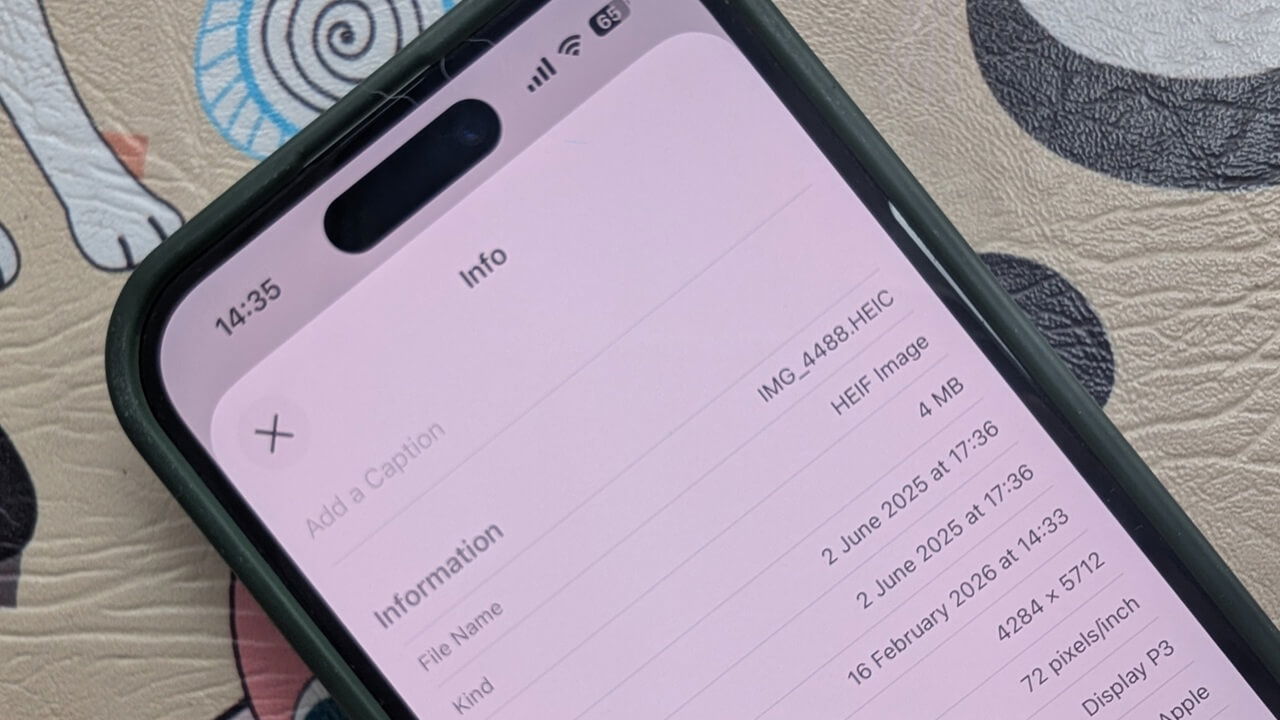
    You can also check a photo’s format from the Files or Preview app (if you’ve updated to iOS 26). In the first scenario, open the image and tap its name at the top. If it says Image underneath it, that’s your cue you’re dealing with a HEIC file.

    Checking photo format in Files app on iPhone.

    In the Preview app, tap the i at the bottom. This will show the image’s full information sheet. Check the File Name or Kind section to view the format.

    Tapping on
    Checking For Heic Iphone Preview Format View

    Convert a HEIC File to JPEG Directly on iPhone

    To avoid dealing with compatibility issues, it’s a good idea to convert HEIC files to JPEG before sending them out. Here’s how you can do this.

    In the Photos app, find the photo you wish to convert and press the Share icon.

    Tap on the Copy Photo option that appears underneath the row of apps.

    Sharing photo from Photos app on iPhone.
    Checking For Heic Iphone Copy Photo

    Now open the Files app on your phone and select On My iPhone (you might need to press Back a few times to access the Browse screen where the option is located).

    Long-press on an empty area and select Paste.

    Selecting the
    Checking For Heic Iphone Files Paste

    The photo should now appear. If you check, you’ll see it has been automatically converted to JPEG.

    Pasted image view in Files app on iPhone.
    Checking For Heic Iphone Conversion View Files

    Send the image(s) via email

    Another quick way to convert a HEIC file to JPEG is to send it via email, as the file gets automatically converted.

    Open the Photos app and go to the image in question. Then press the Share icon. Select the Mail app (or your preferred mail service) to attach the image to a new email. Send it to yourself.

    Sharing HEIC image to Mail app for conversion on iPhone.

    When you check the attachment, you’ll see the image is now a JPEG.

    I also noticed that if you transfer images using an app like Blip, they will arrive at their destination as JPEGs.

    Create a shortcut for bulk conversion

    If you constantly need to convert multiple HEIC files, you might want to create a shortcut to quickly convert them in bulk.

    Open the Shortcuts app and tap on the + button in the upper right. Identify the Search Actions field at the bottom.

    Tapping on the
    Checking For Heic Iphone Shortcuts Search Actions

    Use it to search for Select Photos. Select it to add it. Once this is added, make sure you enable the toggle for Select Multiple by pressing the downward arrow.

    Looking for
    Checking For Heic Iphone Shortcuts Select Multiple

    Next, go to the Search Actions field again and search for Convert image. By default, the conversion should result in a JPEG image. If it’s not set to that, tap on the file format to change to JPEG.

    Adding
    Checking For Heic Iphone Shortcuts Multiple Actions

    Once again, go to Search Actions and look for Save to Photos. The default saving location is Recents, but if you tap it, you can change it to something else.

    Finally, you can rename your shortcut by pressing the downward arrow at the top. You can opt to Add to Home Screen. This adds the shortcut to your home screen for easy access.

    Renaming new shortcut in Shortcuts app on iPhone.
    Checking For Heic Iphone Shortcuts Add Homescreen

    Now, when you launch the shortcut, your iPhone will ask you to select the images you want to convert.

    Wait a few seconds, then check the destination folder. Your JPEGs should be waiting for you there.

    Note: Shortcuts are powerful tools that can do many things. For example, you can set one up to combine two photos into a single side-by-side image. No extra apps needed.

    Change Default File Format to JPEG

    In case you don’t want to deal with file conversation, you can set your iPhone to shoot in JPEG instead of HEIC. On your phone go to Settings → Camera → Formats.

    Switch from High Efficiency to Most Compatible to have your iPhone save images as JPEG directly.

    Navigating to Camera
    Checking For Heic Iphone Shortcuts Settings Most Compatible

    Now, if you received a HEIC image, then you will have to convert it somehow. Here are your options if you are using a Windows device.

    Apps Convert Files HEIC iPhone JPEG Needed
    Share. Facebook Twitter Pinterest LinkedIn Tumblr Telegram Email
    Previous ArticleU.S. stock futures flat as investors digest ongoing tech selloff
    Next Article Five-Step Practical Guide To Paying Your College Bill
    admin
    • Website

    Related Posts

    How to Move Your WhatsApp Stickers to iMessage

    February 28, 2026

    DoNotNotify Lets You Block Android Notifications Without Disabling Everything

    February 28, 2026

    Why Self-Hosting Isn’t Always Better Than Subscriptions

    February 28, 2026
    Add A Comment
    Leave A Reply Cancel Reply

    Top Posts

    Allegations of insider trading emerge over prediction-market bets tied to Iran conflict

    March 2, 2026

    Anthropic’s Claude tops App Store charts as backlash builds against OpenAI’s ChatGPT

    March 2, 2026

    Bank of Japan deputy governor says rate hikes likely to continue

    March 2, 2026

    Subscribe to Updates

    Get the latest sports news from SportsSite about soccer, football and tennis.

    About Us

    Welcome to FinancBlog, your trusted online resource for personal finance insights, money management tips, and financial education designed to help you make smarter financial decisions.
    At FinancBlog, our mission is simple: to make personal finance easy, understandable, and accessible for everyone. Whether you are looking to save more money, understand banking products, explore loans, or build passive income streams, we provide well-researched and easy-to-read information to guide you.

    Facebook X (Twitter) Instagram Pinterest YouTube
    a1
    Top Insights

    Allegations of insider trading emerge over prediction-market bets tied to Iran conflict

    March 2, 2026

    Anthropic’s Claude tops App Store charts as backlash builds against OpenAI’s ChatGPT

    March 2, 2026

    Bank of Japan deputy governor says rate hikes likely to continue

    March 2, 2026
    Get Informed

    Subscribe to Updates

    Get the latest creative news from FooBar about art, design and business.

    © 2026 inancblog.com. All rights reserved. Designed by DD.

    • About Us
    • Contact Us
    • Terms & Conditions
    • Privacy Policy
    • Disclaimer

    Type above and press Enter to search. Press Esc to cancel.

    Ad Blocker Enabled!
    Ad Blocker Enabled!
    Our website is made possible by displaying online advertisements to our visitors. Please support us by disabling your Ad Blocker.