

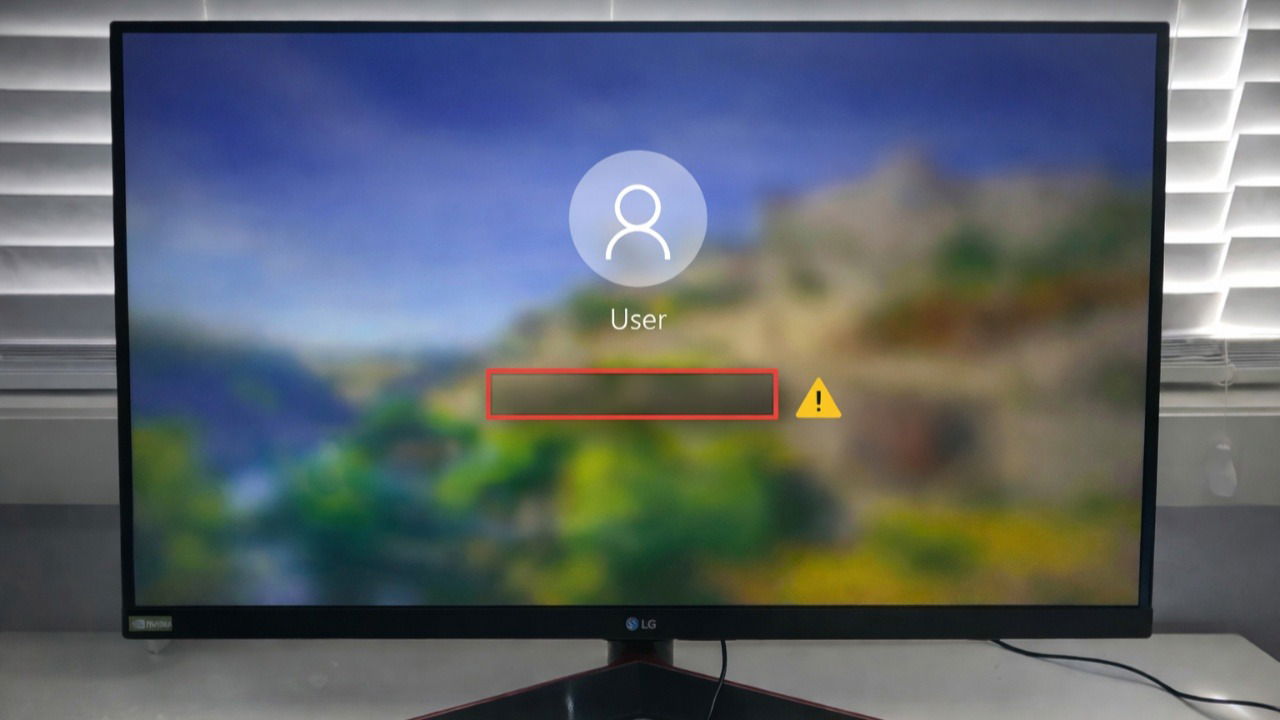
There have been situations where you leave your PC, and it automatically activates the lock screen after some time. When you return and want to log in, the password or PIN input box is nowhere to be found. This is a common Windows issue and has multiple culprits. Since you cannot access your desktop to run troubleshooting tools, you will need to use recovery methods that work from the outside.
Typing Password Blindly
Sometimes the login User Interface is loaded but hidden, or the display driver is just hanging. For starters, try typing your password or PIN blindly and press Enter to try to log in. If it were just a display glitch, this might log you in.
If that’s not the case, pressing Ctrl + Alt + Delete simultaneously can force the secure sign-in screen to overlay. If this works, you will immediately see the password or PIN box.
If the issue is a display freeze, you can restart the video driver without restarting your PC, just press Win + Ctrl + Shift + B. Once you do this, you should hear a beep, and the screen will flash black for a second. When it returns, the login UI might reload correctly.
Force a Restart into Safe Mode
If the more straightforward solutions fail, you need to enter Safe Mode. This basically loads Windows with a basic set of drivers, bypassing the software or visual glitch that is hiding your password or PIN box.
You can try to enter to Safe mode using any of these methods, but if they don’t work, the last method is to force the Advanced Startup menu from the lock screen or by using the power button:
- Hold down your physical power button until your PC turns off. Then, turn it back on.
- As soon as you see the Windows logo, hold the power button again to force it off. Repeat this 3 times.
- On the fourth boot, let the PC run. You should see Preparing Automatic Repair appear on your screen while it loads.
Once you are in the blue Recovery environment, select Troubleshoot → Advanced options → Startup Settings.


Then, click the Restart button.

Once your PC reboots, press 4 or F4 to enter Safe Mode.
Don’t be alarmed, Windows will now load into a lower-resolution desktop. It should allow you to log in because the password box almost always works in Safe Mode.
Once you’re in, simply Restart your PC normally in that Safe Mode. This will clear the temporary cache that was causing the glitch.
Disable Fast Startup
If restarting from Safe Mode didn’t fix the issue permanently, Fast Startup is likely the actual problem.
As a feature, Fast Startup is somewhere in the middle of shutting down and hibernating your PC. It essentially saves the state of your system kernel to the hard drive, so it boots faster next time. However, if that saved state includes the missing password box glitch, Windows will basically restore the glitch every time you turn on your PC.
You can disable this from Safe Mode, or if you manage to log in once:
- Open the Control Panel and go to Hardware and Sound → Power Options.
- Click Choose what the power buttons do in the left sidebar. Then, click the link at the top that says Change settings that are currently unavailable. This normally requires you to have the rights of an administrator.


Under Shutdown settings, uncheck the box for Turn on fast startup (recommended). Then click Save changes.

Now, restart your PC, and Windows will perform a fresh boot, clearing out any corrupted UI data.
Repair Corrupted System Files
If the issue persists, the files responsible for the login screen might be corrupted. You can fix them using the Command Prompt in the Recovery Environment.
- Open the Advanced Startup menu again, using the Hard Power Off method described above.
- Go to Troubleshoot → Advanced options → Command Prompt.
- In the black window that appears, type sfc /scannow and then press Enter.
The System File Checker (SFC) will scan your Windows installation for damaged or missing files and attempt to repair them automatically from a local backup. Ideally, it can take about 15–30 minutes.
Pro Tip: If you’ve recently customized your lock screen using third-party tools or registry tweaks, these can sometimes break the login UI. However, if you’re interested in customizing it safely, check out our guide on Windows Registry hacks to customize your lock screen.
Check for Stuck Keys and USB Issues
Sometimes, the problem isn’t software — it’s hardware. Your Windows can get confused if it detects a peripheral constantly sending a signal, which prevents your lock screen from lifting to reveal the password or PIN box.
Try Unplugging USBs
Unplug everything from your PC except your monitor and power cable. This includes your:
- USB Mouse and Keyboard, only temporarily.
- Bluetooth devices, especially for your headphones or controllers.
- Any external Hard Drives.
- Gaming Controllers you may have connected, because controllers plugged in are a common cause of this glitch.
Once everything is unplugged, restart your PC. Plug in only your keyboard and see if the login box appears.
Check Keys
Make sure that no keys on your keyboard are physically stuck down. A stuck Spacebar, Esc, or Ctrl key can end up interfering with your lock screen trigger. So, if you are using a laptop, check that nothing is resting on the trackpad.
If you are the only user on your PC, you might consider removing the login requirement entirely. You can get it to automatically log in to your Windows PC to skip the password screen, and this glitch, permanently.
If you managed to get the box back but realized you can’t remember the login credentials, don’t panic. You can check out our guide on how to reset your Windows password from the lock screen.
