


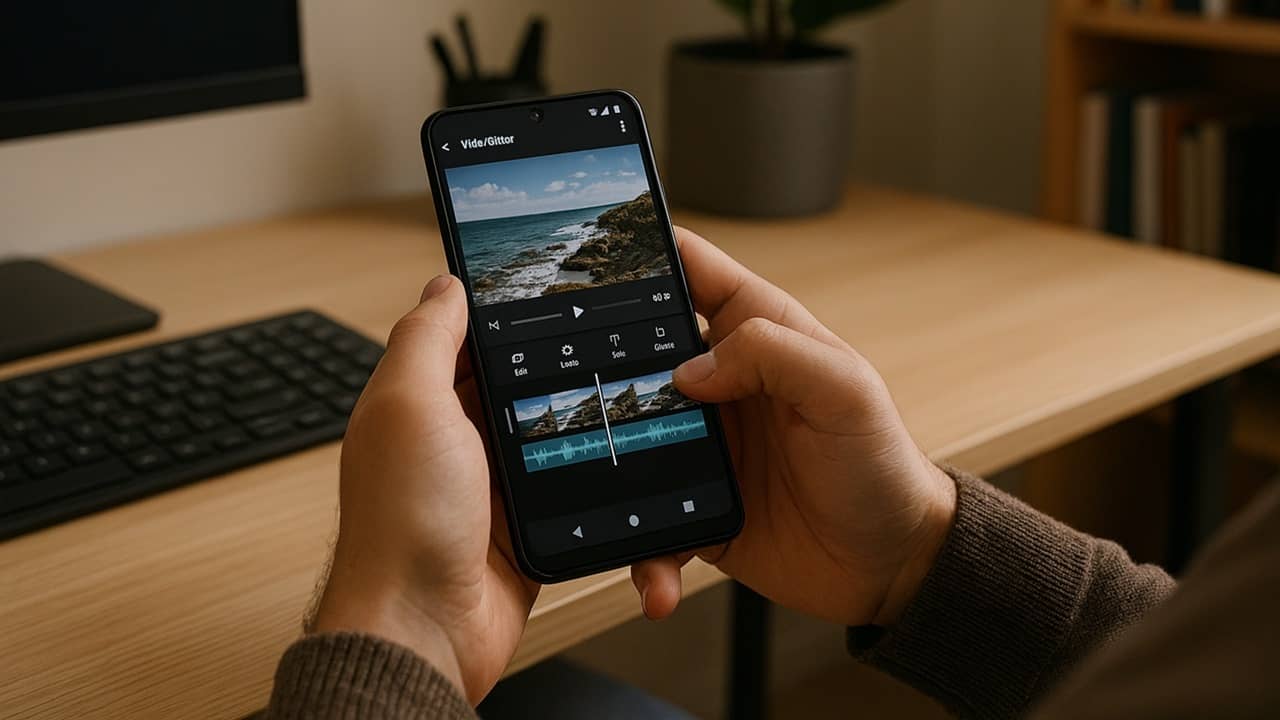
Did you record the perfect moment with your phone only to discover the video’s flipped the wrong way? Just rotate video in Android to easily switch between horizontal and vertical and vice versa. It’s free to do, and there are multiple ways to do it.
Rotate Android Videos with Google Photos
If you automatically upload photos and videos to Google Photos, your video is already there. If your videos aren’t uploaded automatically, either open Google Photos and give it access to your Gallery or open your video, tap the Share icon, and select Photos to upload it. Tap Upload to finish.

I use the latter method since I don’t back up items to Google Photos anymore. I prefer self-hosted alternatives.
Open the video in Google Photos and tap it to open the menu. Tap Edit at the bottom, and tap Crop → Rotate (small square with a curved arrow icon). Then, tap Rotate in the bar that appears until your video is the right orientation.

Just know that if you recorded the video in portrait mode, there is no way to change the orientation. Google Photos will only rotate it.
Tap the check mark to save it. This saves it to Google Photos. You’ll need to download it back to your phone if you want a local copy.
Rotate a Video on Android on Samsung
As a Samsung user, I prefer using Samsung’s built-in photo and video editing tools to rotate videos. It’s just as quick as Google Photos, but I don’t have to upload anything.
Open your Gallery and tap your video to open it. If you don’t see any options at the bottom of the video, tap it again to bring up the menu. Tap Edit (pencil icon). Tap the Crop/Rotate button and tap Rotate (small square with a curved arrow) until it’s rotated how you want it.

Tap Save when you’re done.
Rotate Videos with the Smart Video Rotate and Flip App
The Smart Video Rotate and Flip App is another option. It’s free, but the ads are rather intrusive at times. Otherwise, I find it extremely easy to use without a bunch of extra editing features I don’t really need.
Grant the app permission to access your photos and videos. Then, tap Select to view the video list. Select the video you want to rotate. Tap one of the rotate arrows to rotate a video on Android.
Once you’re done rotating your video, tap on Apply, and name the video. Choose where you want to save it (tap Change) and you’re done.

If you want to record videos in the app, tap Select and tap Record. This lets you record and edit in the same app. It works exactly the same as your built-in camera app.
Rotate Videos With InShot
If you want to know how to rotate a video on Android along with making other major edits, I highly recommend InShot. It’s similar to CapCut, but doesn’t have all the issues plaguing CapCut. It’s a far more advanced video editor that works great if you want to also add effects, transitions, add filters, and even make collages. Of course, it also rotates video.
Under Create New, tap Video and select your video. Tap the checkmark at the bottom right to open the editor. Scroll through the menu options under the video until you see Rotate. Tap it and use the Rotate arrow to rotate the video. Tap the check mark to return the editor. Tap Export to save your video.

There is one major downside. The free version adds a watermark at the bottom. Tap the watermark before you export and tap Free Remove, if available. I’ve always had this option. I watch a short ad and the app removes the watermark.

Rotate YouTube Shorts on Android
While most YouTube Shorts are shot in portrait mode, some actually look better in landscape orientation. If you just want to rotate video on Android in the YouTube app, just use the new YouTube Shorts landscape accessibility setting. Currently, it doesn’t work on iPhone.
It’s available for both free and premium users. Just keep in mind, trying to view all Shorts in landscape may make some of them look pretty weird.
The Best Method to Rotate Android Videos
Rotating any video on your Android device doesn’t take very long. If your phone’s crammed full of photos and videos with no room for more apps, I recommend using Google Photos or Samsung’s photo editor if you’re a Samsung user.
If you need more advanced capabilities, opt for InShot. Just remember to watch an ad to remove the watermark. If you’re rotating videos from your Android phone on a computer, try using VLC instead.
Smart Video Rotate and Flip
Price: Free (with in-app purchase)
InShot
Price: Free (with in-app purchase)
