

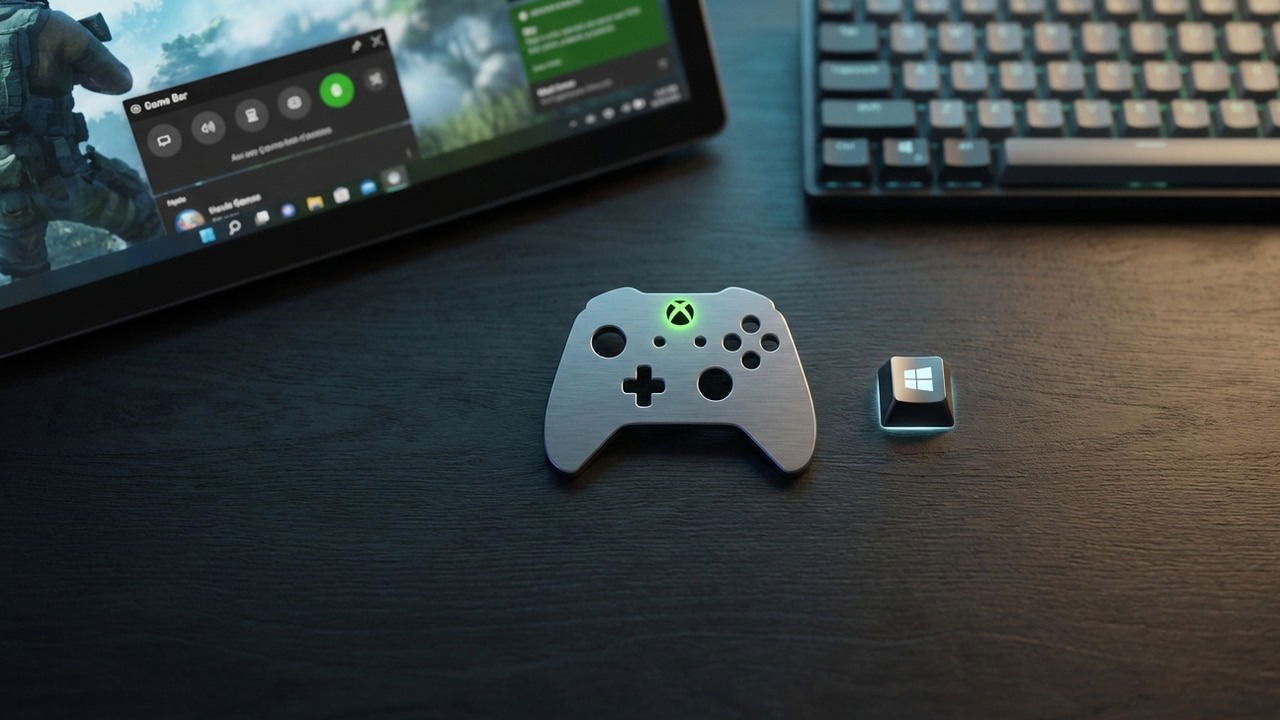
The Xbox Game Bar is a built-in app in Windows that’s tailored for users who want to immerse themselves in gaming while also doing other tasks on their PC. It offers a hassle-free gaming experience. Here we show you six ways to maximize the convenience it offers.
1. Take Screenshots and Record Your Screen Using Xbox Game Bar
While Windows already has the Snipping tool for taking screenshots and recording the screen, Xbox Game Bar also offers the same functionalities, but it’s optimized for gaming. Below are some reasons you want to use the Game Bar for taking screenshots and recording the screen:
- You can quickly take screenshots or record gameplay with a keyboard shortcut without launching secondary interfaces that may interrupt the game.
- Comes with a built-in retroactive recording feature to record and save what has already happened.
- Manage individual app audio for recordings.
- It uses the GPU for video encoding, which leads to less performance impact and smoother recording even during high-movement scenes.
To use the Xbox Game Bar’s screenshot and record feature, you need to be in an active window of any app, software, or game. Note that the tool can’t screenshot or record the Windows desktop or File Explorer.
Open any app, software, or game on your computer. Press Windows + G to launch the Xbox Game Bar or launch it from the Start menu.
Click the Capture widget, and you’ll see options to take a screenshot or capture a video along with the app/game it will capture. Click on the Take screenshot button here to quickly take a screenshot. You can also snap a screenshot without launching the Xbox Game Bar by pressing the Win + Alt + PrtSc keys.

To record the screen, you’ll find two options here. You can either enable the Record what happen feature that records the last 30 seconds (up to 10 mins) continuously to save when needed, or start a new recording on demand.
Click on Record last 30 seconds option to enable the feature. Now anytime something worth recording happens, press Win + Alt + G to save it. Of course, this feature has some performance impact as it continuously records the screen, but it’s minimal on newer hardware.

You can click Start recording to record the current app. The recording will only last until that app is in focus; if you switch focus, the recording will stop. You can also use the Win + Alt + R keyboard shortcut to quickly start or stop a recording.

To further customize these options, open Windows Settings and go to Gaming → Capture. Here you’ll find settings to have granular control over capture options.

Good to know: missing the classic volume mixer in Windows 11? Here’s how to bring it back.
2. Use Gaming Copilot to Get Help in Games as You Play
You can access Copilot from the Game Bar to ask it questions about the game you play. It can detect what game you are playing and answer questions according to context. You can even talk to Copilot as you play, and it will use screenshots to learn what you are doing and answer accordingly. For example, you can ask it how to beat a boss, optimize a build, or find the correct path in a game.
Click on Gaming Copilot in the Xbox Game Bar or press Alt + G to directly launch it. Here, you can start typing to ask questions. It uses your Xbox profile to understand what games you play and which game you are playing on your PC. However, if you want it to take a screenshot of your game to answer, you’ll have to move to the Talk tab and ask a question there.

3. Access the Web In-Game with Microsoft Edge Game Assist
If you feel like continuously alt-tabbing to view content in a browser tab, you can instead bring it on top of your game using Xbox Game Bar. With the Microsoft Edge Game Assist widget, you can add a small browser window as an overlay on your game. In it, you can open any website you like; perfect to follow guides as you play or watch your favorite show while playing.
To access it, click on the Microsoft Edge Game Assist widget, and you’ll see a vertical browser window with a search bar. While it doesn’t have all browser features, it’s perfect for quickly searching for any website. It still uses your Edge browser data, like history, passwords, and cookies, for a personalized experience.

4. Adjust Sound Mix and Voice Volumes
Xbox Game Bar also lets you individually manage app volume and mix voice sources to have complete control over audio input and output.
Open the Audio widget and switch to the Mix tab to change your output device and adjust the output device volume. Additionally, you can calibrate the volume for each open app on the list.

Go to the Voice tab in the same window to select your input/output devices. Here, you can separate which input/output device to use for voice communication, allowing you to dedicate separate devices for game sounds and voice chat.

5. Monitor Hardware Performance and Usage
The Xbox Game Bar lets you monitor your hardware usage and FPS. It also enables you to view the apps that are using your hardware and the percentage of use. Follow the steps below to use this feature:
Open the Performance widget, and you’ll see the percentage that your CPU, GPU, VRAM, and RAM are using based on what you’re running on your PC. You can also view your FPS in this area.

Click on the Performance options button to tweak the information displayed in this area. You’ll be able to change the graph position, accent color, metrics, and more.

You can also view which apps are using the most resources, so you can close them to optimize your PC for gaming. To do so, open the Resources widget, and you’ll see which apps have a low, medium, and high impact on your PC’s performance.

You can also click on the Show advanced view button to see a more detailed view. The expanded view will show you what percentage of your CPU, GPU, RAM, and hard disk is in use by the apps you’re currently running. For example, you can track RAM performance to see what’s bottlenecking your PC and causing stuttering.

Tip: if you have one of Microsoft’s gaming consoles at home, these are some of the essential Xbox accessories you need to pair it with.
6. Listen to Music on Spotify
The Xbox Game Bar has a Spotify section that lets you sign in to your Spotify account and cycle through your playlist without switching to the Spotify app. Before following the instructions, make sure you have Spotify installed on your computer and that you’ve logged in with your account and password.
Click on the Spotify widget on the Xbox Game Bar. Here, click on Start Listening and sign in to your Spotify account.

While listing, if you want to listen to a different playlist, click on the expand button.

You can also click on the playlist cover to play the playlist you want to listen to.

If you are unable to find any of these widgets on the Game Bar, click on the Widgets Menu (dots button) to access all widgets. In the same menu, you can visit the Widget Store to download more Game Bar widgets for added functionality. You can further enhance your experience by calibrating your controller with your PC.
